
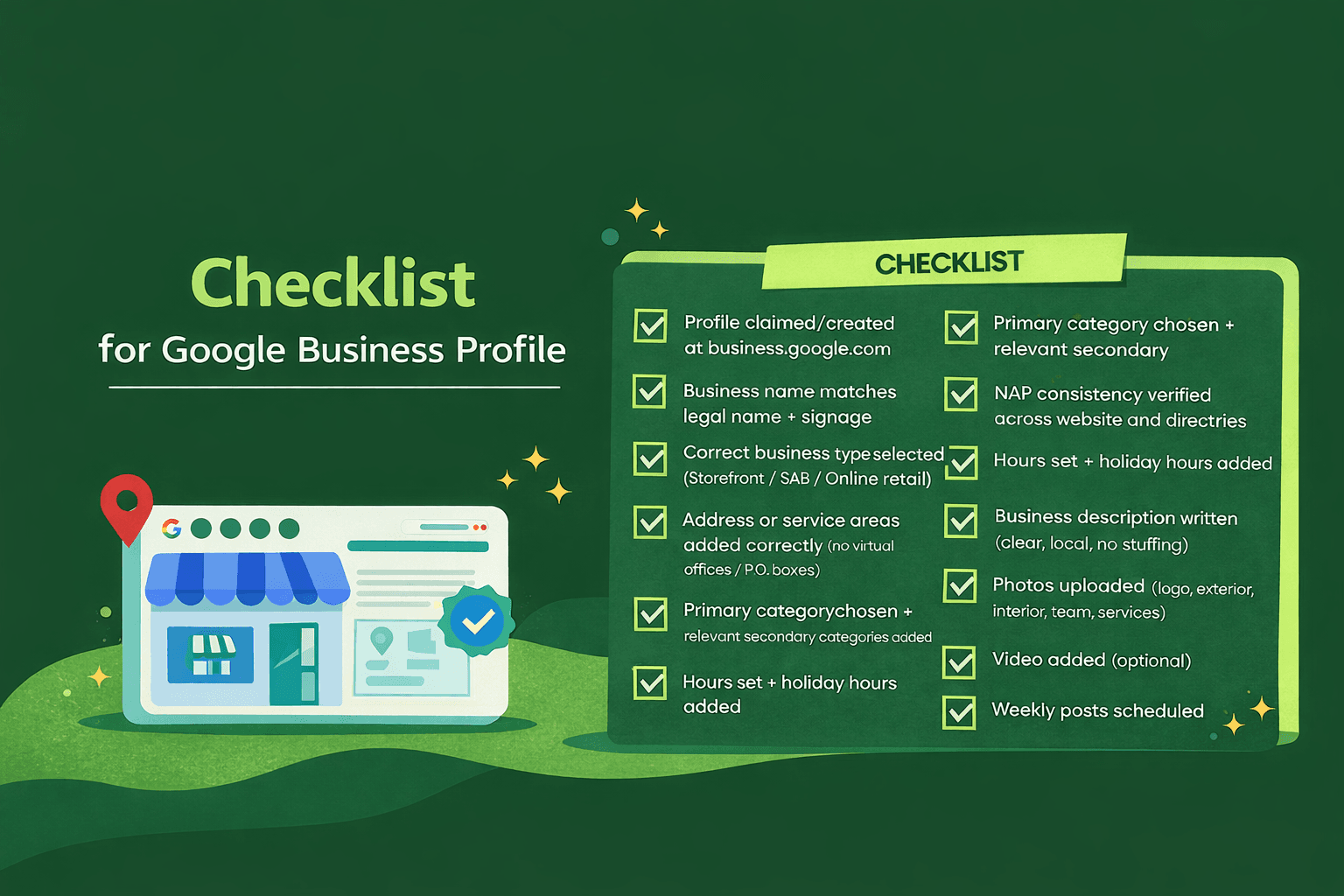
Setting up a Google Business Profile (GBP) is one of the most effective ways to increase your visibility on Google Search and Maps. For California small businesses, where competition is high and local traffic matters, a complete and well-maintained GBP can help drive more calls, clicks, and foot traffic. It gives you a verified presence in the exact place your customers are searching.
Why You Need a Google Business Profile in 2026
Google is the primary platform people use to discover local services, compare businesses, and decide who to contact. In California’s highly competitive market, appearing in Google’s Local Pack is no longer optional for businesses that rely on local customers. A Google Business Profile allows you to:
- Appear in the Local Pack on Google Search
- Build trust with verified information and authentic customer reviews
- Control how your business is presented across Google’s properties
- Ensure inclusion in Google’s new AI-powered overviews and local voice results
Google also uses GBP data for its Search Generative Experience (SGE) which powers AI answers and local recommendations. Businesses without complete or verified profiles may be excluded from this high-visibility section of results.
What You Need Before You Start
To save time, prepare this information in advance:
- Google Account: Sign in or create one for your business.
- Legal Business Name: Match business registration and signage. Avoid adding city or service keywords.
- Physical Address or Defined Service Area: If customers visit, provide an address. If you travel to them, list your service area.
- Local Phone Number: Use a California area code (e.g., 415 for San Francisco, 310 for Los Angeles).
- Website URL: A professional site boosts credibility and SEO.
- Business Categories: Primary and up to 9 relevant secondary categories.
- Business Hours: Include regular and holiday hours.
- Business Description: Briefly explain what you do, where you serve, and what makes you different.
- Photos and Logo: Real, high-quality images. Avoid stock photography.
- Short Video (Optional): Showcase your space or service in action.
Step-by-Step Setup Guide
Step 1: Create or Claim Your Profile
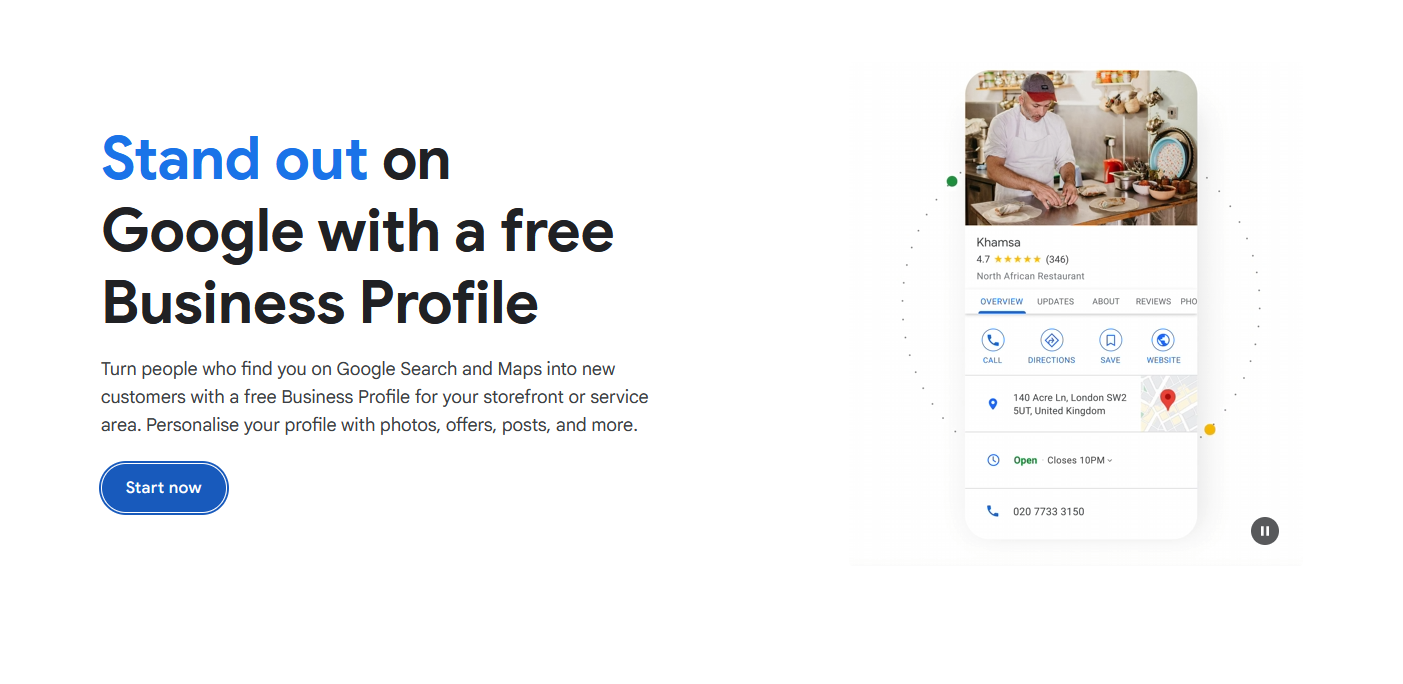
- Visit business.google.com and click “Start now”
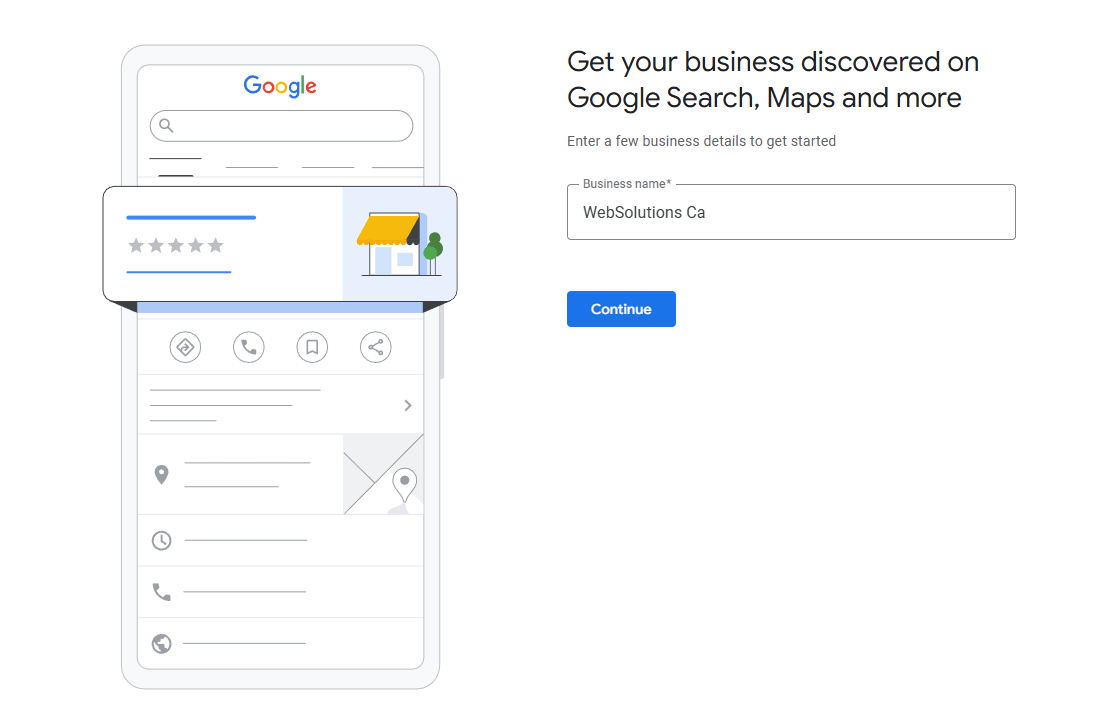
- Search your business name. Claim if it appears or add it if it doesn’t.
- Use your legal name. Don’t include keywords like “best” or “near me”
- Match the name to your signage and website branding
Step 2: Choose Business Type
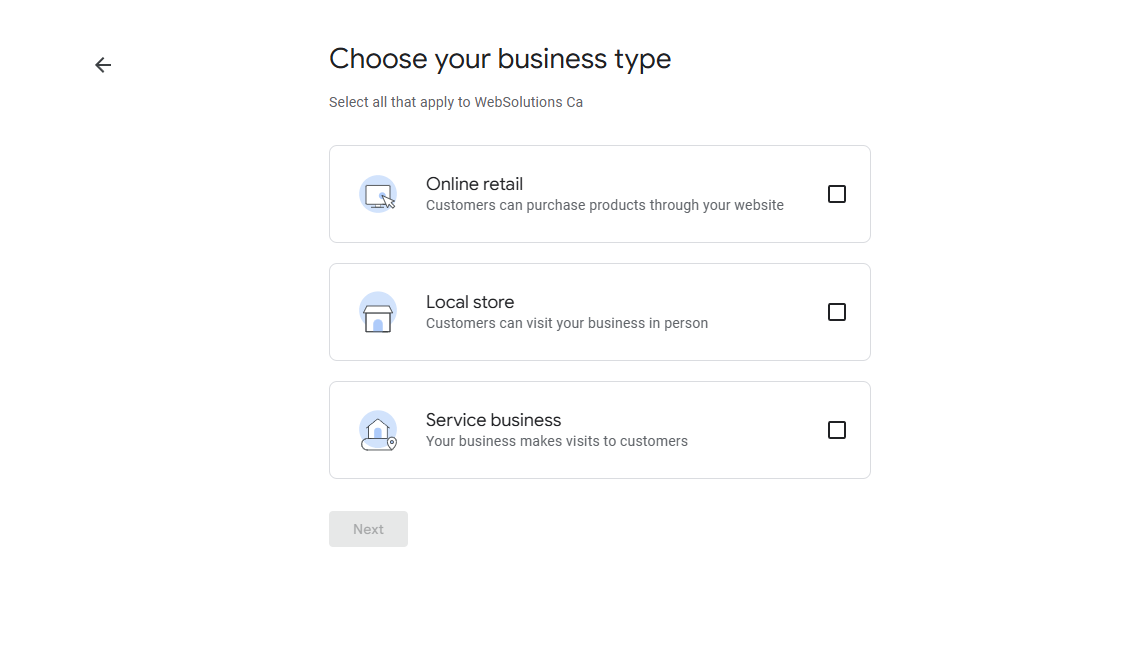
- Storefront: Customers visit your business
- Service-Area Business (SAB): You visit or serve customers at their locations
- Online Retail: Customers can purchase products through your website
Your business type affects visibility. Service-area businesses won't show a map pin but appear in surrounding service locations.
Step 3: Add Address or Service Area
- Provide a real address if you have a storefront
- Leave address blank and list cities/counties if you're an SAB
- Avoid virtual offices or P.O. boxes
Examples of valid service areas: “Santa Monica, West Hollywood, Glendale, Pasadena”
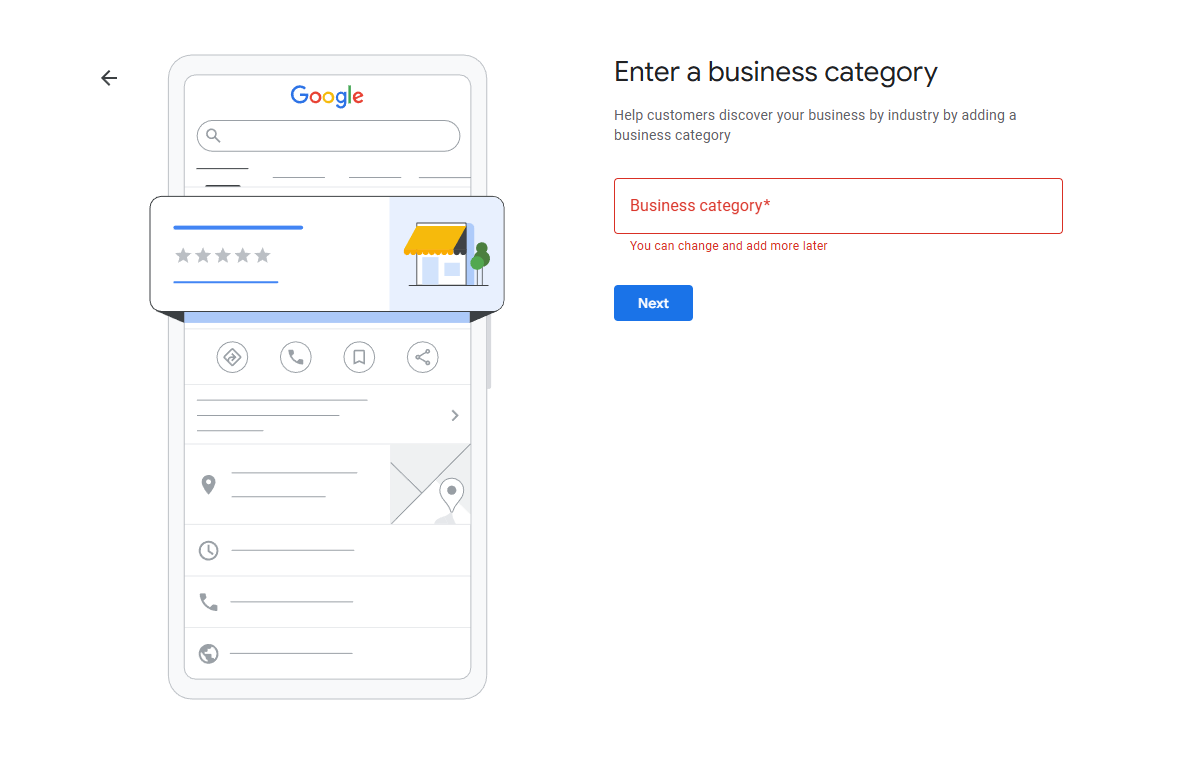
Step 4: Select Categories
![gmb category selection screen][/step-4.png]
- Choose one accurate primary category
- Add up to nine secondary categories that match your services
Example: A “Landscaping Company” may also choose “Tree Service,” “Irrigation Equipment Supplier,” and “Lawn Care Service”
Use Google’s suggested categories. Don’t invent your own or stack unrelated ones.
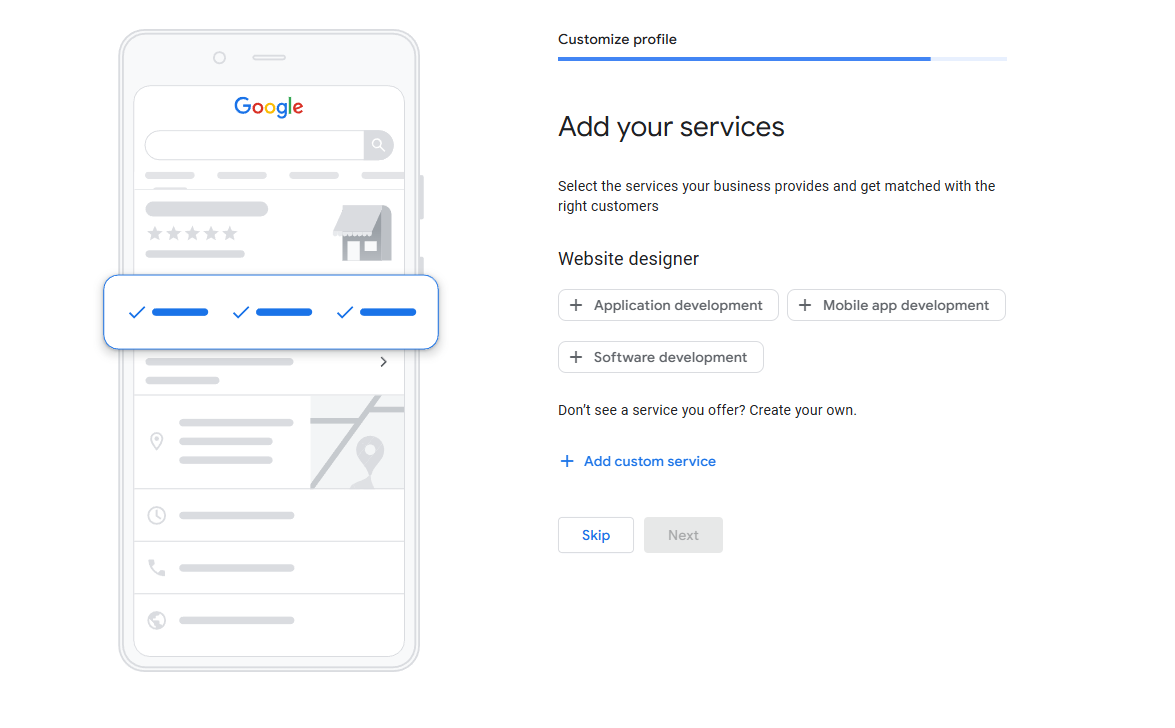
Step 5: Enter Contact Info
- Use a local number. Toll-free numbers reduce local trust.
- Add your website link
- Ensure your business name, address, and phone (NAP) are identical across all platforms
Step 6: Set Business Hours
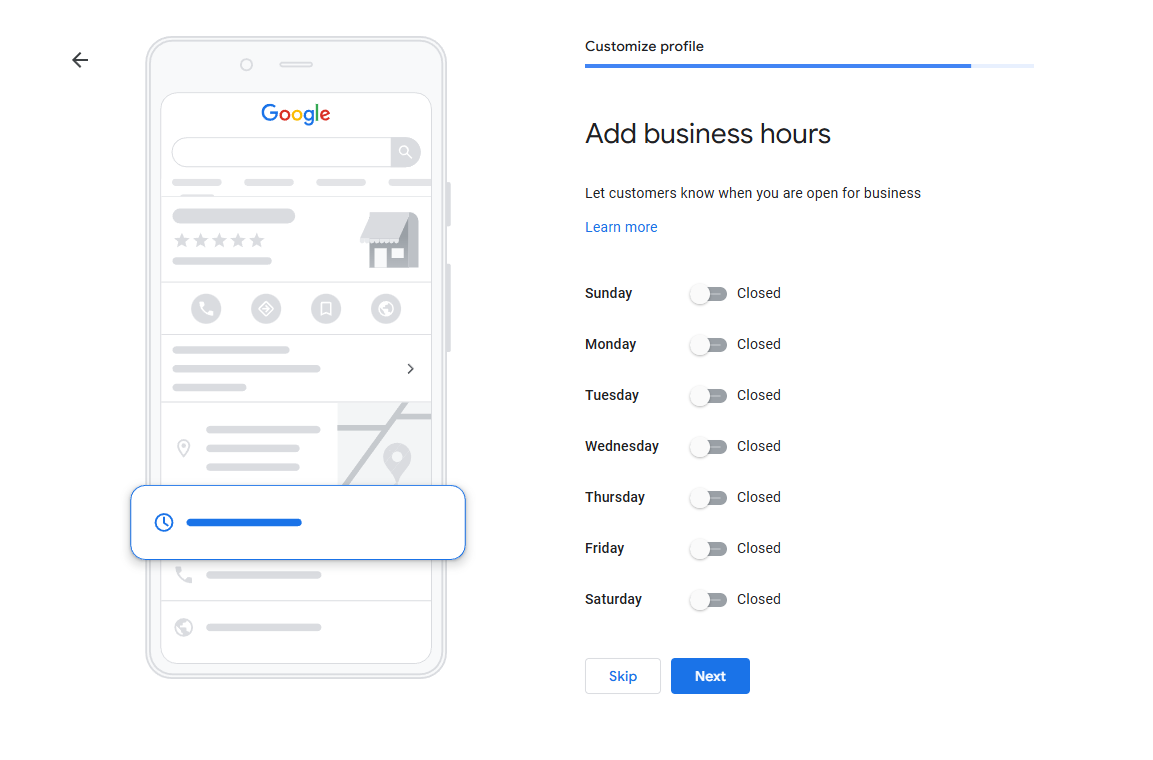
- Provide standard hours by day
- Add special hours for holidays (e.g., Labor Day, Christmas, Lunar New Year)
- If hours change seasonally (e.g., summer vs. winter), update them
Step 7: Write a Business Description
Use this 750-character space to:
- Describe what your business does
- Highlight your local service (“serving East Bay since 2012”)
- Mention main services naturally (e.g., “We offer kitchen remodels and design consultations”)
Avoid keyword stuffing, emojis, or sales hype.
Step 8: Add Photos and Videos
- Upload clear photos: logo, exterior, interior, staff, products, services
- Videos (up to 30 seconds) can significantly boost engagement (walkthroughs, testimonials, demos)
- Real photos outperform stock content
Step 9: Verify Your Business
Verification is required to unlock full access. Choose the method Google offers:
| Method | Description |
|---|---|
| Postcard by Mail | Google sends a code to your business address |
| Phone or Text | Code sent to your business number (if eligible) |
| Email Link | sent to your verified business email |
| Video Recording | Upload a video showing signage, tools, workspace |
| Live Video Call | Show your space in real-time to a Google rep |
You won't be able to choose a verification method manually. Google decides which verification process is needed for your business and will display the required option during setup. This helps prevent spam and ensures listings are accurate.
After Verification: Optimize and Maintain
Complete All Fields
- Add attributes (e.g., women-owned, bilingual)
- List services or menu items
- Add FAQs to your Q&A section
Post Weekly Updates
- Promotions, events, new products
- Include images and CTA buttons (“Call Now”)
- Posts last 7 days, so refresh weekly
Manage and Respond to Reviews
- Ask happy customers for reviews via email, text, or receipts
- Respond to every review, especially negatives
- Never buy or fake reviews
Upload Photos Monthly
- Fresh images boost engagement and visibility
- Include seasonal decor, team events, product shots
Enable Messaging
- Allows customers to message you directly via Maps
- Respond promptly (Google shows your average response time)
- If you can't reply quickly, disable messaging
Use Insights to Track Performance
- See how customers find you
- Monitor searches, direction requests, website clicks
- Use trends to improve categories, content, or offers
Local SEO Tips for California Businesses
- Use regional identifiers (e.g., “Serving Los Feliz and Echo Park”)
- Stay compliant with local licensing (especially for contractors, real estate)
- Highlight bilingual services (e.g., “Se habla español”) if applicable
- Avoid claiming cities you don't operate in
Avoid These Mistakes
- Keyword stuffing in your business name
- Creating multiple listings for the same location
- Using fake addresses
- Ignoring customer reviews
- Posting outdated information
Final Checklist
- Profile claimed/created at business.google.com
- Business name matches legal name + signage
- Correct business type selected (Storefront / SAB / Online Retail)
- Address or service areas added correctly (no virtual offices / P.O. boxes)
- Primary category chosen + relevant secondary categories added
- NAP consistency verified across website and directories
- Hours set + holiday hours added
- Business description written (clear, local, no stuffing)
- Photos uploaded (logo, exterior, interior, team, services)
- Video added (optional)
- Verification completed
- Weekly posts scheduled
- Review request process in place
- Messaging enabled only if you can respond fast
- Insights checked monthly
Ready to Grow?
Your Google Business Profile is often the first impression you make on potential customers. Set it up completely, keep it active, and align it with your broader local SEO strategy. Whether you're a Pasadena florist or a Fresno tax pro, your GBP is a direct path to more visibility and better trust in your community.
Need Help Optimizing and Ranking Higher on Google?
Setting up a Google Business Profile is only the first step. If you want to optimize your profile, rank higher on Google Search and Maps, and turn visibility into real leads, our team can help.
We help California businesses improve local rankings, manage Google Business Profiles, and build complete local SEO strategies that drive calls and customers.