
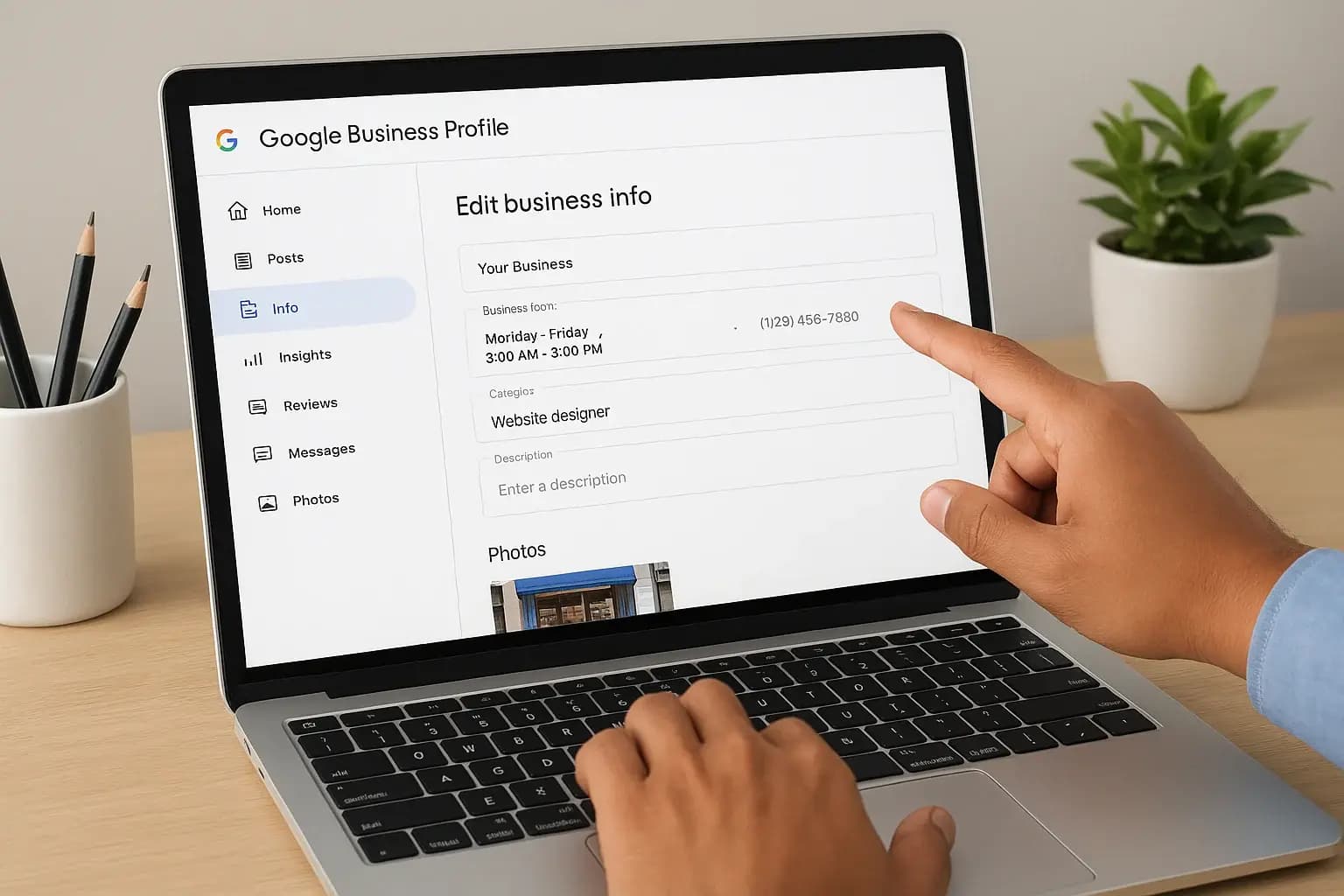
Wrong hours, an old phone number, or a stale photo on your Google listing costs you customers before they even call. If someone in Costa Mesa or Irvine searches for your service and finds outdated information, they move to the next result. Fixing this takes minutes once you know where to look, and that's exactly what the google business profile editor is for.
This guide walks you through how to edit Google Business Profile details step by step, from logging into the right dashboard to updating your address, hours, services, and photos so they match reality. You'll also learn how to spot fields that require verification versus ones you can change instantly, plus a few edits business owners commonly overlook that hurt local search rankings.
We work with small businesses across Orange County every day, and a messy or outdated Google profile is one of the most common reasons leads dry up. Below, we'll cover editing Google Business Profile information section by section, so by the end you'll have a listing that actually reflects your business and works to bring in calls instead of turning searchers away.
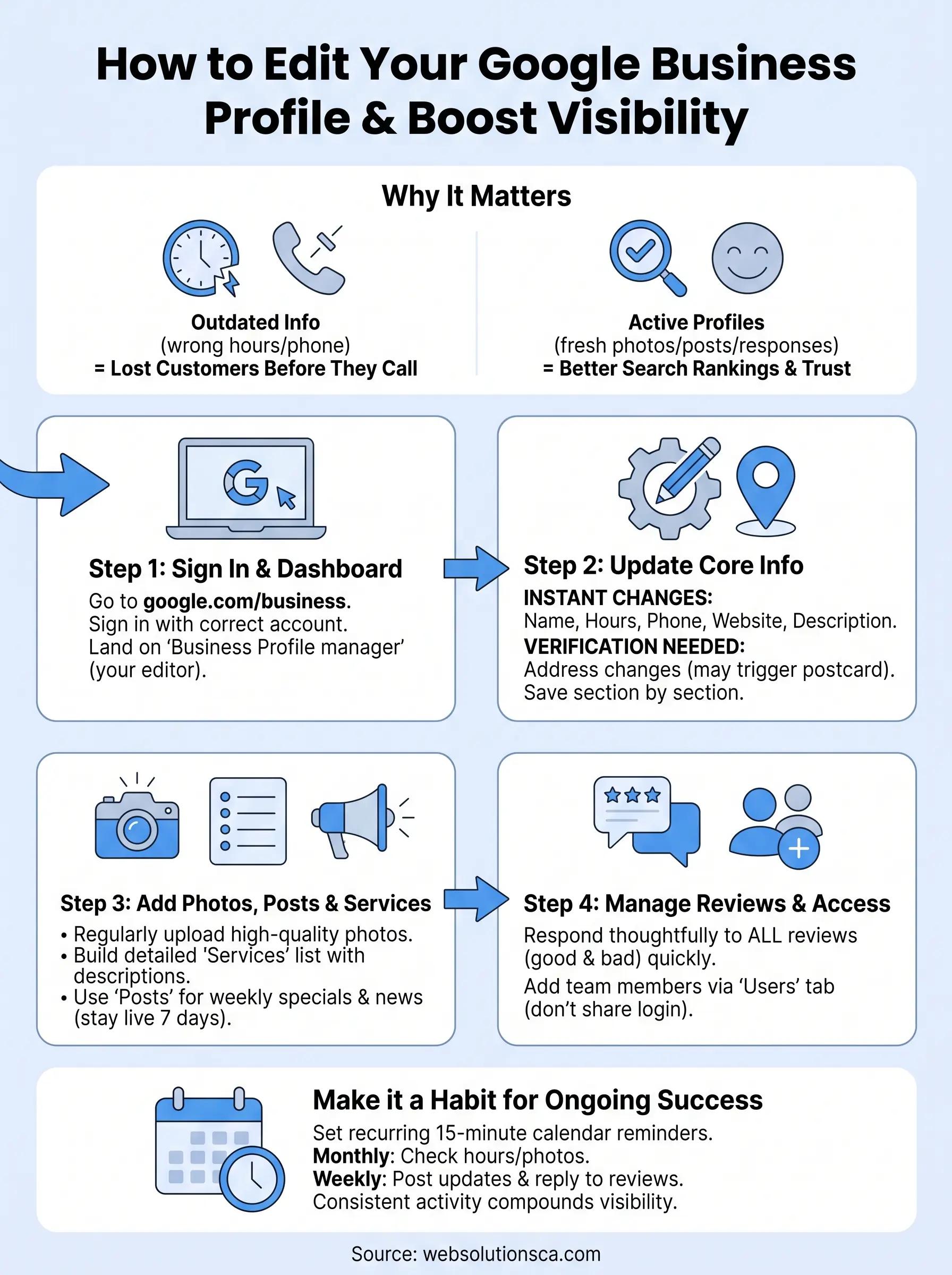
Why keeping your Google Business Profile updated matters
Google pulls your listing into local search results and Maps the moment someone nearby searches for what you offer. If your Google Business Profile shows the wrong hours or a phone number that's been disconnected for a year, you lose the customer before they ever visit your website. Local searchers rarely dig deeper once they hit a red flag like that; they just tap the next listing down.
Google rewards profiles that stay active
Search algorithms notice engagement. Profiles with recent photos, fresh posts, and prompt review responses tend to outrank ones that haven't been touched in months. Google itself confirms that complete, accurate business information improves your chances of showing up in relevant local searches, according to its Business Profile help documentation. Neglecting your listing doesn't just look bad to customers, it signals to Google that your business information might be unreliable.
An outdated Google Business Profile quietly pushes potential customers to your competitors, one search at a time.
Small errors create big trust problems
Think about what happens when a customer drives to an address that's since moved, or calls a number that rings a disconnected line. That frustration reflects directly on your business, not on Google. Editing your Google Business Profile regularly, even for small details like a seasonal hours change or a new service you now offer, keeps that trust intact.
Here's what tends to slip through the cracks most often:
- Holiday or seasonal hours left unchanged
- Old service areas that no longer match where you actually work
- A website link pointing to a page that no longer exists
- Photos that show a location you've since renovated or relocated from
Catching these before a customer does is the whole point of learning the editing process well.
Step 1. Sign in to your Google Business Profile
Before you can change anything, you need to land in the right dashboard. Head to google.com/business and sign in with the Google account tied to your listing, the same one you used when you first claimed your business. If you're not sure which account that is, search your business name on Google, click the listing, and look for the "Own this business?" or "Manage now" prompt to confirm ownership.
Finding the right dashboard
Once signed in, you'll land on the Business Profile manager, which shows your listing exactly as customers see it in Search and Maps. This is the actual google business profile editor you'll use for every change in this guide, not a separate app or plugin. If you manage multiple locations, use the location switcher at the top to pick the one you're updating.
Sign in with the wrong account and you'll waste time guessing why your changes never save.
If you can't access your profile
Sometimes a previous employee or agency claimed the listing. In that case, request ownership transfer or verify against the existing profile before making edits.
Step 2. Update your core business information
Once you're in the dashboard, click "Edit profile" to open the fields Google displays to searchers. This is where most of your google business profile edit work happens, so go slowly and check each section against what's actually true today.
Fields you can change instantly
Name, hours, phone number, website link, business description, and category updates usually go live within minutes. Update these first since they're the details customers check before calling.
- Business name (must match your storefront signage or legal name)
- Hours, including holiday hours
- Phone number and website URL
- Primary and secondary categories
- Business description (750 characters, front-load the important details)
Fields that trigger verification
Address changes are different. Moving your pin or editing your street address often triggers a re-verification request from Google, sometimes by postcard or phone. Don't panic if this happens.
A wrong address does more damage than almost any other listing error, because it sends real customers to the wrong door.
Save changes section by section rather than all at once. If Google flags something for review, you'll know exactly which field caused it instead of guessing across a dozen edits.
Step 3. Add photos, posts, and services
Photos do more work than most owners realize. Listings with recent, high-quality images get far more requests for directions and website clicks than listings with a handful of blurry shots from years ago. Open the Photos tab in your dashboard and upload current pictures of your storefront, team, and finished work at least once a month.
Building out your services list
Beyond photos, click into the Services section and list every offering with a short description and price range if you're comfortable sharing one. This section directly affects which searches your profile surfaces for, so treat it as an extension of your google business profile edit work, not an afterthought.
A profile with three services listed loses to a competitor who lists fifteen, even if you're the better business.
Using Posts to stay visible
Posts function like mini announcements right on your listing. Use them for:
- Weekly specials or promotions
- New service launches
- Seasonal hours reminders
- Recent project photos with a short caption
Each post stays live for seven days, so schedule a recurring reminder to keep publishing new ones.
Step 4. Manage reviews and profile access
Reviews shape whether a searcher trusts your listing enough to call, and they live right inside the same dashboard you've been using for every other edit. Click into the Reviews tab and respond to every one, good or bad, within a few days. Google notes response rate as part of what makes a profile look active, and customers reading your replies decide a lot about your business before they ever dial your number.
Responding without sounding scripted
Skip the copy-paste thank you. Reference what the customer actually said, and if a review is negative, acknowledge the issue plainly and note how you fixed it. That kind of transparency reads as more trustworthy than a defensive reply ever will.
A thoughtful reply to a bad review often does more for your reputation than ten generic five-star responses.
Adding managers without losing control
Multiple people often need dashboard access, a front desk employee, a marketing contact, or an agency helping with editing your Google Business Profile. Add them as managers rather than sharing your login:
- Go to Users in the dashboard
- Click the plus icon and enter their email
- Assign Manager or Owner access depending on trust level
- Review the user list quarterly and remove anyone who no longer needs it
Making profile updates a habit
A one-time cleanup won't keep your listing competitive for long. Businesses that treat their Google Business Profile like a living part of their marketing, checking hours monthly, posting weekly, replying to reviews within days, consistently outrank the ones that log in once a year and forget about it. Set a recurring 15-minute calendar reminder and run through the same checklist each time: hours, photos, services, posts, reviews. That small habit compounds into real visibility over months.
Getting comfortable with the google business profile editor puts you in control of the first impression most customers form before they ever call or visit. If you'd rather hand that ongoing work to someone who does it daily across Orange County, Web Solutions CA manages profile updates, local SEO, and lead generation together so your listing keeps working while you run your business.