
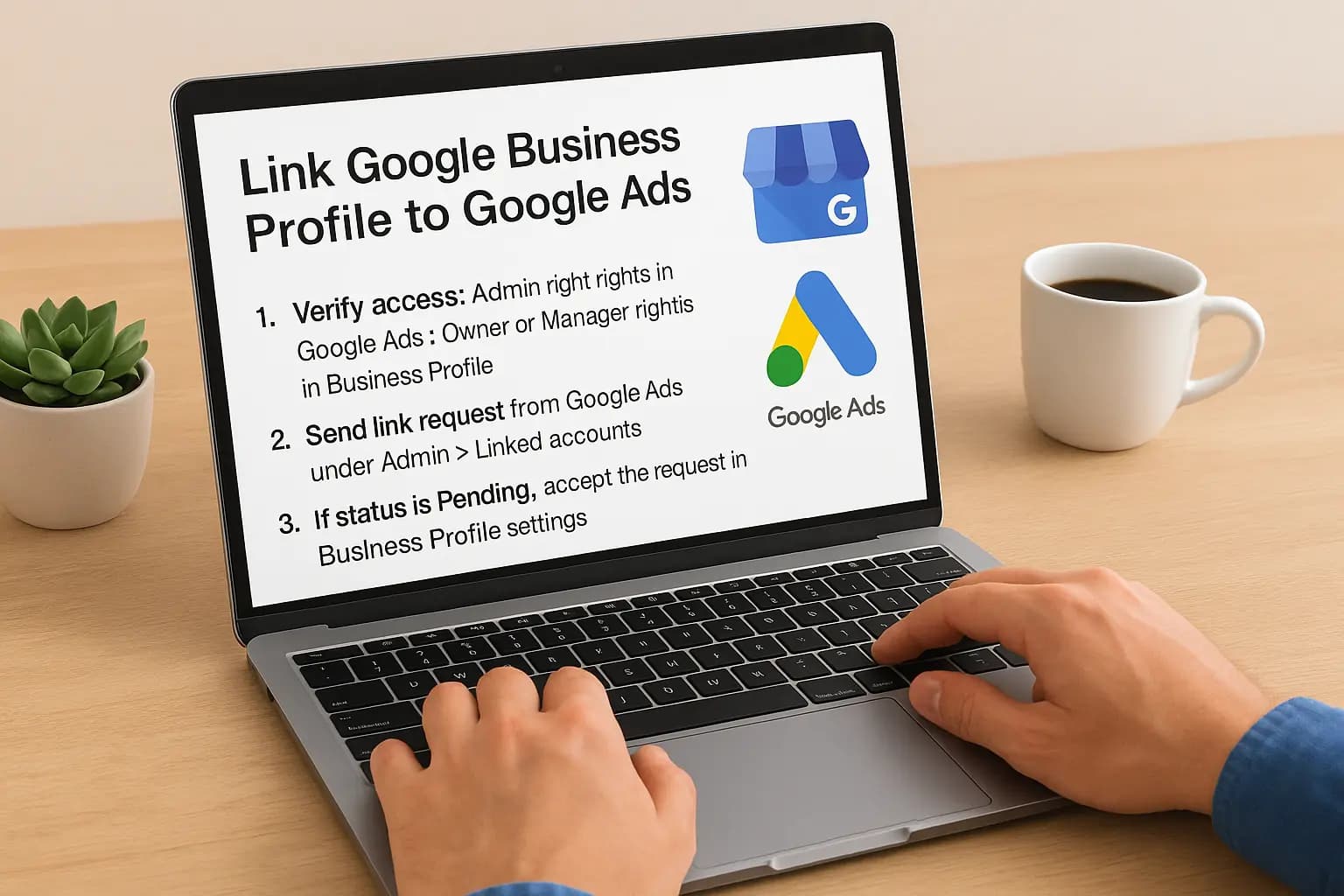
If you run a local business, you already know that a call from someone nearby is worth more than a click from someone across the country. Knowing how to link Google Business Profile to Google Ads is what lets your ads show your address, phone number, and reviews. Without that link, you pay for ads that look thinner than your free listing.
The short answer: you send the link request from one account and approve it in the other. In Google Ads, open Tools, then Linked accounts, then Google Business Profile, and select your location. Then approve the request in your Business Profile manager settings. Most links take under five minutes, as long as you have admin access to both.
Below, you get the exact clicks in order, plus how to confirm the link is active. We also cover the common errors, like missing permissions, a different Google login, or a pending request that never shows up. At Web Solutions CA, we set this up for Orange County businesses every week, so these fixes come from real accounts.
Why link your profile to Google Ads
Linking the two accounts pulls your business details straight from your profile into your ads. You do not retype anything, and when you change your hours or phone number in the profile, your ads follow automatically.
What the link adds to your ads
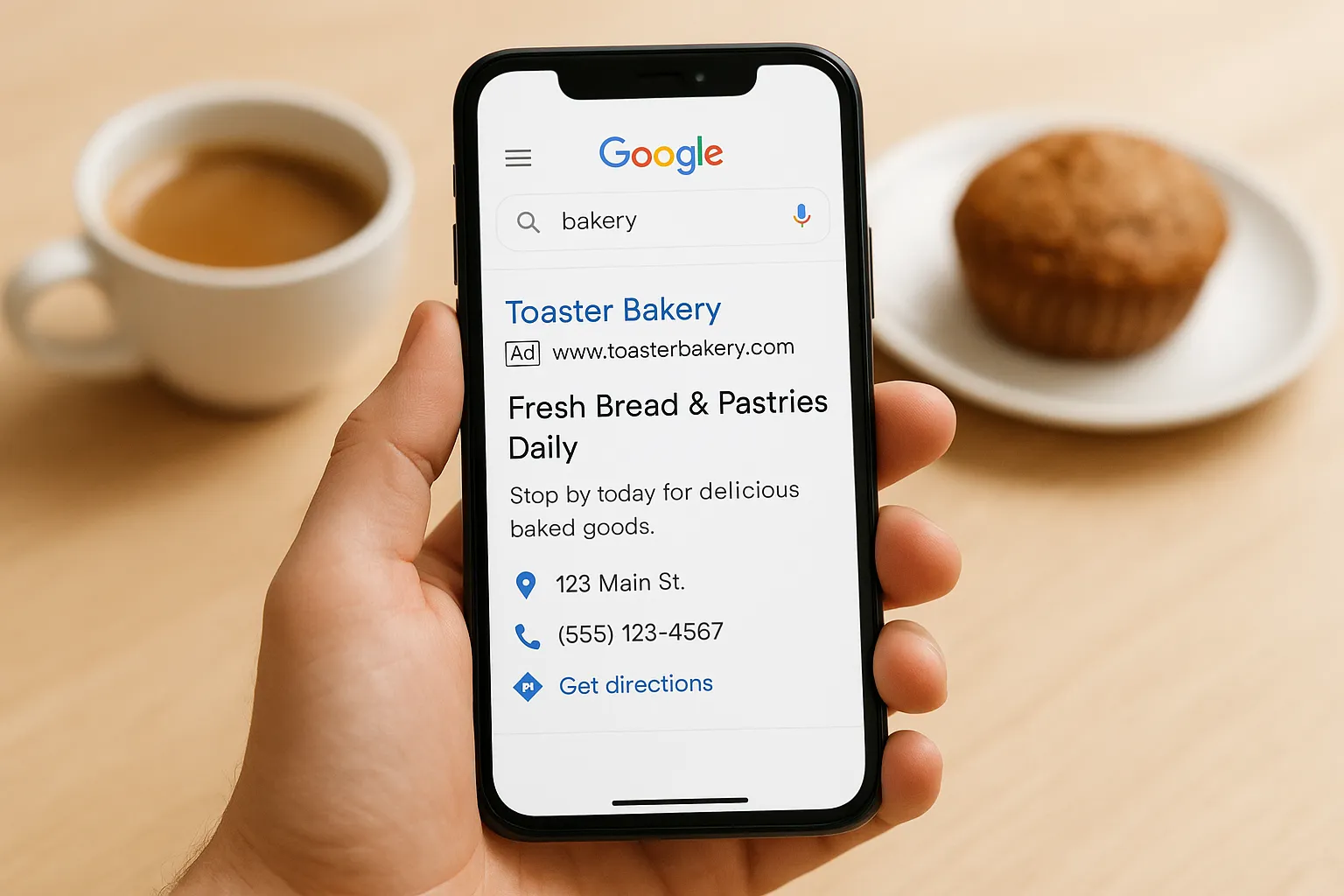
Once connected, Google Ads can use your profile as the source for location assets. These are the extra lines under your ad that make it look like a real business with a real address, not just a headline.
| Without the link | With the link |
|---|---|
| Headline and description only | Address, phone number, and a directions link |
| No distance shown to nearby searchers | Distance shown on mobile |
| Contact details typed in by hand | Details synced from your profile |
| Basic location targeting | Location-based targeting and reporting for your listed locations |
Why it matters for your budget
Mobile searchers looking for a nearby business usually want a phone number or directions, not a long landing page. A call button or directions link gives them that in one tap, which is often the difference between a click and a customer.
A linked profile turns a generic text ad into a local ad that tells people where you are and how to reach you.
Reporting improves too. Calls and direction requests from your location asset show up in Google Ads, so you can see which campaigns send people toward your door. If you also run ads for several locations, one link per profile keeps each address attached to the right campaign.
Finally, you stop paying for ads that undersell you. Your free listing already shows your address and phone number. The link makes your paid ad match it.
Step 1. Check your access on both accounts
Most failed links trace back to permissions, so check your access before you click anything. Two minutes here saves you a confusing error later.
Confirm your role in Google Ads
Open Google Ads, click Admin, then choose Access and security. Find your email in the list. To send or approve a link, you need Admin access. Standard or Read only users will not see the option to link accounts.
Confirm your role in Business Profile
Next, sign in at business.google.com and open your profile settings, then People and access. You must be an Owner or Manager of the profile you want to link. A Communicator role is not enough.
Most linking errors are really access errors, so fix permissions before you touch any settings.
Run a quick pre-flight check
Finally, confirm the basics. These small mismatches cause most "request not found" problems when you link Google Business Profile to Google Ads.
- You know which Google login holds each role, and you are signed in with the right one.
- Your Business Profile is verified, not pending.
- The Google Ads account ID in the top right matches the account you want to use.
- Someone else, such as a former web designer, does not hold the only Owner role.
Step 2. Start the link from Google Ads
Sign in to the Google Ads account that runs your campaigns. Sending the request from here is the easiest route, because Google Ads lists every profile your login can reach.
Send the request
Follow these clicks to link Google Business Profile to Google Ads:
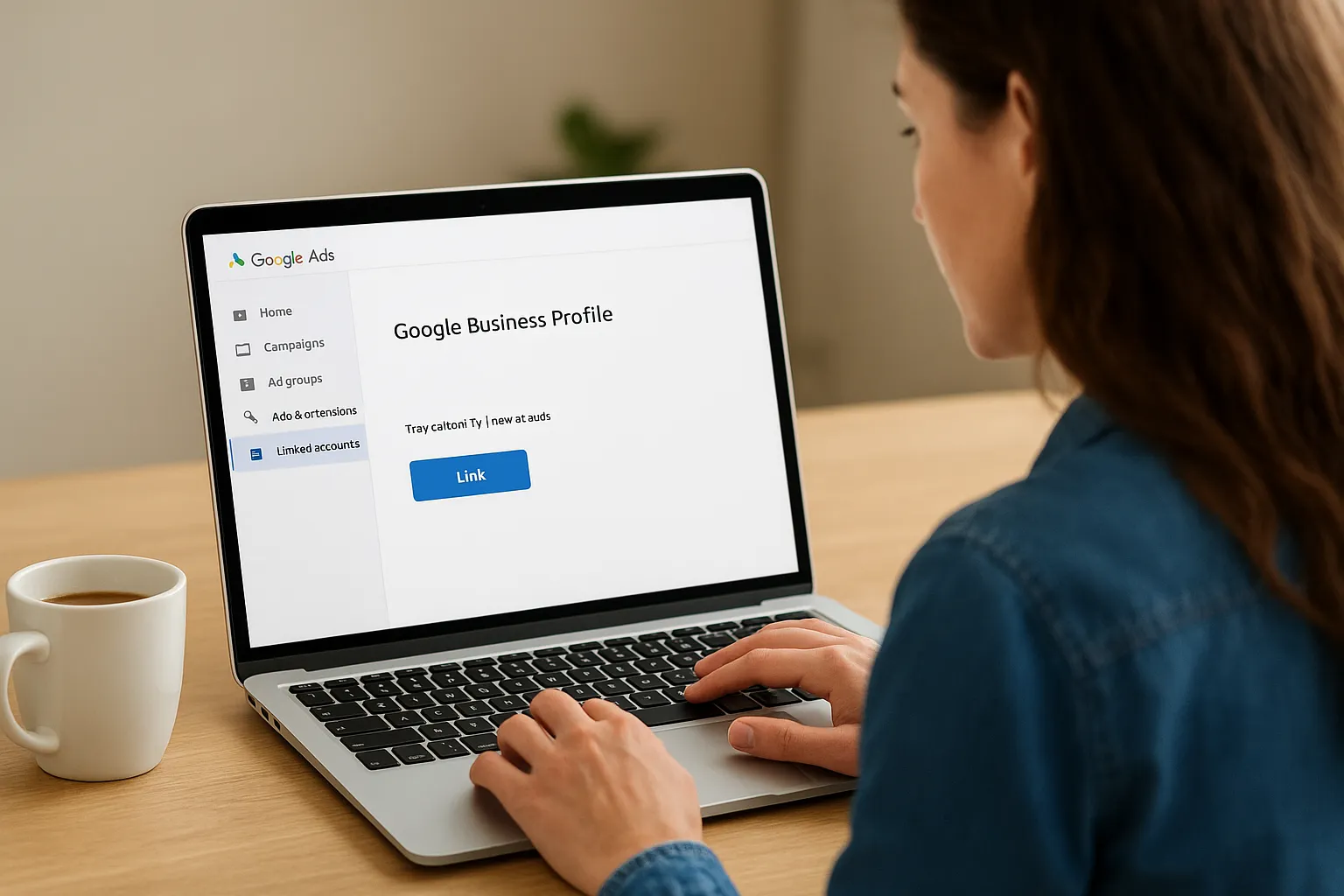
- Click Admin in the left menu, then choose Linked accounts. Older layouts put this under Tools.
- Find Google Business Profile and click Details.
- Click Link.
- Select your profile or location group from the list.
- Confirm the selection to send the request.
Check the status
After you confirm, the page shows a status next to your profile. If the same Google login manages both accounts, it may read Linked right away, and you can skip to Step 4. If a different login owns the profile, the status reads Pending, and the owner must approve the request first.
Sending the request does not finish the job. The link only works once the profile side accepts it.
Don't see your profile in the list? You are almost certainly signed in with the wrong email. Switch accounts using the profile picture in the top right, then repeat the steps. That one fix clears most empty lists we see on client accounts.
Step 3. Approve the link request
If one Google login manages both accounts and Step 2 already showed Linked, skip ahead. Otherwise, the profile side must accept the request, which takes about a minute.
Accept the request in Business Profile
Sign in with the Google login that owns or manages the profile, then work through these clicks to finish how you link Google Business Profile to Google Ads. Menu names shift slightly between layouts, but Linked accounts is the setting you want.
- Go to business.google.com and select the profile you are linking.
- Open Settings, then choose Linked accounts.
- Find the Google Ads request and click Accept.
- Return to Google Ads and refresh the Linked accounts page.
The link is not active until someone with profile access clicks Accept.
When the request does not appear
Nothing waiting? Check your login first. The request only shows for people with Owner or Manager access, so a Communicator or the wrong email sees an empty list. Also confirm you picked the right profile if you manage several.
Still stuck after a few minutes? Cancel the pending request in Google Ads and send it again, exactly as in Step 2. Requests sometimes take a short while to arrive, so give the new one five minutes before you resend a third time.
Step 4. Add location assets and confirm it works
Add the location asset
With the status showing Linked, Google Ads still needs to be told to use your profile. The location asset does that, and it is the last step in how to link Google Business Profile to Google Ads.
- Click Campaigns in the left menu, then Assets.
- Click the blue plus button and choose Location.
- Select your linked Business Profile account.
- Use all locations, or filter by label if you manage several.
- Choose account or campaign level, then click Save.
Linking connects the accounts, but the location asset is what puts your address on the ad.
Confirm it works
Expect a delay, because syncing can take several hours. After that, open the Assets table and check that your location shows a status of Eligible. If it says Not eligible, hover over the status for the reason, which is often an unverified profile or a campaign type that does not support location assets.
Finally, test the ad without clicking it. Use the Ads Preview and Diagnosis tool under Tools, enter your keyword and city, and look for your address and phone number. Searching and clicking your own ad wastes budget and skews your click data.
Getting your link working
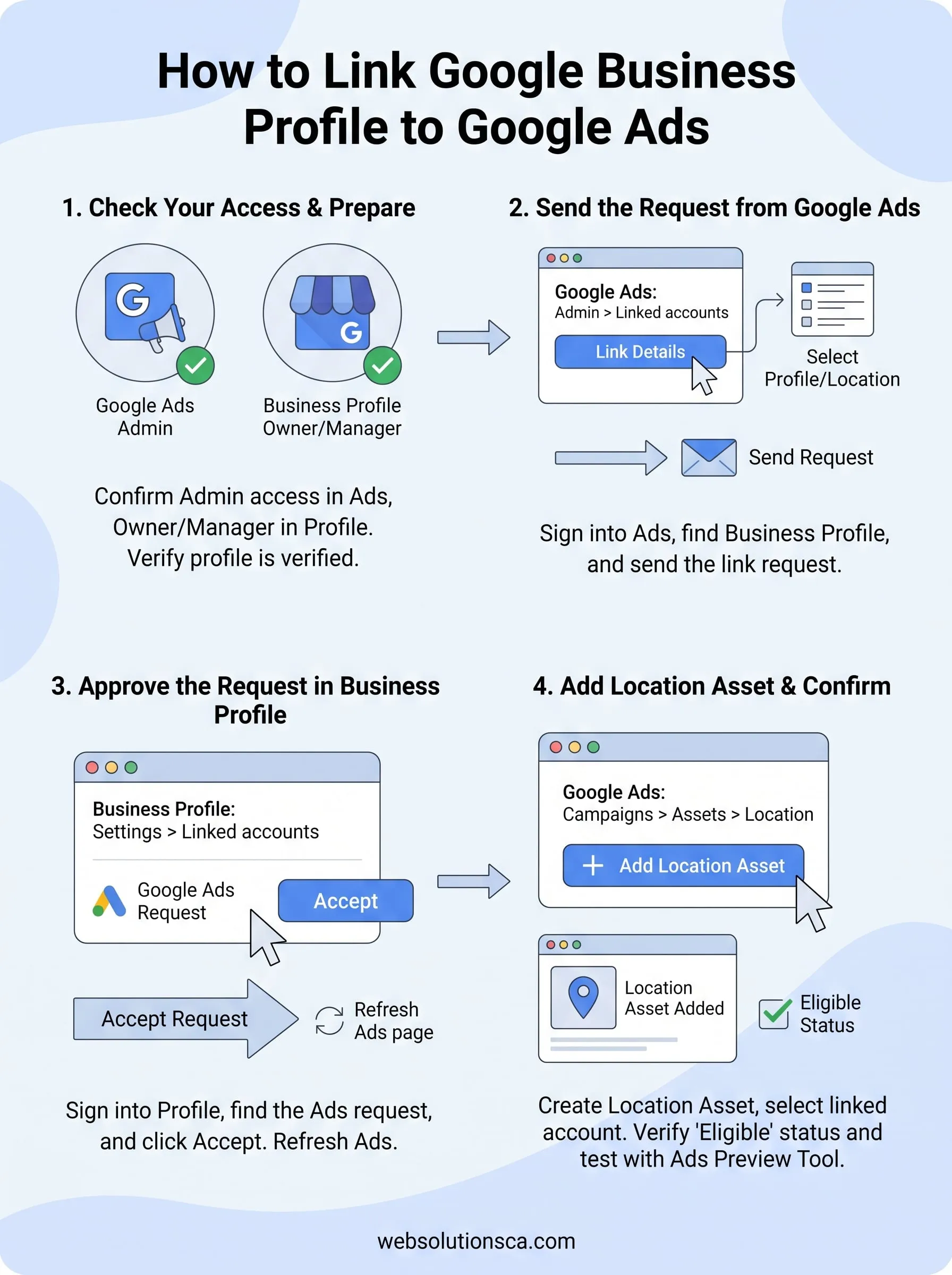
Linking your accounts comes down to four moves. Check your access, send the request from Google Ads, approve it in Business Profile, and add a location asset. Once you know how to link Google Business Profile to Google Ads, it takes minutes, and most failures trace back to permissions or the wrong Google login.
Give the sync a few hours before you worry. If the status still reads Pending or Not eligible, return to the Step 1 access check, then resend the request. Those two fixes clear most problems we see on client accounts.
Want someone else to handle it? Web Solutions CA sets up and manages Google Ads for Orange County businesses, from linking accounts to tracking calls. If you'd rather spend your time running your business, talk to Web Solutions CA about your Google Ads setup and we'll respond within 24 hours.