
How to Get Your Google Business Profile Verified (2026 Guide)
You have created your listing, added your business hours, uploaded photos, and entered your contact information. But if Google is still asking you to verify your business, it can feel like the final step is holding everything up. The good news is that verification is a defined process, even when Google requests a video or additional evidence.
Our team at Web Solutions CA helps Orange County businesses improve their websites and local search presence. We often start by checking who controls the Business Profile, whether its details are accurate, and whether verification has actually finished. This guide is written for an owner doing it themselves, not just someone familiar with SEO.
To get your Google Business Profile verified, sign in to the Google account that manages your business, find the profile in Google Search or Maps, select “Get verified,” and complete the method Google offers. Depending on your business, that may mean recording a video, receiving a phone or email code, joining a live video call, or entering a code sent by mail. Google chooses which methods are available; you cannot simply select any method you prefer.
Verification proves that you are authorized to manage the business. It lets you manage important profile details and engage with customers. It does not guarantee a top Google Maps ranking, and an unverified listing may sometimes still be visible publicly, but you just may not have full control over it.
This guide explains how to verify your business, how to tell if your Google Business Profile is verified, how long verification takes, and what to do if Google rejects your video or keeps asking you to verify again. We also cover the differences between storefronts and service-area businesses, which are especially relevant for contractors and other local businesses in Orange County.
Quick answer: Open your Google Business Profile, choose Get verified, follow the available instructions, and allow up to five business days for Google's review after submitting verification. Some cases are instant; others take longer. Source: Google Business Profile Help
How to get Google verified: step by step
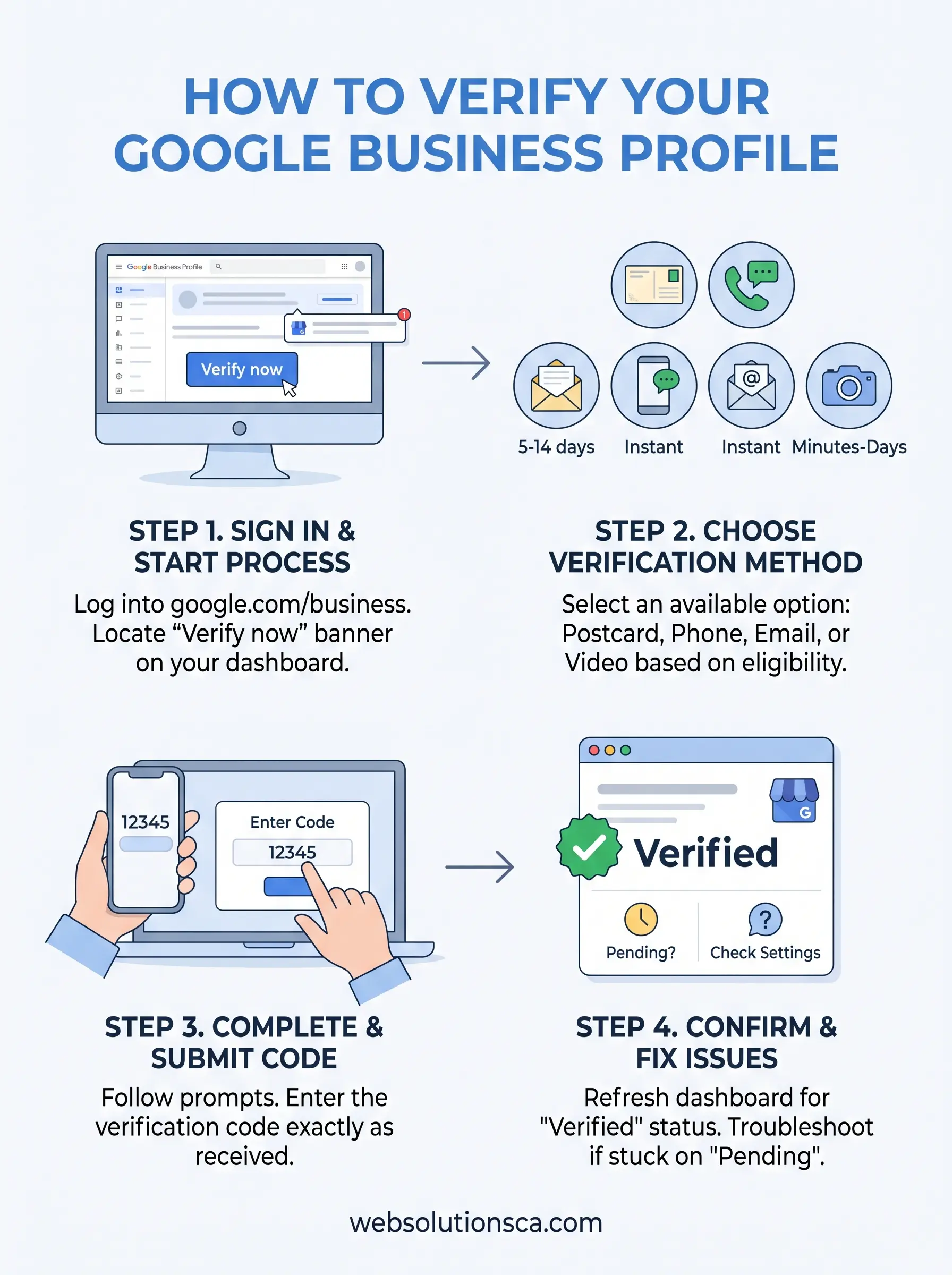
- Sign in to the right Google account. Go to Google Business Profile or search for your business name and city while signed in.
- Find or claim your business. If Google already shows a listing you don't manage, follow the claiming process instead of creating a duplicate.
- Select “Get verified.” Google displays the verification method or methods currently available to your profile.
- Gather business proof. Prepare your signage, location details, equipment, access to the workplace, or the phone/email Google provides as appropriate.
- Complete the requested method. Follow the instructions on screen exactly. Google may require more than one method.
- Check the result. Google may verify instantly or review your submission. Watch for the verification confirmation email or any instructions to try again.
The older term Google My Business now refers to Google Business Profile. So if you're searching for “how to get verified on Google My Business,” these are the current steps.
Step 1: Prepare your information before verification
Before you click a verification option, spend a few minutes making sure your business details are accurate. A real customer should recognize the name, location, phone number, and services shown in your profile. A mismatch does not automatically cause failure, but incorrect information can complicate verification and create confusion later.
Make sure your business information is accurate
Verification can be more difficult when Google cannot understand which real-world business a listing represents. Review the information on your profile before submitting:
- Business name: Use the real-world business name, not extra keywords such as “best plumber Santa Ana.”
- Business category: Choose a category that accurately reflects the business.
- Address and service area: Show a storefront address only if it meets Google's requirements for receiving customers there. Service-area businesses that don't serve customers at their address should hide that address.
- Phone and website: Use working contact details that represent your business.
- Ownership: Sign in with an account that has access to manage or claim the profile.
- Proof: Have genuine signage, branded equipment, a business vehicle, access to employee-only spaces, or other appropriate evidence ready if asked.
Consistency between your profile and website helps customers understand your business, but Google does not say that small address-format differences automatically cause verification failure. Follow Google's specific evidence requirements rather than guessing what caused a delay.
Check account access and who manages the listing
Use the Google account that owns or manages the listing. If someone else created the profile, first determine whether you should request access to that existing profile. Creating a second listing for the same business can cause ownership and duplicate-profile problems. Keep access to the offered email, phone, or mailing address available throughout the process.
Example: A Santa Ana contractor changes phone numbers and cannot receive Google's verification text. Instead of repeatedly requesting a code to the wrong number, they should review the profile's current contact details and follow the verification method Google actually offers.
For broader improvements after verification, see our Google Business Profile optimization guide.
Step 2: Sign in and find the verification prompt
Go to Google Business Profile while signed in to the account associated with the business. Alternatively, search Google for my business or your business name and city. If the listing already exists but you do not manage it, claim it rather than starting a duplicate.
Look for Get verified in your Business Profile controls. Google may change the placement of these controls, so follow the current prompt displayed for your account. If you manage multiple profiles, make sure you are working on the correct business and location.
What happens when you select Get verified?
Google displays the verification options available to your business. You might see one method, several methods, or an instruction to complete additional checks. The available options depend on the profile and are not controlled by an SEO agency or a business owner.
Step 3: Compare the available verification methods
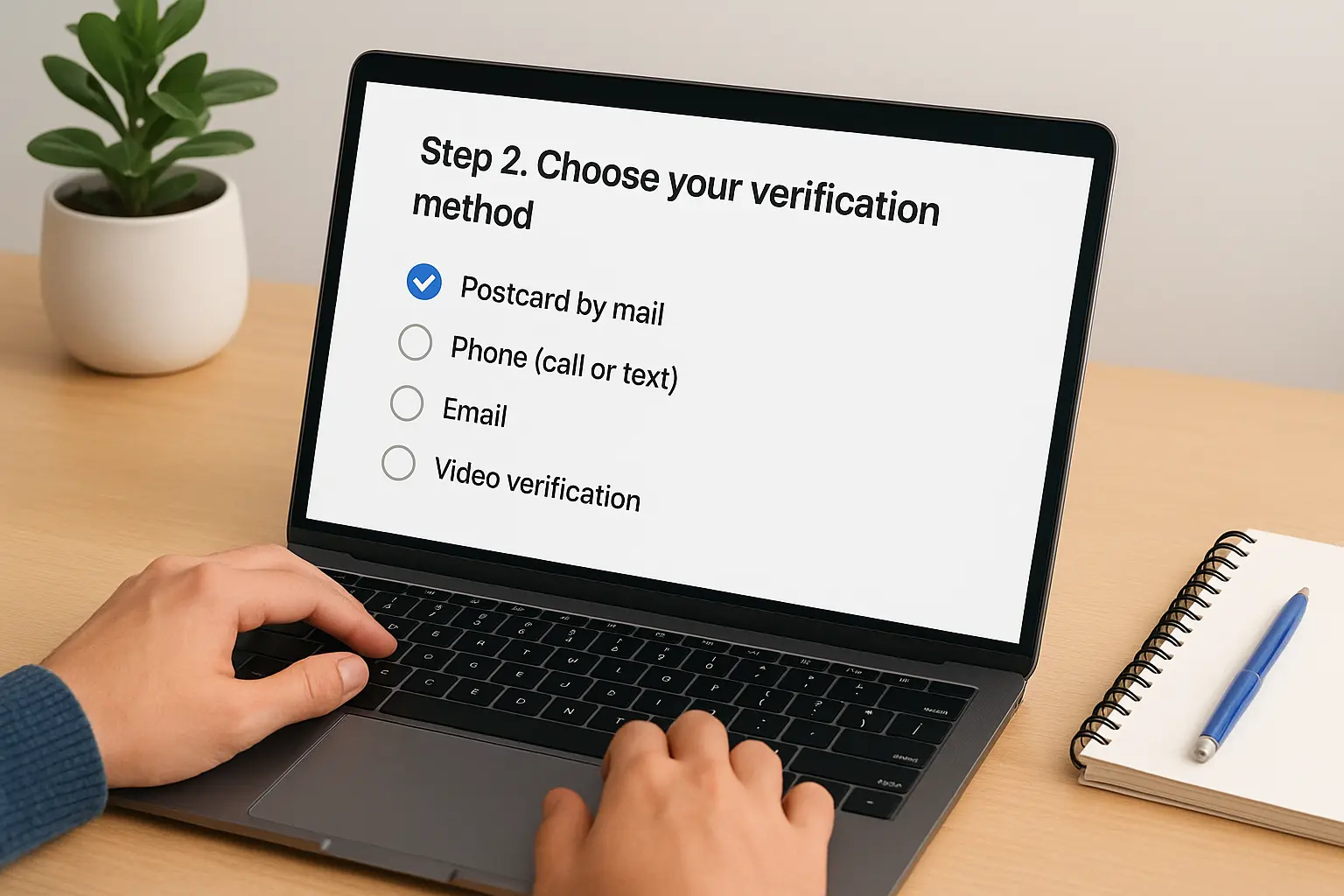
Google automatically determines the available verification methods based on factors such as business type, public information, region, and opening hours. You may see only one option or be required to use more than one.
| Verification method | What you need | Important timing notes |
|---|---|---|
| Business video recording | A mobile phone and one continuous video showing location, business existence, and management | Google's review can take up to 5 business days |
| Phone or text | Access to the eligible business phone number | Code may be delivered promptly, but additional review can still apply |
| Access to the email address Google displays | Follow the instructions Google sends; additional review can still apply | |
| Live video call | A supported device, business access, and a live representative | Available only to eligible profiles and during business hours |
| Postcard by mail | Reliable access to mail at the business address | Most cards arrive within 14 days; review can take additional time |
You cannot force Google to offer a phone call instead of a video. If an option fails, use another method only if it appears on your profile or Google support gives you further instructions.
Step 4: Complete the verification method Google offers
Once you know which option is available, gather the evidence before starting. A short preparation step can prevent you from having to restart a recording or wait for a replacement code. Below are the complete instructions for each common method, including what to do if it fails.
Video verification for storefronts and service-area businesses
Video is an important verification route for storefront and service-area businesses. Unlike uploading a normal marketing video, Google requires a new, unedited, continuous recording made and uploaded on a mobile device through the Business Profile process. The recording must be at least 30 seconds long.
Storefront video checklist
Imagine a small accounting office in Santa Ana that serves clients at its location. A useful video sequence could start with the street sign and building number, show permanent signage with the business name, and then show the owner unlocking an employee-only room. The proof should be genuine and specific to the business.
A storefront or hybrid business should be prepared to show:
- The surrounding location, such as street signs, building numbers, or nearby businesses.
- Permanent signage displaying the business name shown on the profile.
- Evidence you manage the business, such as unlocking an employee-only area or operating a point-of-sale system.
Service-area business video checklist
A plumber, electrician, cleaner, mobile service provider, or similar business may operate from a home or private base and visit customers. Google's guidance calls for proof of:
- Where the business operates: Nearby street names, landmarks, or location identifiers.
- That the business exists: Tools, branded vehicles, professional equipment, workspace, or branded materials.
- Management or authorization: Access to the business vehicle, relevant work being performed, or appropriate business documents with matching information.
Do not record account numbers, government ID numbers, other sensitive data, or people's faces. Plan the sequence before recording so you can show everything in one take.
How to submit the video
- On your phone, open your Business Profile while signed in to the managing account.
- Tap Get verified → Business video, if available.
- Review the requirements and grant the necessary camera, microphone, and location permissions.
- Record the location, business evidence, and management proof in one uninterrupted take.
- Review the recording and select Upload video.
- Wait for Google's review, which can take up to five business days.
If Google rejects the submission, select Review issues and record a new video showing the missing evidence. See Google's official video verification instructions.
<iframe src="https://www.youtube.com/embed/A8pVYIzbxvA" width="560" height="315" title="Google Business Profile verification walkthrough" loading="lazy" referrerpolicy="strict-origin-when-cross-origin" allow="accelerometer; autoplay; clipboard-write; encrypted-media; gyroscope; picture-in-picture; web-share" allowfullscreen></iframe>
Video walkthrough: compare its on-screen steps with Google's current prompts, which can change.
Postcard, phone, email, and live video call options
Not every business can use these options. Choose from the methods that actually appear on your screen, and be careful not to invalidate a pending code by requesting another one unnecessarily.
Postcard verification
If Google offers Postcard under Get verified, confirm the mailing address and request your code. Google says most codes arrive within 14 days. Do not edit the business name, address, or category while waiting, and do not request a replacement code prematurely, because doing so can invalidate the code already in transit. Codes expire after 30 days. When the card arrives, enter its five-digit code in the profile.
Phone or SMS verification
Choose Phone or SMS, if it appears, and answer the call or open the text sent to the eligible business number. Enter the code on your profile. Automated IVR systems may prevent code delivery.
Email verification
Select Email, if available, and follow the message sent to the email address Google displays. You cannot assume an alternate email address will be accepted.
Live video call
If Live video call is offered, follow the prompts to connect with a representative during the business's hours. Be at the location with the business proof you may need to show, including signs, equipment, and access to business-only areas.
Read Google's current verification method instructions if your screen looks different.
Step 5: Confirm your Google Business Profile verification status
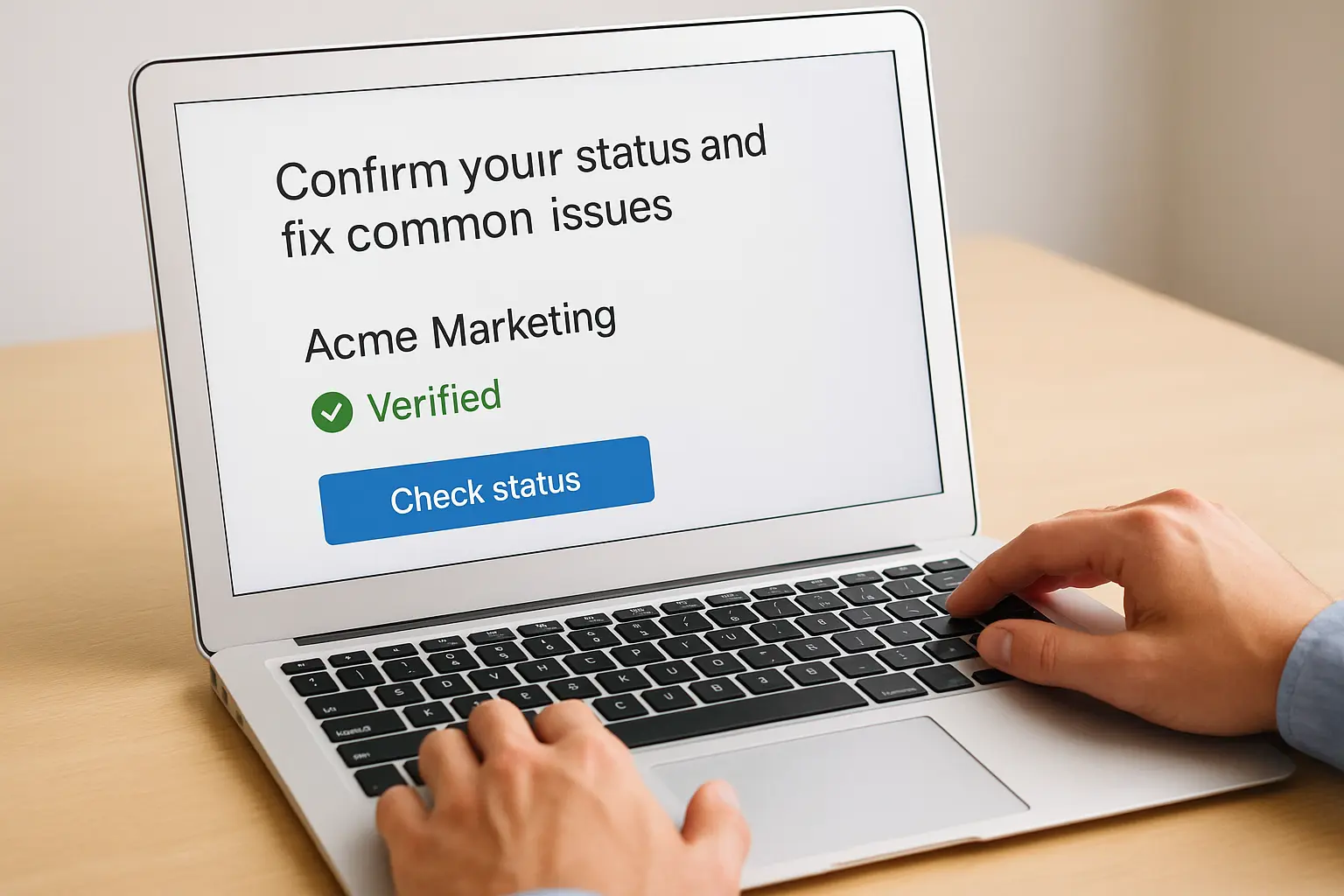
Do not assume that a visible Maps listing means your account has been verified. The most reliable next step is to inspect the management controls while signed in to the correct Google account.
How do I know if my Google Business is verified?
This is one of the most useful checks to make before trying to verify again.
- Sign in to the Google account used to manage the business.
- Search Google for my business or your business name and city, or open Business Profile.
- Open your business management view and look for its verification status or a Get verified prompt.
- Review emails from Google for a verification confirmation or a request for additional evidence.
If “Get verified” appears again, Google may not have completed verification or may require re-verification. Follow the on-screen instruction. Simply seeing the business on Google Maps is not proof that the person managing it has verified ownership.
How long does it take Google to verify my business?
Google says verification review can take up to five business days after you've completed the required steps, sometimes longer. However, that review period does not include waiting for a postcard to arrive. Some businesses are verified instantly, while others must submit further evidence.
| Situation | What to expect |
|---|---|
| Phone or email code available | Code delivery may be quick, but a review or further steps may still be required |
| Video submitted | Allow up to five business days for review in typical cases |
| Postcard requested | Most arrive within 14 days; enter the code and allow for review |
| Video marked “Review issues” | Record a new video with the evidence Google says was missing |
| Profile asks for verification again | Follow re-verification instructions; the first attempt may not have completed |
Do not assume that a pending status means you made a mistake. If the stated review window has passed, check the status and contact official support when necessary.
Step 6: Troubleshoot delays and failed verification
If verification seems stuck, avoid changing several fields at once. Identify the precise status or error, then take the smallest corrective action. For example, a rejected video needs missing evidence, whereas a missing postcard needs a mail-delivery check.
Why is Google Business Profile verification not working?
Use this troubleshooting table to identify the next action without repeatedly restarting the process.
| Problem | Recommended action |
|---|---|
| “Get verified” still appears | Attempt verification again using a method available in your profile |
| “Review issues” after uploading video | Read the specific issues, then re-record with all requested evidence |
| Video won't upload | Retry through the mobile verification flow; check permissions and connection |
| No postcard arrived | Wait for the expected delivery window and follow Google's options for a replacement |
| Code isn't accepted | Confirm you entered the current code and haven't requested a newer one that invalidated it |
| Phone or email option missing | Use the offered method; Google chooses eligible methods |
| Asked to re-verify after editing | Google may request new evidence following profile information changes |
| Another person controls the listing | Follow Google's ownership request process rather than creating a duplicate profile |
What if another person has already verified my business?
If a previous employee, outside agency, or former owner manages the profile, use Google's ownership request process. Do not create a duplicate listing just because you cannot access the existing one. Keep records of your business ownership and communicate through Google's official profile-management process.
A practical troubleshooting example
A mobile cleaning business in Irvine submits a video showing only a branded van. Google may still need location context and proof of management. The owner should read Review issues, then record a fresh continuous video showing the requested location identifiers, real equipment, and an authorized way to access or operate the business. This is more useful than resubmitting the same incomplete clip.
For unresolved cases, visit Google Business Profile Help and use Contact us or the available troubleshooting flow. This is the official support destination, not a third-party article about deleting a profile.
Step 7: Make the most of your verified profile
Verification is not the finish line. It is the point at which you can manage the business information customers see and start maintaining it consistently. A verified but neglected profile may still be less helpful to customers than an accurate, active one.
What happens after your business is verified?
Verification is one step in local marketing. It does not guarantee Maps visibility, rankings, calls, or leads. After verification:
- Review your business name, primary category, address or service area, phone, URL, and hours.
- Describe your actual services and add accurate, useful photos.
- Respond professionally to genuine customer reviews.
- Keep information up to date when hours or services change.
- Improve relevant service pages on your website and link related content together.
- Track real outcomes such as qualified calls, contact forms, and bookings instead of rankings alone.
If your business serves customers in Santa Ana, our Santa Ana web design and digital marketing page explains how location-specific service content can support broader online visibility. We also provide SEO services across Orange County for businesses that need help improving their website alongside their Business Profile.
Frequently asked questions about Google Business Profile verification
These concise answers address the common wording business owners use in Google Search. For more detail, follow the relevant step-by-step sections above.
How do I get verified on Google My Business?
Google My Business is now Google Business Profile. Sign in to the account managing your business, select Get verified, and complete the method Google offers. You might be asked for a video recording, a code, a live call, or more than one step.
Is my business verified on Google if it shows up in Maps?
Not necessarily. A listing can appear on Maps without proving that you have verified management access. Sign in to the managing account and check for the verification status or Get verified prompt.
Step 5: Confirm your Google Business Profile verification status
Do not assume that a visible Maps listing means your account has been verified. The most reliable next step is to inspect the management controls while signed in to the correct Google account.
How do I know if my Google Business is verified?
Check the profile in Google Search or Business Profile while signed in to the correct account, and look for the verification confirmation or a request to complete verification. Google also sends an email when verification is successful.
How long does it take for Google to verify my business?
Google normally allows up to five business days to review a completed verification submission, though some profiles are verified immediately and some reviews take longer. Mail delivery adds time if postcard verification is required.
Can I verify my business without a postcard?
Yes, if Google offers another method such as video, phone, email, or live video call. Google automatically determines your available choices, and not every business can use every method.
Why does Google keep asking me to verify my business?
The previous attempt may not have been accepted, or an update to important business details may require re-verification. Look for Get verified or Review issues and follow the current prompts.
Can a home-based business get a verified Google Business Profile?
Potentially, yes, if it is an eligible business that interacts with customers in person. Service-area businesses that don't welcome customers at their address should hide that address and show appropriate proof during verification. A purely online business without in-person customer interaction generally isn't eligible.
Does verification make my business rank higher on Google Maps?
Verification establishes management authority; it is not a promise of higher rankings. Improving relevance, accurate business information, customer experience, and broader local SEO can help build a stronger local presence.
Quick verification checklist
- I am using the Google account associated with the correct business.
- My business name, category, contact information, and address or service area are accurate.
- I checked whether the business is already claimed before creating anything new.
- I reviewed the specific verification method Google offered.
- I gathered location, existence, and management evidence if recording a video.
- I submitted the code or video and checked the status afterward.
- I followed up through official support if the stated review time passed or errors remained.
Need help with Google Business Profile and local SEO in Orange County?
If you're unsure whether your business is verified, start by checking the status using the steps above. If verification is complete but you're struggling to attract local customers, Web Solutions CA can help you evaluate your website, service pages, local SEO, and conversion paths.
We're based in Costa Mesa and work with businesses across Orange County, including Santa Ana, Irvine, and Huntington Beach. Contact Web Solutions CA to discuss an SEO and website improvement plan based on your business goals.
Editorial note: This guide preserves the practical preparation, method comparison, submission, troubleshooting, and post-verification topics of the original article. Google's interface and available methods may change. The instructions above reflect Google's published help guidance checked on October 10, 2026.
Official references: Verify your business on Google · Verify by video recording