
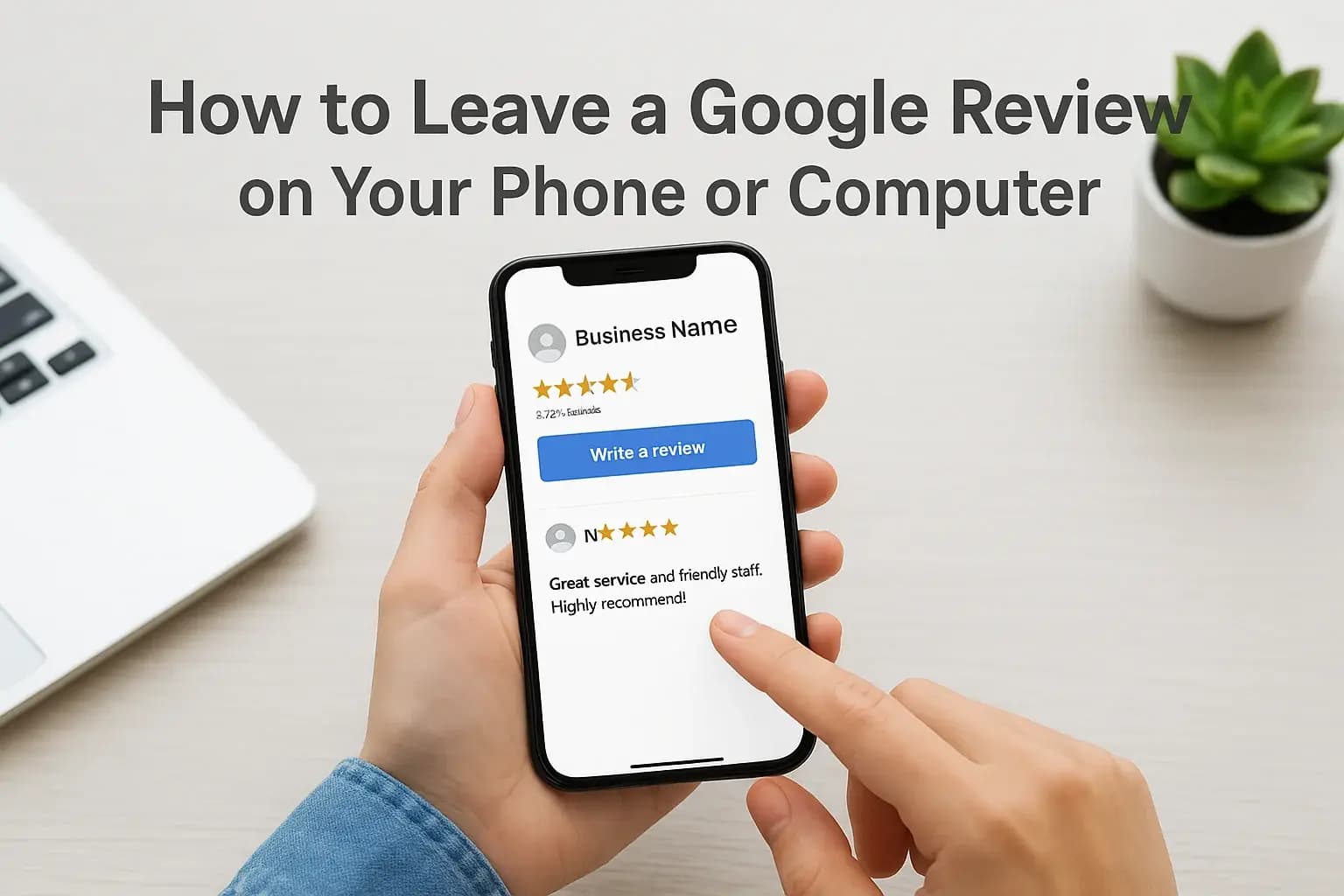
To leave a Google review, sign in to a Google Account, search for the business on Google Search or Google Maps, tap or click "Write a review," choose a star rating, add a few specific details, and press Post. It takes about two minutes on a phone or a computer. You don't need a Gmail address, but you do need a Google Account, and you can't post a review with no name attached.
Most people stall for the same three reasons. The review button never shows up, the sign-in screen seems to demand a Gmail address, or they want to keep their name low-key. So they give up, and the business never hears from a happy customer.
At Web Solutions CA, we help Orange County small businesses manage their Google Business Profiles, so we see both sides of a review: the person who writes it and the owner who reads it. This guide covers what you need first, three steps to post your review, and fixes for when something goes wrong.
What you need before you start
You need one thing: a Google Account. It can use any email address, and it only takes a minute to set up if you don't have one.
Do you need Gmail to leave a review?
No. Gmail is just one kind of Google Account. If the review form asks you to sign in and you don't have an account, choose Create account, then pick the option to use your existing email address instead of making a new Gmail address. Google sends a verification code to that email. Enter it, and you land back on the review form.
A Google Account is the only requirement, and it doesn't have to be a Gmail account.
Can you leave a review anonymously?
Not fully. Google requires an account, and every review shows a display name, so a review with no name at all doesn't exist. What you control is what that name and photo say. Google lets you use a nickname or initials, as long as you aren't pretending to be someone else.
To keep a low profile, edit your Maps profile before you post:
- Open Google Maps and tap your profile picture (on a computer, open the menu and choose Your contributions).
- Open your profile and choose Edit profile.
- Change the name to a first name and last initial, or a nickname.
- Remove or replace the profile photo.
Keep in mind that the business never sees your email or phone number, but it can see your name, photo, and every other public review on that profile. A detail like "the appointment on Tuesday at 3 p.m." can identify you just as well as a name.
Step 1. Find the business on Google
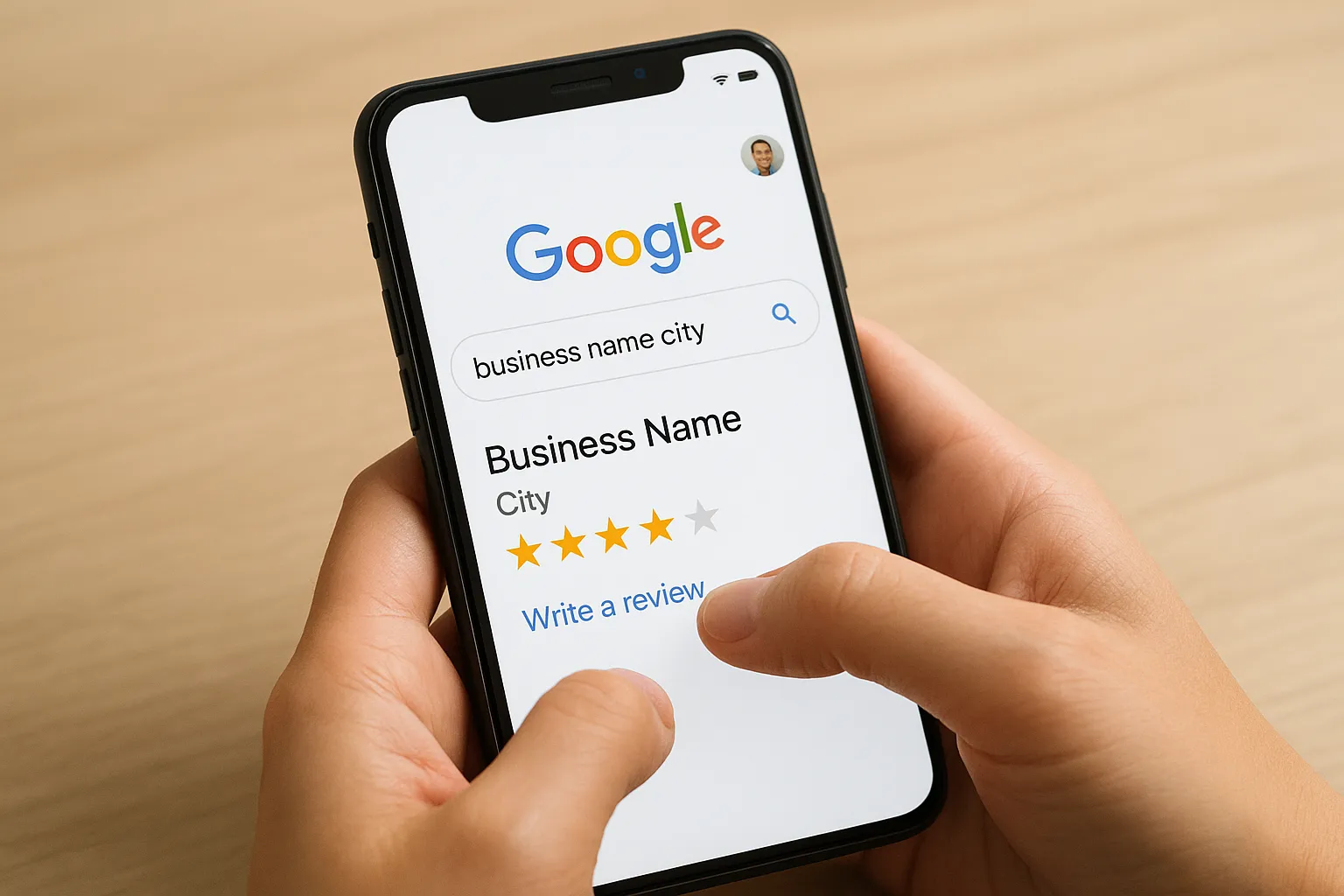
Search for the business by name and city, open its listing, and tap or click Write a review. The steps differ slightly by device.
On your phone
- Open the Google Maps app and check that your profile picture appears at the top right. That means you're signed in.
- Search for the business name and city.
- Tap the correct listing.
- Tap the stars under Rate and review, or open the Reviews tab and tap Write a review.
On your computer
- Go to google.com and sign in at the top right.
- Search for the business name and city. Its profile appears on the right side of the results, or at the top on a narrow screen.
- Click Write a review, or click the reviews link and then the button. The form opens in a pop-up.
Google Maps on a desktop works the same way. Click the listing, open the Reviews tab, and click Write a review.
Google reviews belong to a Business Profile, not to a web address. If you want to review a company that only exists online, search for its business name. If no profile appears, there is nowhere to post.
Search the business name plus its city so you land on the right listing and not a similarly named one.
Step 2. Rate the place and write your review
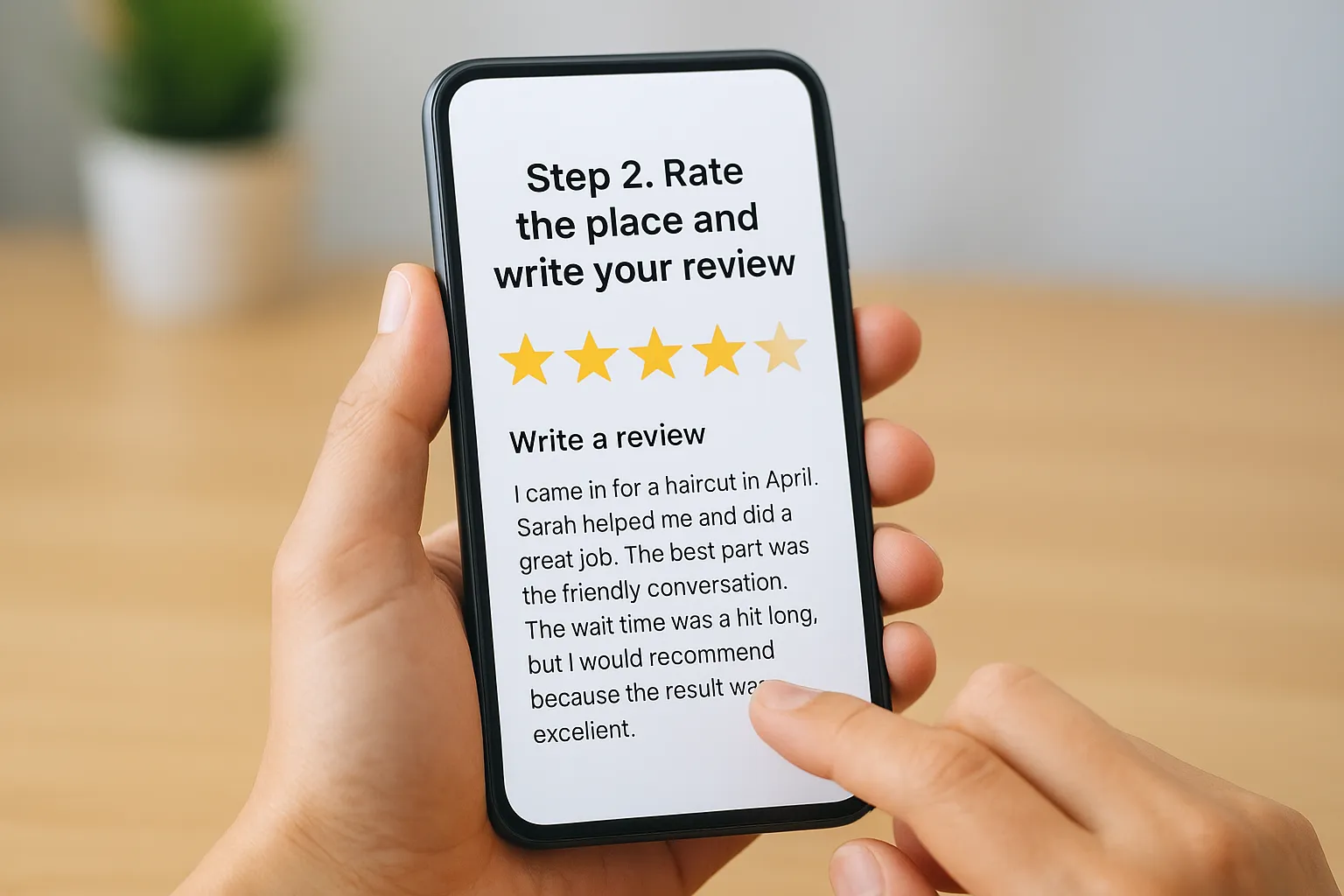
Pick your stars first, then add two or three concrete details. A short, specific review is more useful to readers than a long, vague one.
Choose your star rating
Tap or click one to five stars. Rate the whole experience, not the single best or worst moment. Google may show optional prompts, such as asking you to rate specific aspects of the service. You can skip them.
Write something a stranger can use
Readers want to know what happened. Cover a few of these points:
- What you bought or what service you used
- Who helped you, by first name if you know it
- What stood out, good or bad
- Price, wait time, or result, if relevant
- One honest note about what could be better
If you freeze at the blank box, fill in this template:
I came in for [service or product] in [month]. [Name] helped me and [what they did well]. The best part was [specific detail]. [One honest note about timing, price, or anything to improve]. I would [recommend / return] because [reason].
You can add photos from the same form. Leave out profanity, phone numbers, links, and personal details about other people, because Google removes reviews that include them. You also can't review a business you own or work for.
Specific beats long: one concrete detail does more than five adjectives.
Step 3. Post it, then edit or delete it later
Press Post and your review goes live on the listing under your display name. You can change or remove it at any time.
Post and confirm
Tap or click Post. Reopen the listing and scroll to the reviews to confirm yours appears. Most reviews show up quickly, though Google checks them with automated systems first, so a short delay is normal. Google explains its own process on its help page for adding, editing, and deleting Google Maps reviews.
Find, edit, or delete your reviews
Open Google Maps, tap your profile picture, choose Your profile, and open the Reviews tab. On a computer, open the Maps menu and choose Your contributions, then Reviews. Tap the three dots beside a review and choose Edit review or Delete review.
Editing is worth using. If the business fixes your problem, update your stars and add a line saying so. Owners notice, and so do future readers.
You can always find every review you've posted under Your profile in Google Maps.
Fix problems when you can't post a review
Most failures come from being signed out, landing on the wrong result, or tripping a content rule. Work through the causes below in order.
The "Write a review" button is missing
First, confirm you're signed in. A missing pop-up almost always means you aren't. Second, make sure you opened a real place listing and not a web result or a category page. Third, try the Google Maps app instead of the browser, and update the app if it's old. If you own the business and use the same account on its profile, Google may block you from reviewing it.
Your review posted but isn't showing
Google's systems hold back reviews that look like spam or break its content rules. Common triggers are profanity, links, promotional language, off-topic rants, reviews of your own business, and several accounts posting for one person. Rewrite the review in plain language that describes your own visit, then post it again. If it still won't appear, ask in the Google Maps Help community.
A review that describes your own visit in plain words rarely gets blocked.
Leaving your review takes two minutes
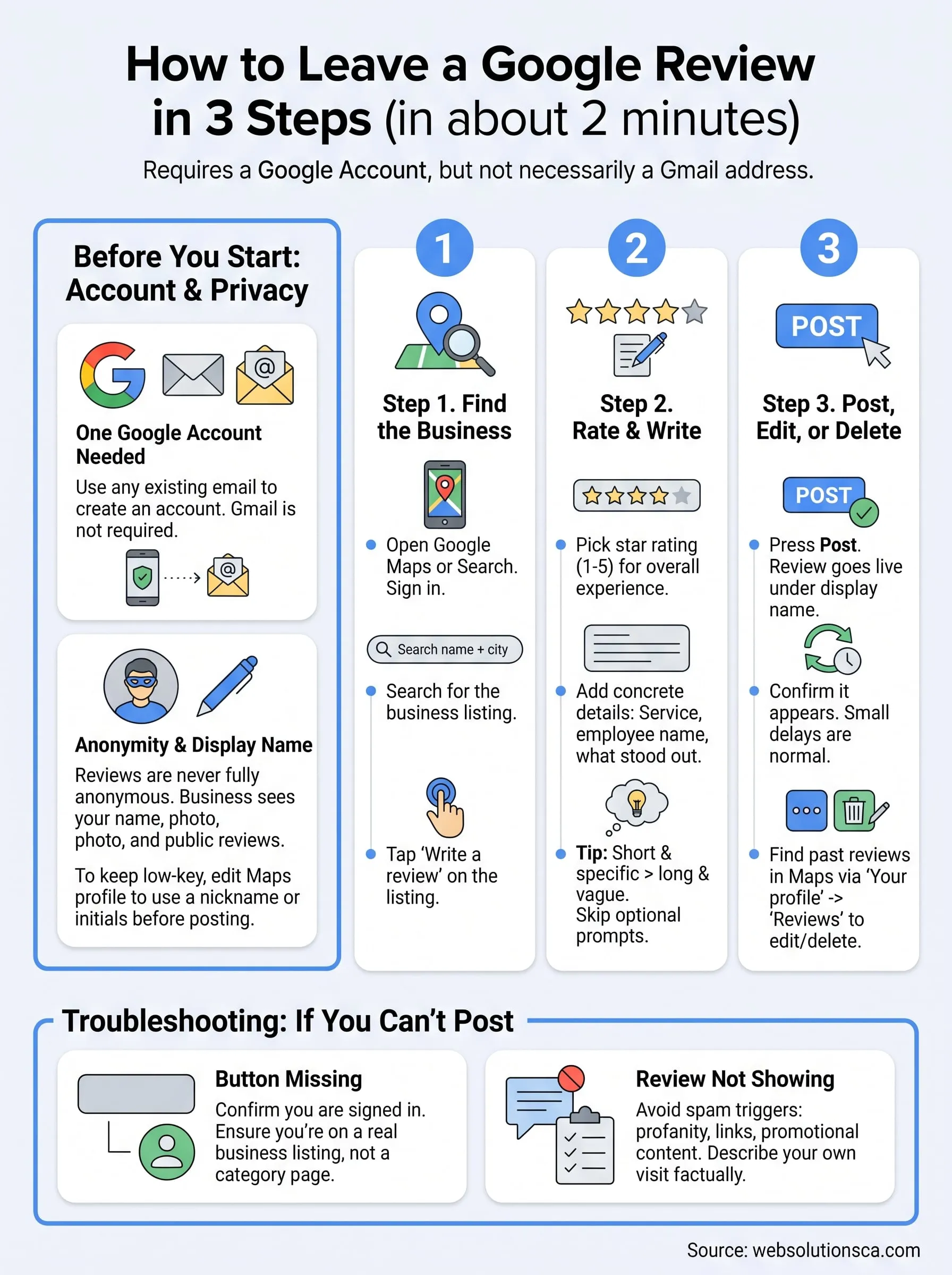
To recap: sign in with any Google Account, find the listing, pick your stars, write two or three specific details, and press Post. Without Gmail, create an account with your existing email. For privacy, change your display name and photo first, and remember that your review history stays public.
If you run a business, the same steps are what your customers go through. Make them easy to follow and you'll collect more reviews. If you want help turning those reviews into more calls and visits, Web Solutions CA can optimize your Google Business Profile and local SEO for your Orange County business.