
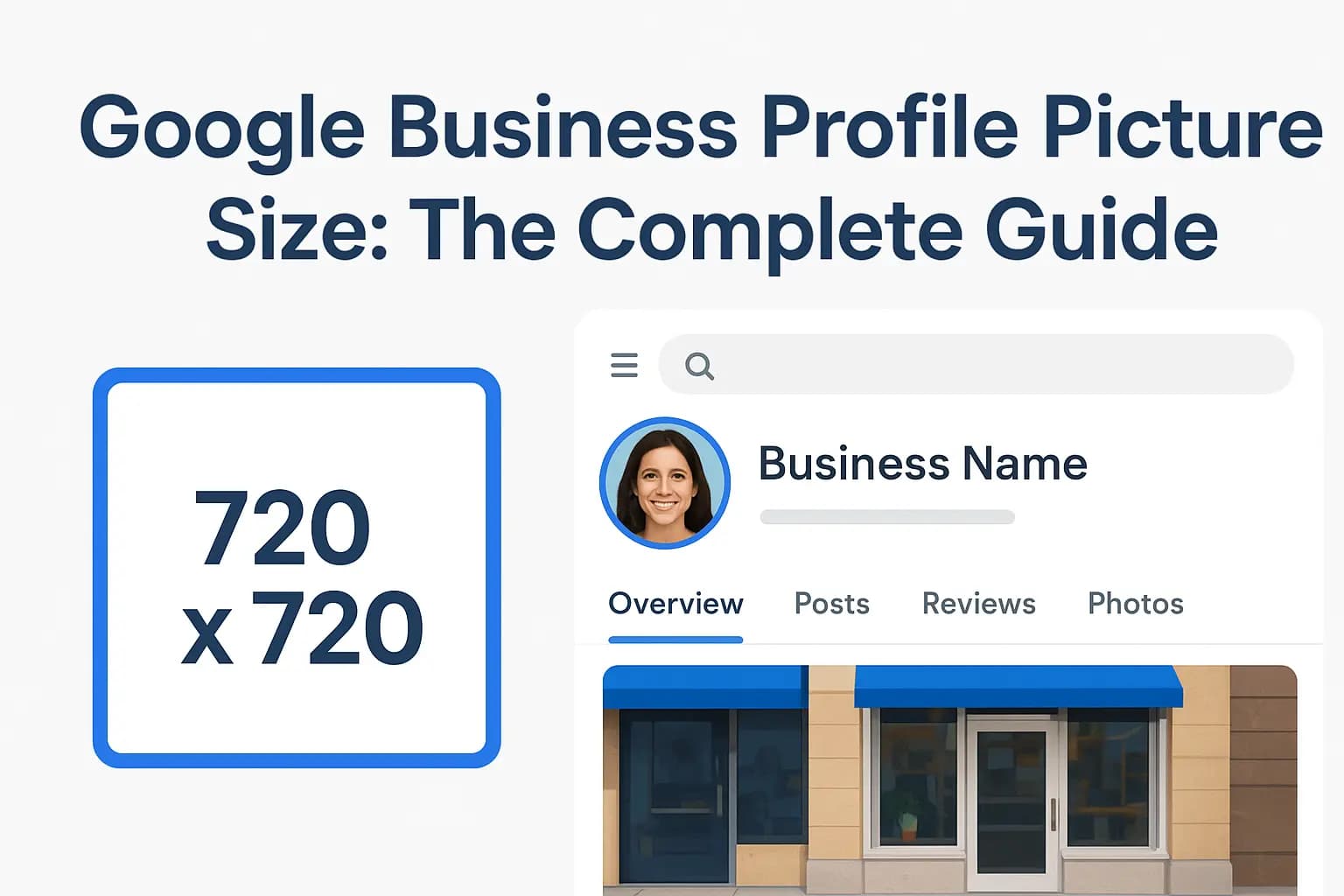
Upload a photo to your Google Business Profile and Google crops it in some weird way you didn't expect. Sound familiar? Most small business owners hit this problem because Google never makes its image requirements obvious, and guessing wrong means blurry logos, cropped-out faces, or a cover photo that looks stretched on mobile. Getting the google business profile picture size right the first time saves you from re-uploading images five times.
Here's the short answer: your profile photo should be a square, ideally 720 x 720 pixels, your cover photo works best at 1080 x 608 pixels, and individual post images should stay close to 720 x 720 pixels too. Beyond dimensions, Google also cares about file format and file size, and getting the google business profile photo dimensions wrong can quietly hurt how professional your listing looks to searchers.
Below, we break down the exact specs for every image type on your profile, including logo, cover, and post photos, plus formatting tips that make your listing look sharp on both desktop and mobile. We build and optimize Google Business Profiles for Orange County business owners every week, so this guide reflects what actually works, not just Google's fine print.
Why photo size matters for your Google Business Profile
Google doesn't just display your photos, it reshapes them. Every image you upload gets run through an automatic cropping and compression process that decides what searchers actually see. Get the google business profile image size wrong, and Google's algorithm might chop off half your storefront sign, squeeze your logo into an oval, or stretch a wide banner into a distorted mess. This isn't a cosmetic nitpick. Your profile photo is often the first visual a potential customer sees before they ever click into your website, and a pixelated or awkwardly cropped image signals "amateur" faster than any typo in your business description.
How Google crops and displays your photos
Unlike a normal website where you control the container, Google Business Profile forces every image into predefined shapes: a circle for your profile photo, a wide rectangle for your cover, and a square-ish thumbnail for posts and product photos. If your uploaded image doesn't match those proportions closely, Google crops from the center outward, which means text near the edges, logos placed off to one side, or faces near the top of a group photo often get cut off entirely. Uploading images at the correct native dimensions eliminates the guesswork and gives you control over what actually shows up.

A profile photo sized wrong doesn't just look bad, it gets cropped in ways you never approved.
The mobile-first reality of local search
Most Google Business Profile views happen on phones, not desktops. According to Google's own guidance on optimizing local listings, searchers scan photos quickly on small screens while comparing several businesses side by side in the Maps and Search results. On a 6-inch screen, a low-resolution or oddly cropped image looks even worse than it would on a monitor, because there's less room for the eye to compensate. If your competitor's cover photo loads crisp and well-framed while yours looks blurry or off-center, that's a small but real reason a searcher taps their listing instead of yours.
What poor sizing costs you in trust and clicks
Think about the last time you searched for a local plumber, dentist, or restaurant on your phone. You probably scanned the photos before reading a single review. Business owners underestimate how much weight photos carry in that split-second trust decision. A correctly sized, sharp image reads as "established, professional business." A stretched or pixelated one reads as "hasn't updated this listing in years," even if the business itself is thriving.
Here's a quick look at what's actually at stake with each image type:
| Photo type | Where it appears | Risk if sized wrong |
|---|---|---|
| Profile photo | Search results, Maps pin, Knowledge Panel | Logo or face gets cropped into a circle awkwardly |
| Cover photo | Top of your Business Profile on mobile and desktop | Stretches or pixelates, looks unprofessional |
| Post images | Business Profile posts, offers, updates | Cropped mid-subject, loses key text or detail |
These aren't hypothetical problems. We've pulled up client profiles before onboarding them and found cover photos with the business name cut in half, simply because the original image was uploaded at the wrong aspect ratio. Nobody flagged it because Google never sends a warning, it just crops and moves on.
Sizing your images correctly from the start also saves time. Instead of uploading, checking how it displays on mobile, deleting, resizing, and re-uploading (a cycle we see constantly with DIY listings), you nail it once and move on to actually running your business. The next section walks through the exact pixel dimensions for every photo type on your profile, so you can skip the trial and error entirely.
How to size and upload each type of profile photo
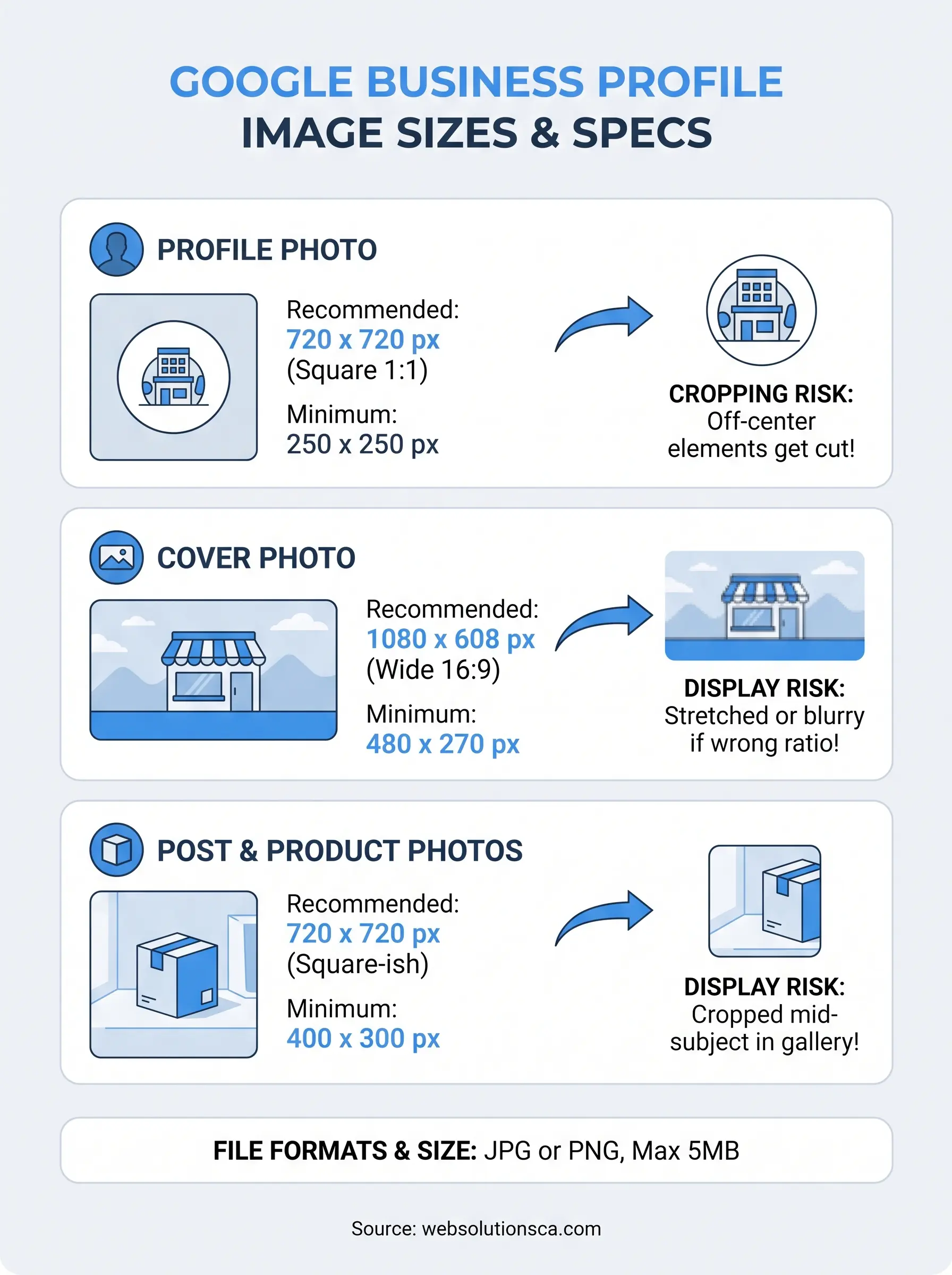
Now for the part you actually came here for: the exact numbers. Google Business Profile has three main image slots, and each one has its own sweet spot for dimensions, file type, and file size. Skip the guesswork and use the specs below as your reference every time you upload.
Profile photo (logo or headshot)
Your profile photo shows up as a circle next to your business name in Search and Maps, so square images crop the cleanest. Center your logo or headshot with breathing room on all sides, since Google trims the edges into that circular shape automatically.
- Recommended size: 720 x 720 pixels
- Minimum size: 250 x 250 pixels
- File format: JPG or PNG
- Max file size: 5MB
- Aspect ratio: 1:1 (square)
Cover photo
The cover photo sits at the top of your profile and is the first big visual searchers see when they tap into your listing. A wide rectangle works best here, and anything close to square gets awkwardly cropped on both sides.
- Recommended size: 1080 x 608 pixels
- Minimum size: 480 x 270 pixels
- File format: JPG or PNG
- Max file size: 5MB
- Aspect ratio: 16:9
Match your image to Google's exact aspect ratio, and you control the crop instead of letting the algorithm decide for you.
Post and product photos
Posts, offers, and product images follow a slightly more flexible square-ish format, but sticking close to 720 x 720 pixels keeps things consistent with your profile photo and avoids Google stretching a rectangular image into a square frame. Uploading correctly sized google business profile photo dimensions here matters more than owners realize, since these photos also appear in the photo gallery searchers scroll through when comparing businesses.
- Recommended size: 720 x 720 pixels
- Minimum size: 400 x 300 pixels
- File format: JPG or PNG
- Max file size: 5MB
Uploading without losing quality
Before you upload anything, resize the image on your computer or phone rather than letting Google do it for you. Free tools built into Preview on Mac, Photos on Windows, or even Google's own Photos app let you crop to an exact pixel size without a design background. Save the file as JPG for photos with lots of color detail, since it compresses smaller without losing much sharpness, and use PNG only when you need a transparent background, like a logo. Once resized, upload directly through your Google Business Profile dashboard rather than through a third-party app, since native uploads tend to preserve quality better than syncing tools that recompress images before they reach Google's servers.
Fixing common photo sizing and display problems
Even when you follow the specs exactly, things still go sideways sometimes. Google's system has its own quirks, and small business owners run into the same handful of problems over and over. Knowing what causes each one saves you from re-uploading the same image five times hoping it magically fixes itself.
Blurry or pixelated photos after upload
Usually this happens because the original image was smaller than Google's minimum size and got stretched to fill the frame. Low-resolution source files are the most common culprit, especially when a business owner pulls a photo from an old phone or a screenshot instead of the original camera file. Fix it by re-shooting or sourcing a higher-resolution version, then resizing down to the recommended dimensions rather than stretching a small image up. Stretching up always looks worse than shrinking down.
If your photo looks soft or fuzzy on your profile, the fix is almost always a bigger source file, not a different upload button.
Google displaying the wrong or outdated photo
Sometimes Google shows a photo you never uploaded, often pulled from a third-party site, a customer's own Google Maps contribution, or an old cached version of your listing. This happens because user-submitted photos can outrank your own uploads in Google's display logic if they get more engagement. To fix it, upload fresh, high-quality images consistently and flag outdated or incorrect photos for removal directly through your Business Profile dashboard under the photos tab.
Off-center crops that cut off logos or text
If your logo keeps getting sliced in half or text near the edge of an image disappears, the aspect ratio almost never matches what Google expects. Off-center cropping happens when key details sit too close to the edges of a rectangular or non-square image. Center your subject matter with margin on all sides before uploading, since Google crops from the outside in.
Here's a quick troubleshooting checklist to run through before you upload:
- Check the pixel dimensions match the recommended size for that photo type
- Confirm the file format is JPG or PNG, not HEIC or WEBP
- Verify the file size sits under 5MB
- Center important elements like logos, faces, and text away from the edges
- Preview the image at a small size on your phone before finalizing
Running through this list takes less than two minutes and catches most sizing issues before they ever reach your live profile, saving you the frustration of discovering a cropped logo weeks later when a customer mentions it.
Photo tips that help your profile stand out locally
Getting the dimensions right is step one, but the businesses that actually pull customers away from competitors go further than just hitting Google's minimums. Local relevance matters just as much as technical specs, and Google's own algorithm favors profiles that post fresh, real photos over generic stock imagery. If you're serving Costa Mesa, Irvine, or Newport Beach, your photos should look like they belong to a business rooted in that community, not a template pulled from a marketing kit.

Show your actual location and team
Photos of your real storefront, your team at work, and your actual product or service build more trust than polished stock photography ever will. Real, unstaged photos tell searchers this business exists, operates locally, and has people behind it, which matters more than a perfectly lit but generic image. A slightly imperfect photo of your crew installing a window or preparing a client's tax return beats a stock image of a smiling model every time, because searchers can spot stock photography instantly and it quietly erodes trust.
A real photo of your storefront builds more trust in three seconds than a polished stock image ever will.
Update photos seasonally and after changes
Google rewards profiles that stay active, and photos are one of the easiest ways to signal that. If you renovate your space, change your signage, or update your menu or service offerings, upload new photos within the week rather than letting old ones sit for years. Fresh upload activity also gives you more chances to appear in the photo carousel that shows up in local search results, since Google tends to favor recently added images when deciding what to surface first.
Use consistent branding across every image
Keep your logo colors, fonts, and overall style consistent across your profile photo, cover photo, and post images. A mismatched color scheme between your cover photo and your website makes your business look disorganized, even if both individually look fine. Consistency signals that someone is actually managing the listing, not just uploading whatever's on hand.
Here's a quick list of photo types worth prioritizing if you're starting from scratch:
- Exterior storefront shot taken in good daylight
- Interior shot showing your space or workstations
- Team photo, ideally with people actually working
- Before-and-after shots if your service produces visible results
- Product or service close-ups with clean, uncluttered backgrounds
Owners who rotate through these five categories every few months, keeping each image sized correctly, tend to see stronger engagement on their Google Business Profile than those who upload once and never touch it again.
Putting your best photo forward
Getting your google business profile picture size right isn't complicated once you know the numbers: 720 x 720 for your profile photo, 1080 x 608 for your cover, and 720 x 720 again for posts. What trips up most small business owners isn't the math, it's not knowing the specs exist until Google has already cropped their logo into an oval or stretched their storefront into a blur. Now you know exactly what to upload, how to fix the common display problems, and how to make your photos actually work for local search instead of against it.
A sharp, correctly sized profile builds trust before a searcher ever reads a review, but it's only one piece of showing up in local search. If you'd rather have someone handle your Google Business Profile, website, and local SEO together, talk to Web Solutions CA and let us build a listing that actually brings in calls.