
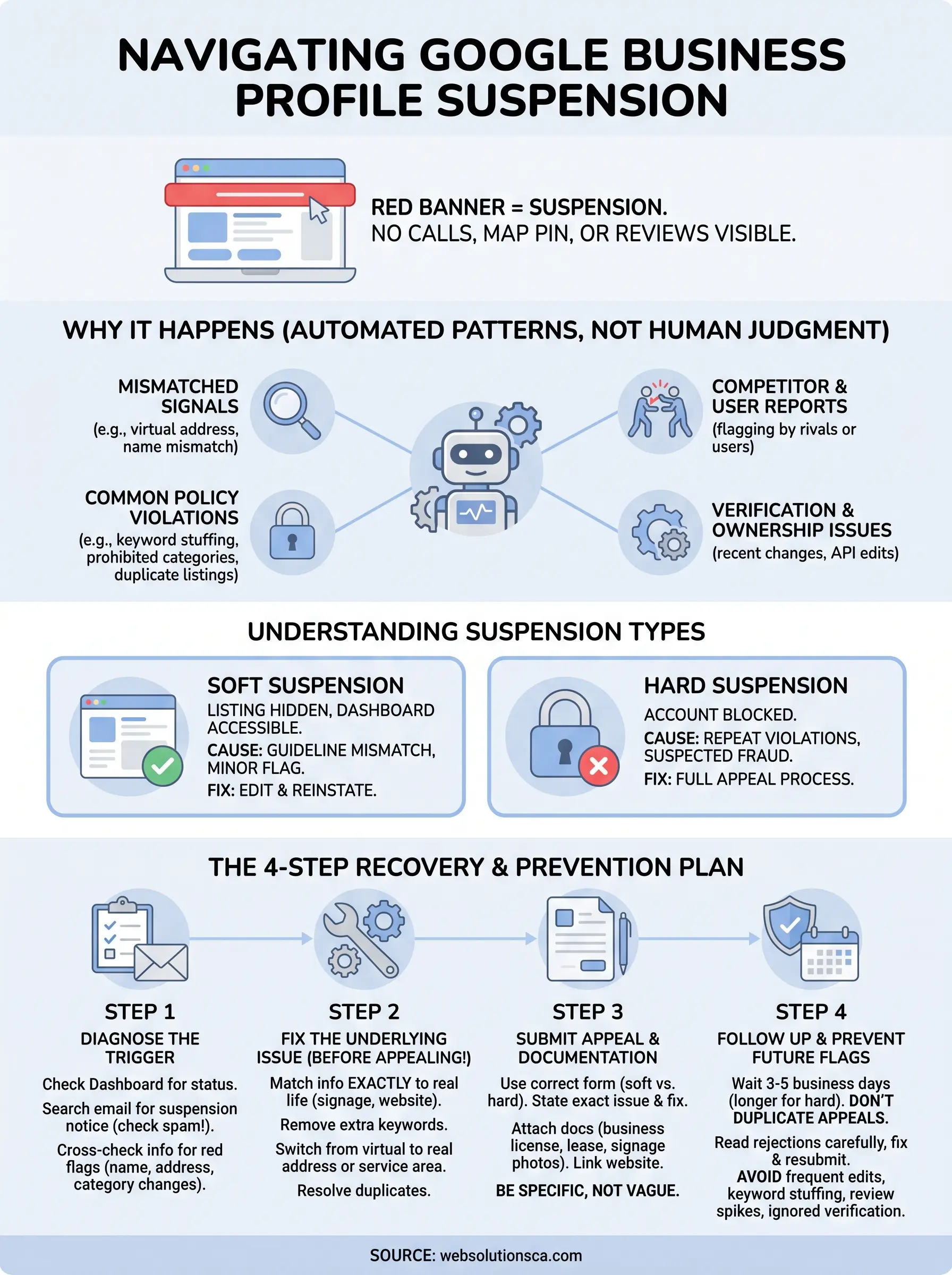
You logged into Google Business Profile expecting the usual, and instead you got a red banner telling you your listing is suspended. No calls, no map pin, no reviews visible. If you run a local business in Orange County, that listing is often your biggest source of leads, and losing it overnight feels like losing the phone line to your shop.
A google business profile suspension almost always comes down to a handful of triggers: mismatched business information, a virtual address or PO box, prohibited categories, guideline violations flagged by a competitor, or automated systems catching something in your account history. Once Google flags a profile, it goes into either a soft suspension (listing hidden, dashboard still accessible) or a hard suspension (account access blocked entirely), and each requires a different fix.
This guide walks through why your google business profile suspended notice showed up, how to tell which type of suspension you're dealing with, and the exact steps to file a reinstatement request that actually gets a response instead of a canned rejection. We'll also cover how to prevent it from happening again, because a second suspension is harder to undo than the first.
Why Google suspends business profiles
Google runs its Business Profile system on automated pattern detection, not human judgment, and that's the root of most suspensions. The algorithm compares your listing against millions of others looking for mismatched signals: a business name that doesn't match your storefront, an address that resolves to a UPS box, or a phone number tied to five other unrelated listings. None of this means you did anything wrong on purpose. It means your profile tripped a rule Google wrote to catch fake listings, and the system doesn't pause to ask questions first.
Common policy violations
Most suspensions trace back to a violation of Google's Business Profile guidelines, and the same handful of issues show up over and over for local service businesses in Orange County.
- Virtual offices or PO boxes listed as a physical address
- Keyword stuffing in the business name, like "Costa Mesa Best Plumber 24/7 Emergency"
- Prohibited or mismatched categories, such as listing a home-based consultant under a storefront category
- Duplicate listings for the same location or service area
- Ineligible businesses, including those without face-to-face customer contact at the listed address
A suspended profile almost always means Google's automated system found a mismatch, not that your business did something malicious.
Competitor and user reports
Sometimes the trigger isn't automated at all. A competitor, a disgruntled former customer, or even a random user can flag your listing through Google's reporting tool, and that flag routes into the same review queue as an algorithmic catch. Local service categories like contractors, tax preparers, and immigration consultants see this often, since the competition for a handful of high-value keywords in a small service area is fierce. If you've recently added five-star reviews in a short burst, changed your business name, or moved addresses, you're a bigger target for both bots and rivals.
Verification and ownership issues
Accounts also get suspended when Google can't confirm who actually owns the business. This happens after a recent ownership transfer, a bulk edit made through an API or third-party tool, or a verification video that didn't clearly show signage matching the listed name. Newly created profiles face extra scrutiny in the first 60 to 90 days, since fake listings tend to get flagged and abandoned quickly, so Google watches new accounts more closely during that window.
Soft vs. hard suspension
Understanding which type you're facing changes your next move entirely.
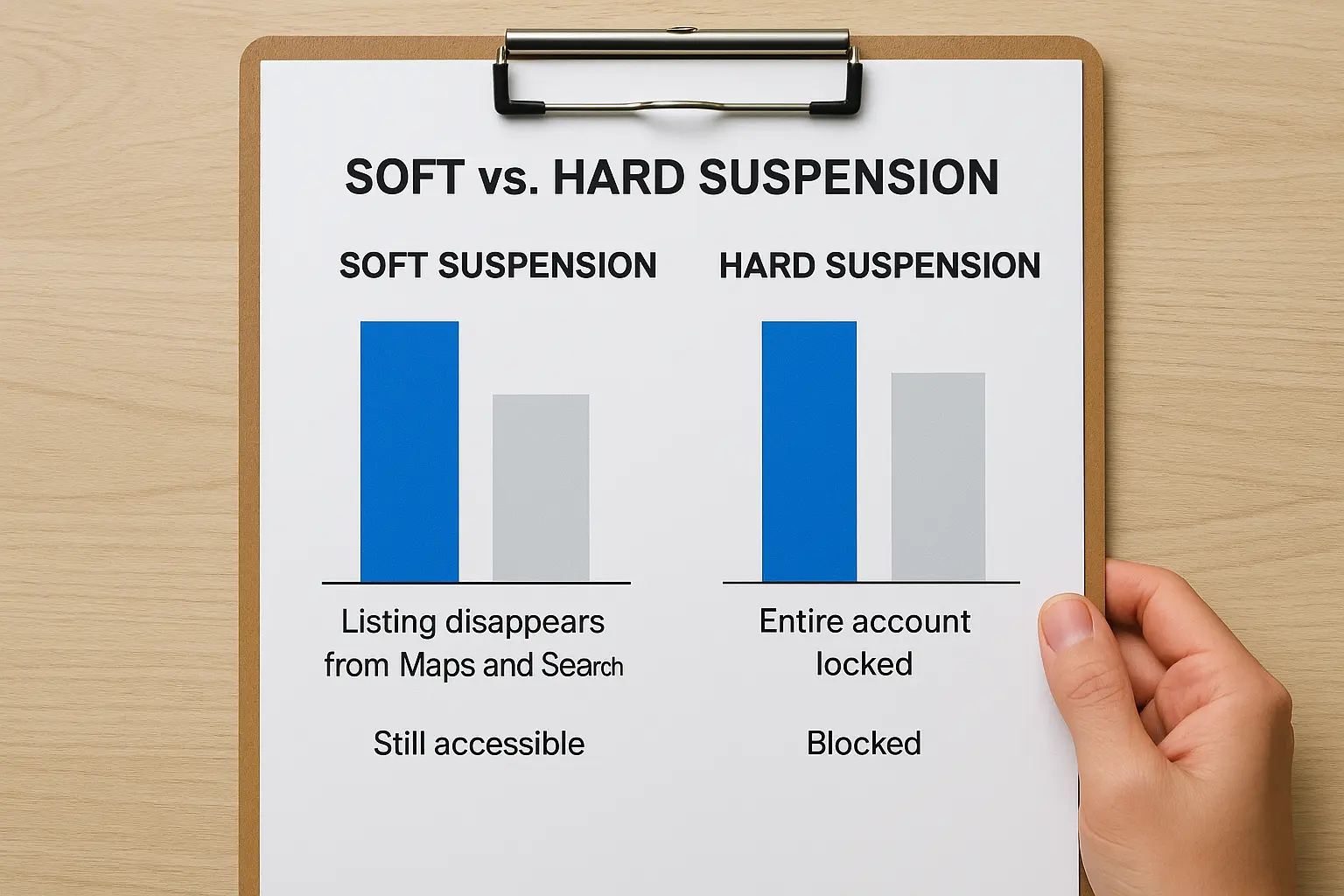
| Suspension type | What you see | Dashboard access | Typical cause |
|---|---|---|---|
| Soft suspension | Listing disappears from Maps and Search | Still accessible | Guideline mismatch, minor policy flag |
| Hard suspension | Entire account locked | Blocked | Repeat violations, suspected fraud, spam pattern |
A soft suspension usually resolves with an edit and a reinstatement request. A hard suspension requires the full appeal process covered in the next steps.
Step 1. Find out why your profile was suspended
Start by checking your Business Profile Manager dashboard at business.google.com. If you can log in and see a status message under your business name, you're dealing with a soft suspension, and Google usually gives at least a general reason like "suspended for violating our guidelines." If the entire account is locked and you can't access the dashboard at all, you're facing a hard suspension, which means something more serious triggered the flag, likely a pattern Google's system linked across multiple listings or accounts.
You can't fix what you can't diagnose, so pinpointing the exact suspension type comes before anything else.
Next, pull up your email inbox tied to the Google account managing the listing. Google sends suspension notices to the account email, though they often land in spam or get buried under other notifications. Search for terms like "suspended," "policy," or "Business Profile" going back at least 90 days. These emails sometimes include a specific policy citation, which tells you exactly which guideline you tripped instead of leaving you guessing.
Check your business information for red flags
While you're in the dashboard or email, cross-check your listing against these common triggers:
- Does your listed address match your actual storefront or service area exactly?
- Has your business name changed recently, or does it include extra keywords beyond your actual name?
- Did you add a new category that doesn't match how customers reach you?
- Have you had any recent ownership or management changes on the account?
- Did you receive a verification request you missed or ignored?
Running through this list before you touch anything else saves you from guessing during the appeal. Reviewing your suspension notice, checking Google's guideline reference page, and matching it against your actual listing gives you a clear starting point instead of a shot in the dark once you move to Step 2.
Step 2. Fix the issue behind the suspension
Once you know what triggered the flag, fix it before you file anything with Google. Submitting an appeal while the underlying problem still exists almost guarantees a rejection, and a second rejection makes reinstatement much harder to win. Match your business information exactly to what customers see in person: your storefront sign, your invoices, your website footer. If Google flagged a name with extra keywords like "Costa Mesa Best Plumber 24/7," strip it down to your actual registered business name. If the address resolves to a UPS box or virtual office, switch to a real physical location or, for service-area businesses, remove the public address entirely and set a service radius instead.
Fix the root cause first. An appeal filed against an unresolved problem almost never gets approved.
Correct category and address problems
Open your listing editor and review every category attached to your profile. Remove any category that doesn't match how customers actually reach you, and pick the most specific primary category available rather than a broad one. If you run a home-based consulting business, don't list yourself under a storefront retail category just because it ranks better. Google checks this alignment closely after a suspension.
Handle duplicate or ownership conflicts
Search Google Maps for your business name and address to check for duplicate listings. If you find a second profile for the same location, request its removal through Google's duplicate listing guidance before you appeal the suspended one. For ownership issues, gather documentation proving you're the rightful manager: a business license, a utility bill at the listed address, or a signed letter if you recently took over management from someone else. Having these ready now saves you a delay once Google's support team asks for verification during the review.
Step 3. Submit your appeal through Google's tool
Once the underlying issue is fixed, head to the Business Profile reinstatement form through your dashboard or Google's reinstatement request page. Log into the Google account tied to the suspended listing, since submitting from a different account almost always delays or invalidates the request. You'll see a form asking for your business name, address, and a description of what happened, and this is where most owners rush and lose their case.
A vague appeal gets a vague rejection. Specific, documented appeals get read by an actual reviewer.
What to include in your reinstatement request
Write your explanation like you're briefing someone who's never seen your business before, because that's exactly what a Google reviewer is. Keep it factual and skip the frustration, even if you're furious about losing your listing.
- State the exact issue Google flagged, referencing the policy citation if your suspension email included one
- Explain the fix, such as correcting your address or removing extra keywords from your business name
- Attach supporting documents: a business license, a lease agreement, a utility bill, or photos of your storefront signage
- Include a link to your website if it clearly shows matching business information
- Avoid generic language like "please help, this is unfair" that gives the reviewer nothing to verify
Submitting for a hard suspension
If your dashboard is completely locked, you'll need to use the Business Profile suspension appeal form instead of the standard reinstatement tool, since hard suspensions route through a separate review team. This form asks for more detail upfront, including your business phone number and the date you first noticed the suspension, so have that information ready before you start typing. Submit once, resist the urge to file duplicate appeals hoping one sticks, and note the confirmation number Google gives you for reference in Step 4.
Step 4. Follow up and prevent future suspensions
Google's standard review window runs about 3 to 5 business days, though hard suspensions tied to a fraud review can stretch past two weeks. Resist the urge to submit a second appeal while the first one is pending, since duplicate requests confuse the review queue and can reset your position in line. Check the email tied to your Google account daily, and log into your dashboard every couple of days to see if your listing status changed even before an email arrives.
Most reinstatement denials come from resubmitting the same appeal instead of fixing what actually caused the flag.
If Google denies your appeal, read the rejection carefully before you file again. It usually points to the same policy citation from your original suspension notice, which means something in your fix wasn't complete. Go back through your business information one more time, correct whatever's still mismatched, and file a fresh appeal with new documentation attached rather than resubmitting the same form.
Lock in habits that prevent a repeat suspension
Once you're reinstated, treat your profile like a compliance-sensitive account, not a set-it-and-forget-it listing.
- Avoid frequent name or address edits. Multiple changes in a short window trigger the same automated flags that caused your first suspension.
- Skip the keyword stuffing. Keep your business name exactly as it appears on your license and signage.
- Space out review requests. A sudden spike in five-star reviews looks like manipulation to Google's detection systems.
- Verify your listing whenever prompted. Ignored verification requests are a common trigger for hard suspensions.
- Monitor for duplicate listings quarterly, since a competitor or a data aggregator can create one without your knowledge.
These habits cost you a few minutes a month, but they're far cheaper than losing your listing again, especially since a second google business profile suspension carries a much lower approval rate on appeal.
Staying visible on Google going forward
A suspension feels like losing your storefront overnight, but the recovery path is straightforward once you follow it in order: diagnose the trigger, fix the underlying issue, file a documented appeal, and lock in habits that keep the flag from reappearing. Most owners who get denied made one mistake, they appealed before fixing the actual problem or resubmitted the same generic request twice. Skip that trap and you'll get reinstated faster than you think.
Getting your listing back is only half the job. Staying visible on Google long-term means treating your profile as an ongoing asset, not a one-time setup task, especially in a competitive market like Orange County where a suspended or stagnant listing hands leads straight to your competitors. If managing your Google Business Profile alongside everything else running your business feels like more than you can keep up with, reach out to Web Solutions CA and let a local team handle the monitoring, optimization, and lead generation for you.