
Bing Places for Business is Microsoft's free tool for claiming, creating and managing your business listing on Bing Search and Bing Maps. You sign in with a Microsoft account, claim or add your business, verify that you own it, and then control the name, address, hours, photos and links that searchers see. Appearing in Bing's local results does not require a paid tier.
Think of it as the Bing counterpart of a Google Business Profile. The listing is the card that shows up when someone searches Bing or Bing Maps for a business like yours, and other Microsoft services can read the same data.
This guide covers why the listing matters, how to claim or add one, how to verify it, how to keep it accurate, and how to fix the usual problems. If you run a small business in Orange County and already have a Google Business Profile, you have most of the information ready. We show you how to reuse it.
Why Bing Places for Business matters for local visibility
Bing Places for Business matters because it decides what Bing shows about your business. Bing is a smaller search engine than Google, but an unclaimed listing leaves your phone number, hours and photos to whatever data Bing happens to have.
What a Bing listing does for you
Bing builds local listings from its own database and from outside sources, so a business that never claims its listing often appears with missing or stale details. Claiming the listing gives you control over your name, phone number, hours, categories and photos. Reviews on a Bing listing can come from third-party sources such as Yelp, TripAdvisor and Facebook, so those profiles shape what Bing displays too.
The reach is modest but real. Bing handles roughly 4 to 5 percent of global searches by common estimates, and closer to 10 percent on desktop. Microsoft Edge on Windows PCs defaults to Bing, which is why many office and desktop searchers land there. For an Orange County business, free exposure to those searchers costs you an hour or so of setup.
An unclaimed Bing listing is a public profile of your business that you did not write.
Bing Places vs Google Business Profile
The two tools do the same job on different platforms. This table shows how they line up.
| Bing Places for Business | Google Business Profile | |
|---|---|---|
| Cost | Free | Free |
| Appears on | Bing Search, Bing Maps | Google Search, Google Maps |
| Account needed | Microsoft account | Google account |
| Reviews shown | Pulled from third-party sources | Google reviews |
Treat them as two copies of the same facts. Matching details everywhere matters more than any trick on one platform, so keep your name, address and phone number identical on both.
Bing My Places is not the same thing
Searching this topic often surfaces a page called Bing My Places. That page is for consumers. It stores personal favorites, itineraries and collections, not business listings. To manage a business, go to Bing Places for Business instead.
How to claim or add your listing
To claim or add your listing, sign in at Bing Places for Business, search for your business, then claim the match Bing finds or create a new listing. Gather your details first, because the form asks for all of them.
Gather your details first
Collect everything in one place before you start. For a hypothetical Irvine tax preparer, the list would look like this:
- Business name exactly as it appears on your signage
- Street address, or your service area if customers do not visit you
- Main phone number and website address
- Opening hours, including seasonal changes
- One primary category and any secondary categories
- A short description and at least a few photos
Claim an existing listing or add a new one
Follow these steps. Microsoft redesigned the Bing Places interface in late 2025, so some labels may differ from what you see.
- Open Bing Places for Business and sign in with a Microsoft account. Use an account the business owns, not one tied to a single employee.
- Search for your business name and city.
- If your business appears, choose it to claim it. If it does not, choose the option to add a new business.
- Fill in your details from the checklist above.
- Submit the listing and start verification.
Always search before you add. Creating a new listing when Bing already has one for you risks a duplicate, which is harder to clean up than a claim.
Import from Google Business Profile
If you already manage a Google Business Profile, importing is the fastest route. Bing Places can connect to your Google account and copy your existing details across. A listing that is verified on Google can often carry that verification over, though Bing may still ask you to confirm. Check hours, categories and formatting after the import. If customers do not visit your location, choose the service-area option rather than showing a street address.
Import from Google if you can, then read every field, because copied data is only as good as the original.
How to verify your Bing Places listing
Verification proves that you own or manage the business, and edits do not go live without it. Bing decides which methods it offers you, so you may not see all of them.
Verification methods
| Method | How it works | Typical wait |
|---|---|---|
| Phone | Automated call or text with a code | Usually minutes |
| Code sent to an address Bing offers | Usually minutes | |
| Postcard | PIN mailed to your business address | Several days, sometimes longer |
| Google import | Verification may carry over | Often immediate when it applies |
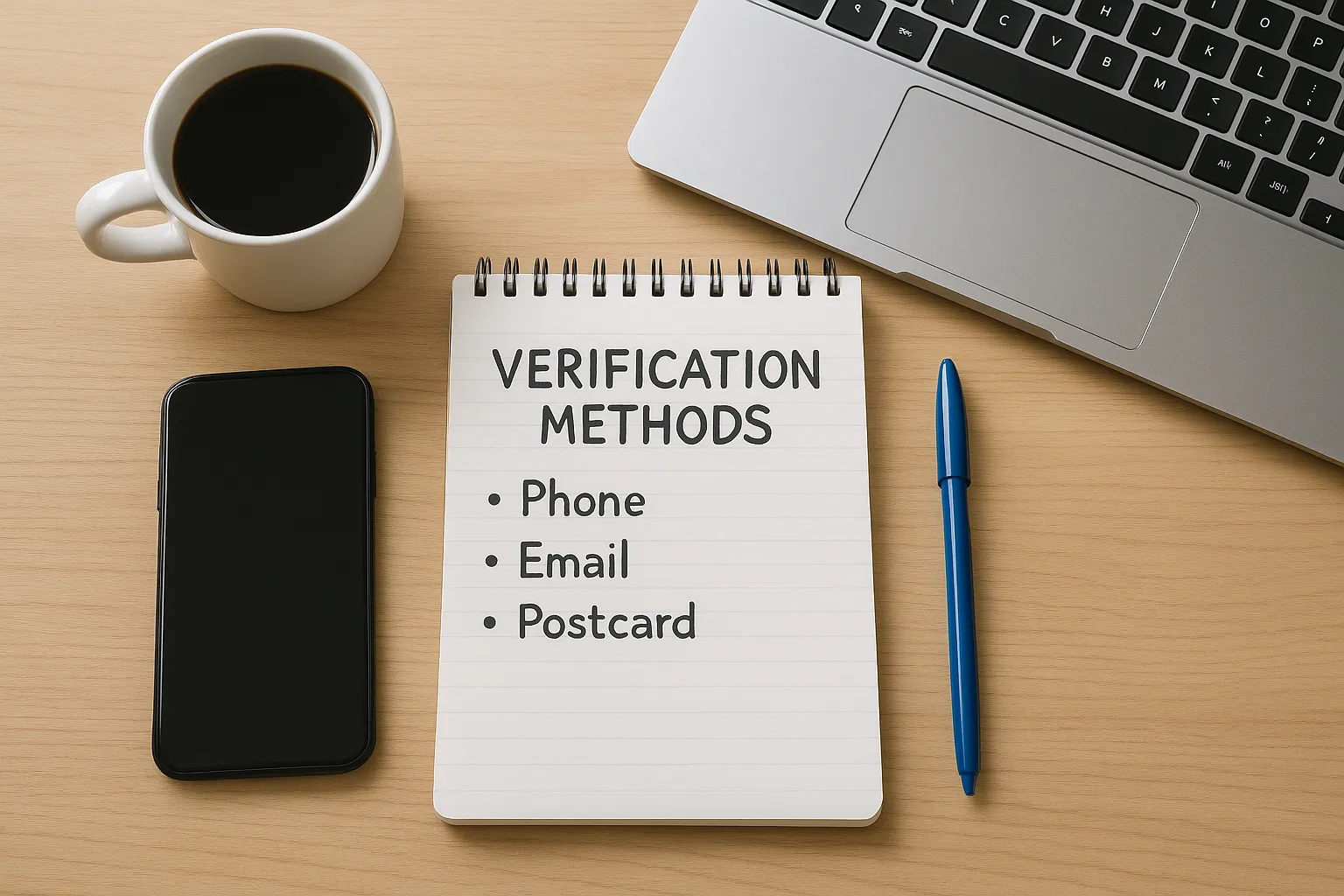
Choose phone or email when they are offered, since they are fastest. Postcard verification works for nearly any business with a mailing address, but plan for a wait. Enter the code exactly as printed, and watch your mail, because a postcard is easy to mistake for junk.
What to do when verification stalls
Most failures come from mismatched details. Make sure your business name and address match what is on your signage and your website, because Bing compares them against other sources. If a postcard has not arrived after a couple of weeks, request another method or start a new request in your dashboard. If that fails, contact Microsoft support, covered in the last section.
Verification fails most often because the details you typed do not match the real world.
How to manage and optimize your listing
Managing your listing means keeping your details accurate, your photos fresh and your reviews watched. Most of this work is the same as for a Google profile, so a single routine can cover both.
Details to keep accurate
Your name, address and phone number, known as NAP, should be identical everywhere your business appears: your website, Google, Bing and any directories. Set your opening hours explicitly rather than leaving them to a default, and update them for holidays. Pick the most specific primary category you can. Use your real business name, with no keywords added, because Bing can suspend listings that look misleading.
Link to the most relevant page on your site, such as a location or service page, instead of your homepage. A visitor who clicks should land where the answer is.
Photos, reviews and posts
Upload sharp photos of your storefront, interior, team and work, at least 480×360 pixels. Add new ones regularly so the listing does not look abandoned. Bing also offers an announcement feature, similar to Google Posts, for promotions or news.
Reviews on your listing come from outside sources, so respond on those platforms and keep them current. Reviews you earn on Yelp or Facebook can reach Bing without extra effort.
Keep it maintained
Set a reminder to review your listing every quarter. Update it on the same day as Google whenever one of these changes:
- You move or open a new location
- Your phone number or website address changes
- Your hours change, permanently or for a holiday
- You rebrand or change your business name
Update Bing the same day you update Google, and your two listings never drift apart.
Fixing common Bing Places problems
Most Bing Places problems come down to unverified, mismatched or duplicate information, and most are fixable from your dashboard. Use this table to find the likely cause quickly.
Problems and fixes
| Problem | Likely cause | Fix |
|---|---|---|
| Business not showing on Bing | Listing unclaimed, unverified or incomplete | Complete every field, verify, then allow time for Bing to update |
| Duplicate listing | A listing already existed or was added twice | Claim the existing one, then ask support to resolve the extra |
| Verification code never arrives | Wrong phone or address, or the method is unavailable | Recheck details and try another method |
| Listing suspended | Inaccurate or misleading information | Correct name, address and category to match reality, then contact support |
| Edits not appearing | Changes still processing | Wait, then confirm the change in your dashboard |
A business missing from Bing usually means Bing lacks enough verified information about it. Completeness helps, so fill in every field you can.
If Bing cannot find you, the usual fix is more verified information, not a new listing.
Where to get support
Start with Microsoft's own page on how to add and manage your business listing. The Bing Places dashboard also has help options for listing issues. When you write to support, include your business name, address and what you already tried. Specific details get faster answers than a general complaint.
Next steps for your Bing listing
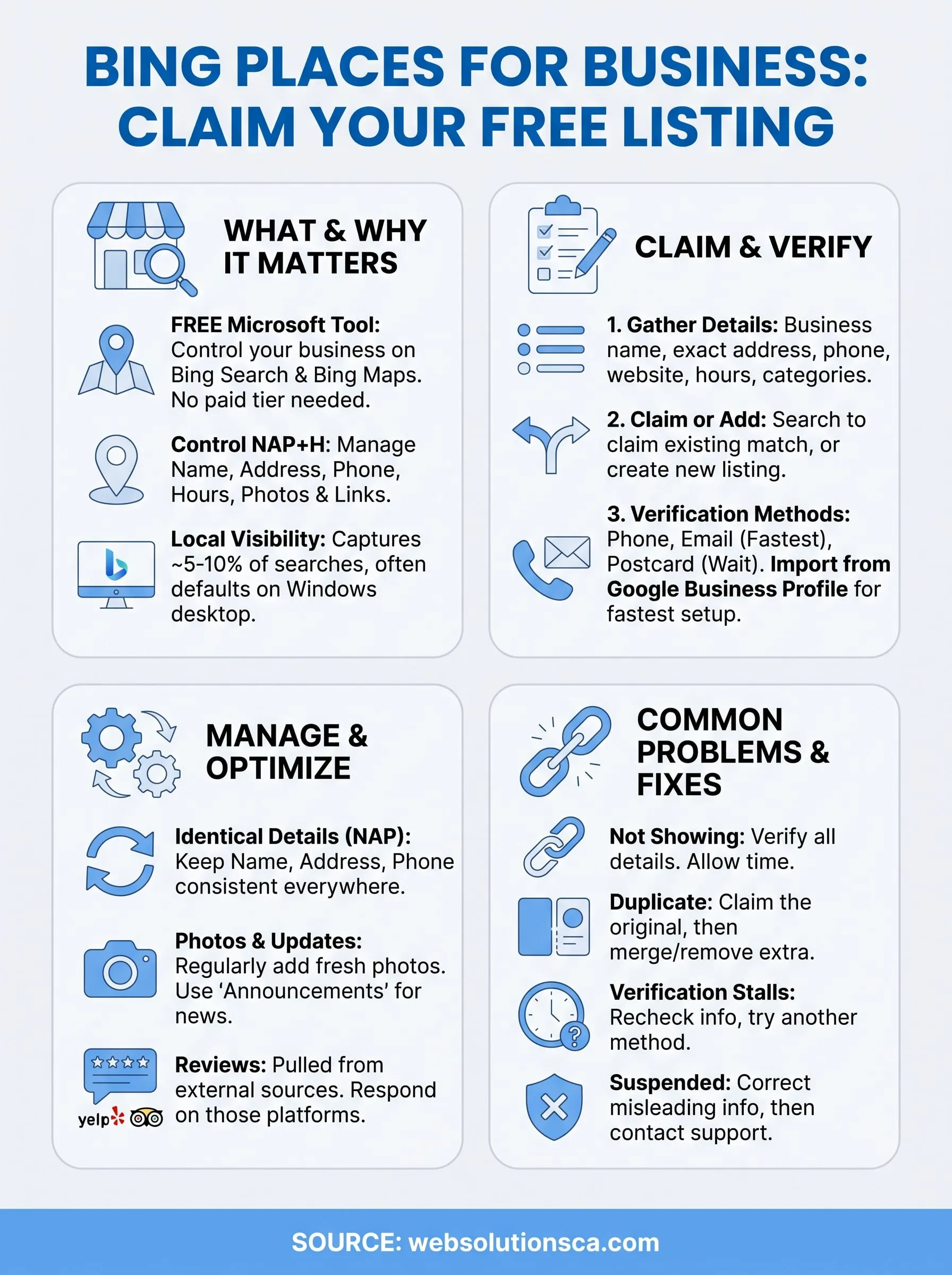
Bing Places for Business is a free listing tool that puts you in charge of how your business appears on Bing Search and Maps. Claim or import your listing, verify it, keep your details identical to your Google profile, and review it every quarter. That small routine covers a corner of local search that many competitors still ignore.
If you would rather hand the rest of your local presence to someone else, including your Google Business Profile and citations, Web Solutions CA works with small businesses across Orange County. We can start with a free SEO audit that looks at your local signals and Google Business Profile alignment.