
Maybe you closed your storefront, merged two locations, or found duplicate listings confusing customers who search for your business on Maps. Whatever the reason, you want to delete Google Business Profile entries the right way, without leaving a broken or outdated listing haunting your local search results for months. If you skip steps or use the wrong method, Google can leave your profile in limbo, still showing up with old hours, a disconnected phone number, or reviews from a business that no longer exists.
This guide walks you through the exact process, from verifying you own the listing to submitting the removal request and confirming it's actually gone from Search and Maps. We also cover what happens to your reviews, photos, and Google Business Profile data after deletion, plus how long the process typically takes.
We work with small businesses across Orange County every week on Google Business Profile setup and optimization, so we've seen what goes wrong when owners try to remove a listing without a clear roadmap. Follow the steps below in order, and you'll avoid the common mistakes that leave a profile technically deleted but still visible for weeks.
What happens when you delete a Google Business Profile
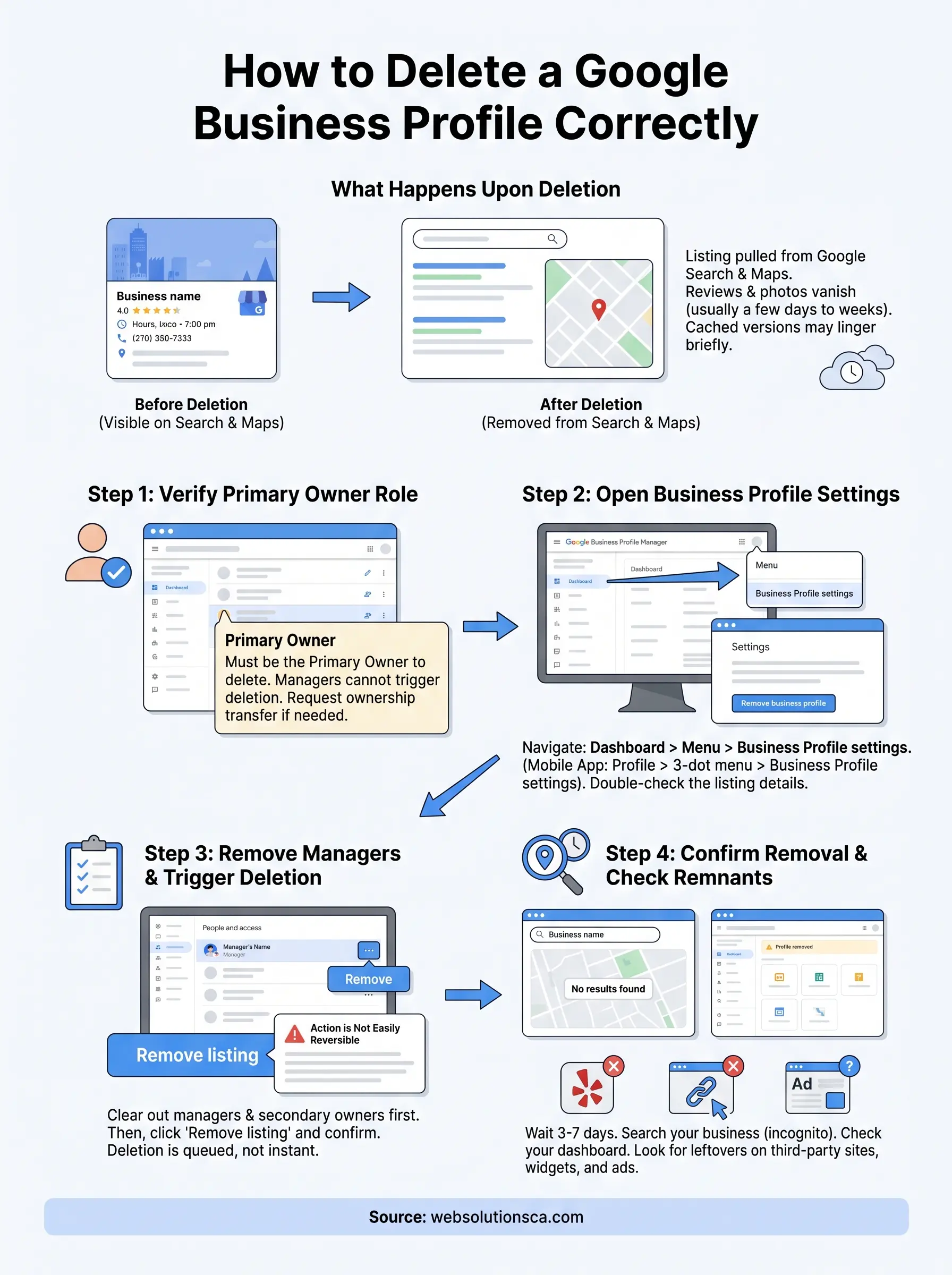
Before you touch any settings, understand what actually disappears and what sticks around. When you delete a Google Business Profile, you're not just hiding it from your own dashboard, you're pulling your business listing out of Google Search results and Google Maps entirely. Customers who search your business name won't find a card with your hours, phone number, or website link anymore. The listing stops showing up for local searches like "plumber near me" or "tax prep in Costa Mesa," which matters a lot if you still operate under a different name or location and don't want the old listing competing for attention.
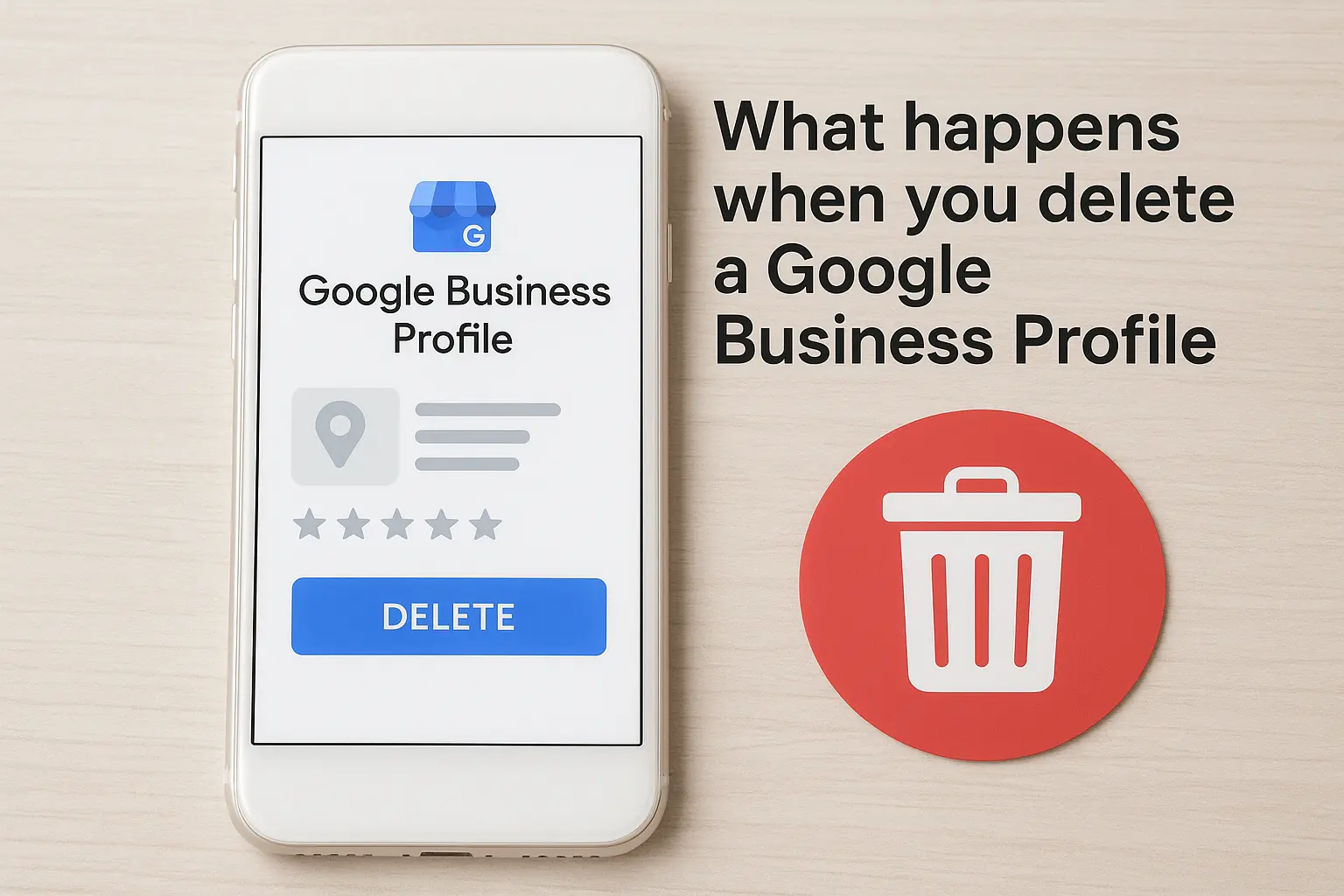
What gets erased versus what lingers
Deletion doesn't clear everything instantly. Your reviews and photos tied to the profile typically vanish once the deletion processes, but that can take anywhere from a few days to a couple of weeks depending on how Google's systems sync across Search and Maps. During that window, some users might still see a cached version of your listing, especially if they've visited it before or saved it to their own Maps app.
Deleting a Google Business Profile removes it from Search and Maps, but the cleanup isn't instant, and stray data can surface for weeks if you don't verify the removal.
Here's a quick breakdown of what typically happens to each part of your profile:
| Profile Element | What Happens After Deletion |
|---|---|
| Business listing (hours, address, phone) | Removed from Search and Maps, usually within a few days to two weeks |
| Customer reviews | Deleted along with the profile, generally cannot be recovered |
| Photos and videos uploaded by you | Removed from the listing |
| Photos uploaded by customers | May persist briefly in Google's cache before clearing |
| Q&A section | Deleted with the profile |
| Insights and performance data | Permanently lost, no export option after deletion |
| Duplicate or third-party listings | Not affected, must be handled separately |
Why deletion isn't always reversible
Once you confirm the removal, Google doesn't offer a simple undo button. If you deleted the profile by mistake, or later realize you needed that review history for a new listing, you're mostly out of luck. Some businesses have successfully requested reinstatement through Google's support channels within a short window after deletion, but there's no guarantee, and you'll likely lose accumulated reviews even if the listing itself comes back. If there's any chance you'll reopen under the same name or want to preserve your review count, consider whether marking the business as "permanently closed" fits your situation better than full deletion.
Impact on your visibility and other Google services
Removing your profile also affects how your business shows up in connected tools. If you've linked your Google Business Profile to Google Ads location extensions, those extensions stop working once the profile is gone. The same goes for any website widgets pulling in your Google reviews or map location, since they typically reference your profile ID directly. According to Google's own Business Profile help documentation, deleted listings are removed from public view but Google may retain some account data internally for a limited period, so don't assume everything vanishes from Google's servers the moment you click confirm.
Understanding these outcomes upfront helps you decide if deletion is really the right move, or if a different action, like transferring ownership, merging duplicate listings, or marking the location closed, would serve your business better. If you've weighed the options and deletion is still the right call, the next section walks you through confirming you have the access needed to actually carry it out.
Step 1. Confirm you're the primary owner
Before you can delete a Google Business Profile, Google requires you to hold the primary owner role on that listing. Managers, site managers, and even secondary owners don't have the permission to trigger a full deletion, no matter how much access they seem to have in the dashboard. Skipping this check is the number one reason business owners get stuck midway through the process, staring at a grayed-out option with no explanation.
Only the primary owner can delete a Google Business Profile, so verifying your role first saves you from a dead end halfway through the process.
Checking your role in Business Profile Manager
Log into Google Business Profile Manager with the account you believe owns the listing, then follow these steps to confirm your access level:
- Select the business location from your dashboard.
- Click Menu, then choose Business Profile settings.
- Select People and access.
- Look for your name or email address in the list, and check the label next to it. You want it to say Primary Owner, not Owner, Manager, or Site Manager.
If you see "Primary Owner" next to your account, you're clear to move forward. If your role shows anything else, the delete option won't fully process even if the button appears clickable.
What to do if you're not the owner
If someone else set up the listing, whether that's a former employee, a web developer, or an agency you no longer work with, you'll need to request an ownership transfer before you can proceed. Google's transfer process sends a request to the current primary owner, who has to approve it from their own account. This can take a few days if the person is slow to respond, so don't wait until the last minute if you're closing a location on a deadline.
Occasionally, the original owner is unreachable, has left the company, or the account no longer exists. In that case, you'll need to file an ownership dispute through Google's Business Profile support, which involves verifying your connection to the business through documentation like a business license or utility bill. This route takes longer, sometimes several weeks, so factor that into your timeline before promising a client or partner that the old listing will disappear quickly.
Step 2. Open Business Profile settings
Once you've confirmed you're the primary owner, the next move is finding the actual delete option buried inside your dashboard settings. Google doesn't put a big red "Delete" button on the main screen, so a lot of owners waste time clicking through Menu items that look promising but only lead to editing hours or updating a phone number. The setting you need lives one level deeper than most people expect.
Navigating to the settings menu
Start from your Business Profile Manager dashboard and follow this exact path:
- Log into business.google.com with the primary owner account.
- Select the specific location if you manage more than one listing under the same account.
- Click the Menu icon in the left sidebar, then choose Business Profile settings.
- Scroll to the bottom of the settings panel where you'll see an option labeled Remove business profile or Remove listing, depending on which version of the interface Google has rolled out to your account.
The delete option sits inside Business Profile settings, not on the main dashboard, so don't waste time hunting through the edit screens first.
Using the mobile app instead of desktop
If you manage your listing primarily through the Google Maps app on your phone, the path looks a little different. Tap your business profile from the Maps app, select Business Profile, then tap the three-dot menu in the top right corner. From there, choose Business Profile settings and scroll down to find the same removal option. Some owners find the mobile version glitchy when multiple locations are linked to one account, so if you hit an error or the option won't load, switch to a desktop browser and try again through the full Business Profile Manager site instead.
Confirming you're looking at the right listing
Before going further, double check the business name, address, and category showing on screen match the exact listing you intend to remove. This step sounds obvious, but agencies and multi-location owners occasionally delete the wrong profile because two listings share a similar name or sit in the same shopping center. Take thirty seconds here, because once you move into the next step, there's no easy way to back out.
Step 3. Remove the profile content and managers
With the settings panel open and the right listing confirmed, you're ready to actually trigger the removal. Google usually asks you to clear out a few dependencies first, mainly the managers attached to the account, before it lets the deletion finish cleanly. Skipping this cleanup doesn't always block the process, but it can leave orphaned access permissions that cause confusion later if someone tries to log in and edit a listing that no longer exists.
Removing managers before you delete
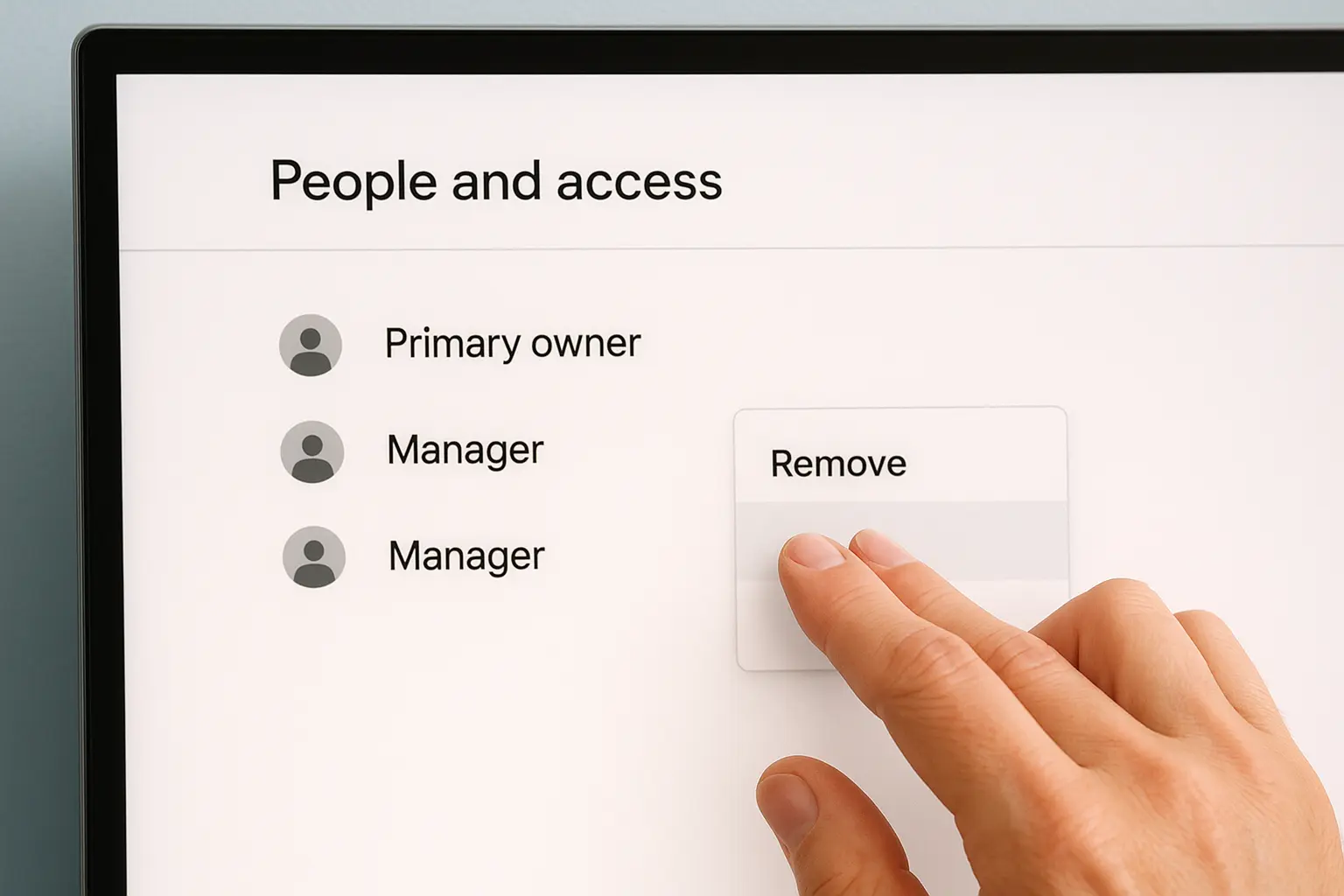
Open People and access from the same Business Profile settings menu you used to confirm your ownership role. Go through the list of managers, site managers, and secondary owners tied to the listing, and remove each one individually by clicking the three dots next to their name and selecting Remove. This matters most if you're closing a location that a former employee or outside agency still has access to, since leaving their permissions active means they could technically make changes to a listing you're trying to shut down.
Clear out managers and secondary owners before deleting, or you risk leaving stray access permissions attached to a listing that no longer exists.
Triggering the deletion request
Once the manager list only shows you as Primary Owner, scroll back down to the Remove business profile option and click it. Google will show a confirmation screen warning you that this action removes the listing from Search and Maps and cannot be easily undone. Read through it carefully, since this is the last checkpoint before the request processes.
- Click Remove listing or Delete this listing, depending on your interface version.
- Confirm the pop-up warning by clicking Remove again.
- Wait for the confirmation message that says your request has been submitted.
What happens immediately after you click confirm
You won't see the listing vanish the second you confirm. Google queues the request and starts the removal process in the background, which typically takes a few days before the listing drops out of Search and Maps entirely. During this window, your dashboard may still show the profile, but with a banner indicating it's pending removal. Don't panic if you still see it appear in a Google search right after confirming, since propagation across Google's index isn't instant, and the next step covers exactly how to verify the removal actually stuck.
Step 4. Confirm removal and check what's left
After you submit the deletion request, don't just close the tab and assume it worked. Google's systems need time to sync across Search and Maps, and confirming the removal actually processed saves you from discovering months later that customers still see your old listing. Give it at least 3 to 7 days before you start checking, since testing too early just shows you a cached result that hasn't updated yet.
Searching for your business the right way
Run a few targeted searches to see whether your listing dropped out of the index. Search your exact business name along with your city, then check Google Maps directly by typing the same name into the search bar. Try both from a browser where you're logged out of your Google account and one where you're logged in, since personalized results sometimes show cached data longer than incognito searches do. If the listing still appears with full details after a week, the deletion likely didn't process correctly, and you'll want to go back into Business Profile Manager to check the status.
If your listing still shows full details in Search after a week, the deletion probably didn't finish, so recheck your dashboard before assuming it's gone.
Checking your dashboard for leftover access
Log back into business.google.com and confirm the profile no longer appears in your list of managed locations. Sometimes a deletion partially processes, leaving a ghost entry that shows as "pending" indefinitely. If you still see the listing sitting there after two weeks with no status change, contact Google Business Profile support directly and reference your original removal request date.
What to do if remnants still show up
Duplicate listings, old citations on directory sites, and cached map pins can outlive the official deletion. Check these common trouble spots:
- Third-party directories like Yelp or Bing Places that pulled data from your old Google listing
- Your website's embedded map widget, which may still reference the deleted profile ID and show a broken map
- Google Ads location extensions, which stop working but sometimes leave a broken link visible in ad previews
- Saved listings in customers' personal Maps app, which clear on their end but can take longer
Working through this checklist within the first month after deletion catches most leftover issues before they confuse potential customers searching for your business.
Keeping your online presence accurate going forward
Deleting a Google Business Profile isn't a task you rush. Confirm your ownership, clear out managers, trigger the removal, then verify it actually stuck across Search and Maps. Skip a step and you'll be chasing a half-deleted listing for weeks while customers still find outdated hours or a disconnected phone number.
Once the old profile is gone, your local visibility depends on what replaces it. A new listing, a merged location, or a freshly optimized profile all need the same attention to detail you just applied to the deletion. Small mistakes here cost you calls and foot traffic just as easily as a lingering ghost listing does.
If managing your Google Business Profile alongside everything else running your business feels like more than you have time for, Web Solutions CA handles setup, cleanup, and ongoing optimization for small businesses across Orange County so your listing works for you instead of against you.