
Maybe you closed the business, merged locations, or created a duplicate profile that's confusing customers on Google Maps. Whatever the reason, you're here because you need to know how to delete your Google Business Profile without leaving a mess behind. This isn't a five-minute task you can guess your way through. Google buries the delete option a few menus deep, and doing it wrong can leave orphaned reviews, duplicate listings, or a profile that reappears weeks later.
This guide gives you the exact steps to permanently remove a listing, whether you're an owner or a manager without full account access. We'll cover how to close and remove a business location correctly, what happens to your reviews and photos, and how long the removal actually takes to show up in search results.
We've helped dozens of Orange County business owners clean up their Google Business Profiles as part of our local SEO work, and the same mistakes come up again and again, like deleting the wrong duplicate or forgetting to transfer ownership before removing access. Follow the steps below in order, and you'll avoid the headaches that come with a botched deletion.
What happens when you delete a Google Business Profile
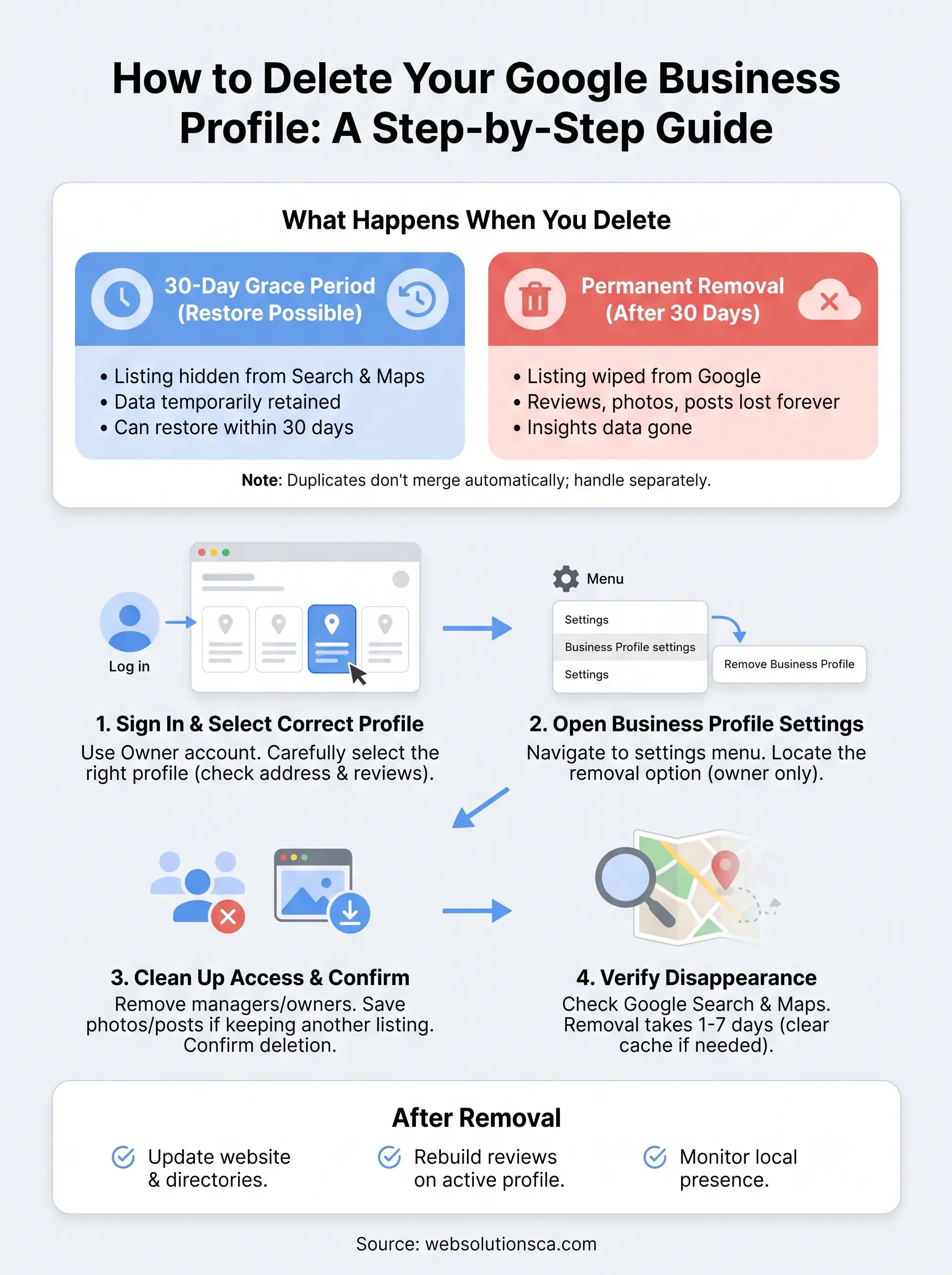
Before you touch any settings, understand what you're actually triggering. Deleting a profile doesn't just hide it from you, it starts a process that eventually wipes your listing from Google Search and Maps, along with everything attached to it. Google doesn't erase everything instantly. There's a grace period, then a slower cleanup on the back end.
Deleting a Google Business Profile is permanent once Google finishes processing it, so make sure it's the right listing before you confirm anything.
Here's a breakdown of what actually disappears, and what sticks around longer than you'd expect:
| What happens | Timeline | Can you undo it? |
|---|---|---|
| Listing removed from Search and Maps | 1 to 7 days after deletion | Yes, within 30 days |
| Reviews and ratings hidden | Same as listing removal | Reviews are lost permanently after full deletion |
| Photos and posts removed | Same as listing removal | Lost permanently after full deletion |
| Insights and performance data | Removed immediately from dashboard | Not recoverable |
| Google Ads location extensions using this profile | Stop showing within days | Requires manual reconnection if restored |
Google gives you roughly 30 days to restore a deleted profile before it's gone for good. During that window, you can log back in and reverse the deletion if you change your mind or realize you removed the wrong location. Past that window, the listing, its review history, and its photo library are gone. There's no support ticket that brings back three years of five-star reviews.
Another thing owners miss: duplicate listings don't automatically merge or clean themselves up when you delete one. If your business shows up twice on Maps, deleting one copy is only half the job. You may need to flag the surviving duplicate for merging separately through Google's support process, which Google documents in its own help center at support.google.com.
Knowing this upfront changes how you approach the next steps. If you're deleting because of a duplicate, confirm which listing has the verified reviews and higher visibility before you remove anything. That's the listing you keep.
Step 1. Sign in and select the profile you want to remove
Start by going to google.com/business and signing in with the account that manages the listing. If you're an owner, use your personal or main business Gmail. If you're a manager without full account access, you'll need the owner to either delete the listing themselves or upgrade your role to primary owner first, since Google restricts deletion to owners only.
You can't delete a Google Business Profile from a manager account, only the owner has that permission.
Once you're logged in, you'll land on the Business Profile manager, which lists every location tied to that account. If you manage multiple locations, this is where mistakes happen fast. Selecting the wrong profile is the single most common error we see when businesses clean up duplicate or outdated listings on their own.
Before clicking anything, confirm you've got the right one:
- Match the address exactly, including suite numbers
- Check the phone number against your records
- Look at the review count and star rating, since the older or more established listing usually has more history
- Note whether it says "Verified" or "Pending verification"
If two listings look nearly identical, write down the profile ID or business name variation before you proceed. This gives you a reference point if you need to prove to Google's support team later that you deleted the correct duplicate and not the one with your review history attached.
Step 2. Open Business Profile settings
Once you've confirmed the correct listing, click into it and look for the menu icon, usually three dots or lines depending on your view, near the top of the profile dashboard. From there, select "Business Profile settings." This is a different menu than the general editing screen where you update hours or photos, so don't waste time hunting through the info tab.
Inside settings, scroll down until you find the option labeled "Remove Business Profile" or "Remove location." Google occasionally shifts the wording and placement during interface updates, so if you don't see it immediately, check under an "Advanced settings" or "Account" submenu. The exact label has changed a few times over the past couple of years, but the function stays the same.
If you can't find the remove option, you're likely logged in as a manager, not the owner, since Google hides that setting from non-owner roles.
Before clicking remove, Google's own support documentation confirms this action starts the deletion countdown immediately, so don't click it just to see what happens. Take a screenshot of the settings page first. This gives you a record of the profile's status, including its verification state and connected email, in case you need to reference it later while confirming removal with Google support or restoring the listing during the 30-day window.
Once you've located the correct option, you're ready to move into the actual removal step.
Step 3. Remove profile content and managers
Before you click the final confirmation, clean up who has access to the listing. Managers and other owners you added over the years still have edit rights until you remove them, and Google won't warn you about lingering permissions during deletion. Open the "People and access" tab and remove anyone who isn't the account you're currently using to delete the profile.
Removing managers before deletion stops old team members or past agencies from having a foothold on a listing that's supposed to disappear.
Next, decide what happens to your content. If you're closing the business entirely, you don't need to manually delete photos, posts, or Q&A responses since the whole profile gets wiped once processing finishes. But if you're only removing a duplicate listing and keeping a different one active, double-check that none of your best photos or review responses live exclusively on the copy you're about to delete.
Run through this before confirming removal:
- Remove all managers and additional owners except your primary login
- Screenshot any photos, posts, or Q&A you want to save for the surviving listing
- Confirm no active Google Ads campaigns still reference this profile's location extension
- Check that no other staff members are mid-edit on the listing
Once access is cleared and you've saved anything worth keeping, click "Remove Business Profile" to confirm. Google immediately starts the removal countdown from this point.
Step 4. Confirm the listing is gone from Search and Maps
Google doesn't send a confirmation email once your listing fully disappears, so you have to check yourself. Search for your business name directly on Google, and also search the exact address in Google Maps. If the profile still shows up after a few days, that's normal, since removal isn't instant across every Google product.
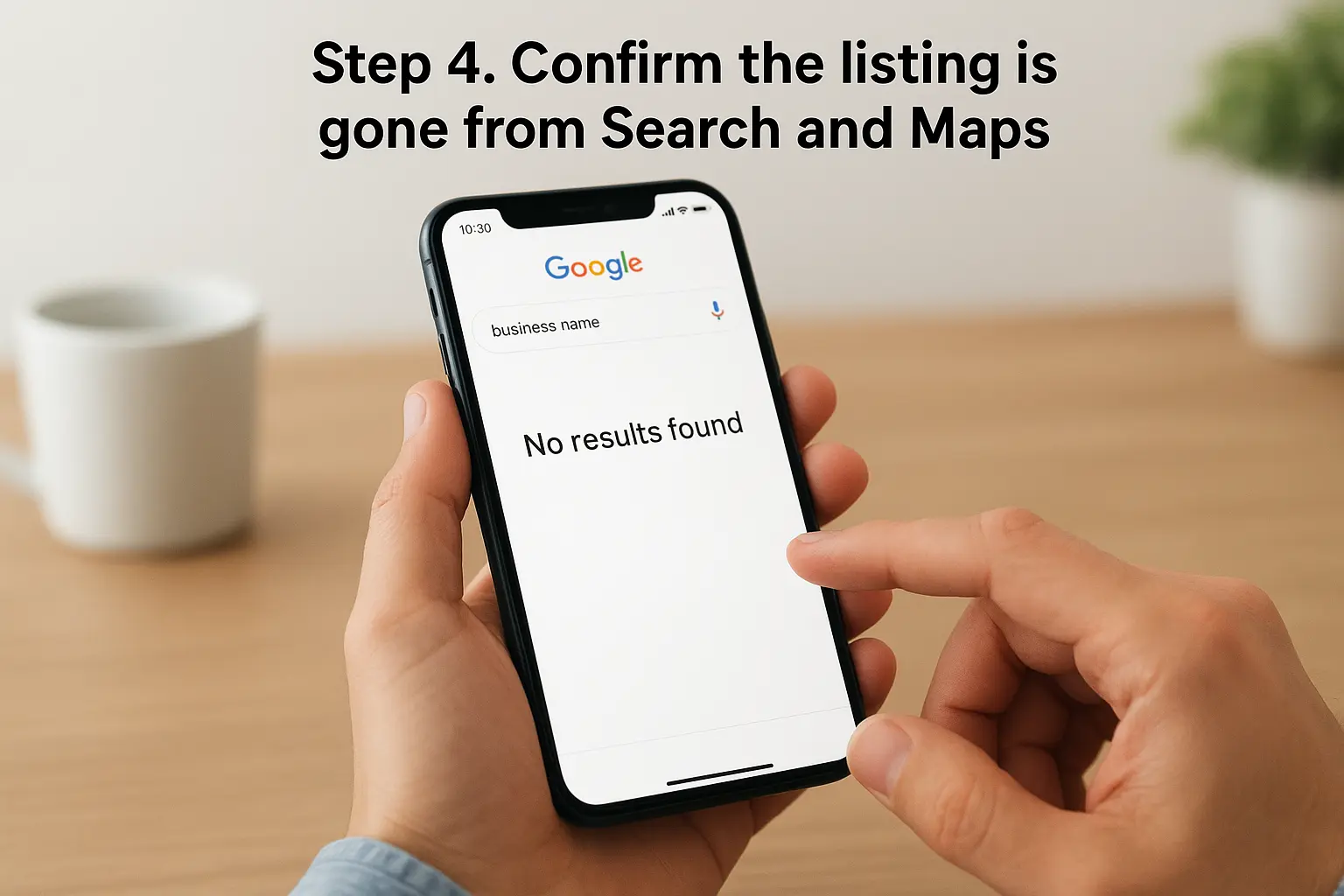
The only real proof your listing is gone is checking Search and Maps yourself, not waiting for a notification that never comes.
Expect a staggered rollout rather than a clean cutoff:
| Where to check | Typical timeline | What you'll see |
|---|---|---|
| Google Maps app | 1 to 3 days | Listing disappears or shows "permanently closed" |
| Google Search results | 3 to 7 days | Knowledge panel drops off |
| Google Ads location extensions | Up to 7 days | Extensions stop serving |
| Third-party map data pulls | 2 to 4 weeks | Cached copies may linger |
If it's still showing after a week, don't panic yet. Search from a different browser or device, since cached results on your own phone or computer can make a removed listing appear active longer than it actually is. Clear your cache or try an incognito window before assuming something went wrong.
Industry-specific listings, like those pulled into Google Search results, can lag behind Maps by several days. Once you've confirmed the listing is gone in both places, you're done with the technical removal, and it's time to think about what comes next for your business's online presence.
What to do after removing your listing
Once your Google Business Profile is confirmed gone, don't just walk away from your online presence. Update your website footer, social profiles, and any directory listings that still point to the old address or hours, since customers will find those before they find you now. If you're keeping a surviving duplicate listing active, spend time rebuilding its reviews and photos to match what you lost.
Deleting a profile the right way protects your reputation, but it also opens a gap where competitors can grab the visibility you just gave up. Rebuilding local search presence after a deletion takes strategy, not guesswork, and that's exactly where most small business owners get stuck. If you'd rather have someone handle the cleanup, verification, and local SEO rebuild for you, talk to Web Solutions CA about getting your business found again on Google.