You're spending money on Google Ads every month, but when someone asks how many of those clicks turned into actual calls or form submissions, you're guessing. That's the problem google ads conversion tracking solves. It's the feature that tells you exactly which ads, keywords, and campaigns are driving real business results instead of just clicks, so you stop paying for traffic that goes nowhere.
Setting it up correctly means connecting Google Ads to the actions that matter for your business, like a phone call, a booked appointment, or a completed contact form. Once it's running, you can see cost per conversion, not just cost per click, which changes how you decide where to put your budget. Most small business owners skip this step or set it up wrong, then wonder why their ad spend never seems to pay off.
This guide walks you through the exact setup process, from choosing conversion actions to installing tags and verifying they fire correctly. We work with local service businesses across Orange County every week fixing broken or missing tracking, so we know where things typically go wrong. Follow these steps and you'll have accurate data guiding your next campaign decision.
Why Google Ads conversion tracking matters for your business
Running ads without conversion tracking is like running a store where you count foot traffic but never track sales. You know Google Ads is generating clicks, but you have no idea whether those clicks turn into paying customers. Conversion tracking closes that gap by recording specific actions, like a phone call, quote request, or completed checkout, and tying them back to the exact ad, keyword, and campaign that caused them. Without this data, you're optimizing based on guesses, and guesses get expensive fast when you're paying $3 to $15 per click in competitive local markets.
What you can't see without it
Google Ads will show you clicks, impressions, and click-through rate no matter what. Those numbers look fine on a dashboard, but they tell you nothing about return on ad spend. A campaign with a low click-through rate might actually be your best performer if it's generating calls, while your "top" campaign by clicks could be sending traffic to a website that fails to convert visitors, with people bouncing immediately. Business owners who skip conversion rate optimization often keep funding the wrong campaigns for months because the surface-level metrics look busy and successful.
If you can't see which clicks turned into customers, you're not managing a campaign, you're just spending a budget.
How it changes your budget decisions
Once conversion data starts flowing, Google Ads shifts from a reporting tool into a decision-making tool. You can see cost per conversion for every keyword, ad group, and device type, then move budget toward what's actually working. This is also the data Google's own bidding algorithms use, so automated bidding strategies like Target CPA or Maximize Conversions can't function properly without it. Here's a quick comparison of what changes once tracking is in place:
| Without conversion tracking | With conversion tracking |
|---|---|
| You judge success by clicks and impressions | You judge success by calls, leads, and sales |
| Smart Bidding strategies have no data to optimize toward | Smart Bidding automatically targets your best-performing audiences |
| Budget gets spread evenly across campaigns | Budget shifts toward campaigns with the lowest cost per conversion |
| You can't tell which keywords are wasting spend | You can pause or lower bids on keywords that never convert |
| Reporting to yourself or a boss relies on vanity metrics | Reporting shows real revenue impact |
The local business angle
Small businesses feel the cost of bad tracking more than large companies do, simply because the budgets are tighter. A $1,500 monthly ad budget for a window and door company or a tax prep office in Orange County doesn't have room for waste. Every dollar spent on a click that never becomes a customer is a dollar that could've gone toward a keyword that actually books appointments. We've reviewed dozens of local accounts where the client had no conversion tracking at all, or had it set up incorrectly, counting every page visit as a "conversion" and making campaigns look far more successful than they were.
Properly configured tracking also feeds into other decisions beyond Google Ads itself. It shows you which services people actually search for, which landing pages convert best, and where your Google Business Profile and paid campaigns overlap in driving calls. That kind of clarity is what separates businesses that scale their ad spend with confidence from those that pull back every few months because they're not sure the ads are working. The setup steps below get you from guessing to knowing.
Step 1. Decide which actions to track as conversions
Before you touch Google Ads, figure out what actually counts as a "win" for your business. This is the step most agencies rush past, and it's why so many accounts end up tracking things that don't matter, like a button click on a page nobody cares about. Conversion actions should map directly to something that moves a lead toward becoming a customer, not just any interaction on your site.
Start by listing every action a potential customer takes that signals real intent. For a local service business, that usually looks like:
- Phone calls from ads or from your website (tracked separately, since both matter)
- Contact form submissions on your quote or estimate pages
- Appointment bookings through a scheduling tool
- Completed purchases or checkouts, if you sell products or services online
- Click-to-text or chat widget engagements, if you use them
Getting your conversion goals right at this stage saves you from rebuilding your tracking setup later. A window and door company, for example, cares far more about a completed quote request than a homepage visit, even though both show up as "activity" in your analytics.
A conversion is only useful if it represents an action you'd celebrate seeing on a whiteboard in your office.
Separate primary and secondary conversions
Not every action deserves equal weight, and Google Ads lets you set that up correctly. Mark your primary conversions, phone calls, form fills, bookings, as the ones your bidding strategy optimizes toward. Treat lower-intent actions, like a newsletter signup or a PDF download, as secondary conversions that you track for insight but don't let influence your bids. Skipping this distinction is a common mistake we see: businesses count every micro-interaction as equally valuable, then wonder why Smart Bidding starts chasing cheap, low-value clicks instead of real customers.
Grab a notepad right now and write down the three to five actions that would genuinely make you say "that's a lead" if you saw it happen. That list becomes your conversion action setup in the next step, and it's the single most important decision in this entire process, because every dollar Google spends afterward gets optimized around it.
Step 2. Create a conversion action in Google Ads
Now that you know what counts as a win, it's time to build that action inside your account. Log into Google Ads, click Tools and Settings, then choose Conversions under the Measurement section. From there, click the blue plus button to start a new conversion action. Google gives you several source options, including website, app, phone calls, and imports from other platforms, so pick the one that matches the action you listed in Step 1.
Every conversion action you create should answer one question: did this bring us closer to a paying customer?
For most local service businesses, you'll set up at least one website conversion (form submission or booking) and one phone call conversion tracked through call extensions or a call-tracking number. When Google asks you to configure the action, walk through these settings carefully:
- Category: Choose the option that best matches the action, like "Submit lead form" or "Contact" for calls
- Value: Assign a dollar value if you know your average lead value, or mark it as "don't use a value" if you're still figuring that out
- Count: Set to "One" for lead-generation actions, since one form fill from one visitor is one lead, not multiple
- Click-through conversion window: 30 days works well for most service businesses, since people rarely book on the first visit
- Attribution model: Data-driven attribution is Google's default and usually the most accurate choice for spreading credit across the customer journey
Naming conventions that keep you organized
If you're only tracking one or two actions, naming doesn't matter much. But once you're running multiple campaigns with several conversion actions, sloppy names turn your reports into a guessing game. Use a consistent format like "Website - Contact Form" or "Call - Website Header Button" so anyone looking at the account, including a future employee or one of the Google Ads agencies that work with small businesses, understands exactly what each number represents. We build every client's tracking this way at Web Solutions CA, and it's the difference between a report that answers questions and one that raises new ones every time you open it. Save the conversion action once it's configured, and Google will generate the tracking snippet you need for the next step.
Step 3. Install the Google tag on your website
Once you save a conversion action, Google Ads generates a Google tag, a small snippet of JavaScript that needs to live on every page of your site, not just the thank-you page. This tag is what actually reports conversions back to Google Ads, so skipping it or installing it wrong means your carefully planned conversion actions never fire at all. Go to Tools and Settings > Conversions > Google tag, then choose "Install the tag yourself" if you have access to your site's code, or "Email instructions" if a developer is handling it.

Paste the base tag into the <head> section of every page, right before the closing </head> tag. It looks something like this:
<!-- Google tag (gtag.js) -->
<script async src="https://www.googletagmanager.com/gtag/js?id=AW-XXXXXXXXX"></script>
<script>
  window.dataLayer = window.dataLayer || [];
  function gtag(){dataLayer.push(arguments);}
  gtag('js', new Date());
  gtag('config', 'AW-XXXXXXXXX');
</script>
Replace AW-XXXXXXXXX with your actual conversion ID. If you're on WordPress, a plugin like Insert Headers and Footers can place this without touching theme files. Shopify stores need it added through the theme.liquid file or a tracking app, since Shopify blocks direct header edits on some plans.
A conversion action with no Google tag installed is just a setting sitting idle, it will never record a single conversion.
Confirm the tag is actually firing
After you install it, don't assume it worked. Install the Google Tag Assistant browser extension, visit your own site, and check that the tag shows a green status instead of a warning. Alternatively, open your Google Ads account and look at the Diagnostics column next to your conversion action, which should read "Recording conversions" once data starts coming through, though this can take a few hours to update.
Sites already using Google Tag Manager don't need to hardcode this snippet directly into every page. Instead, you'll add the Google tag as a container inside GTM, which gives you more control over exactly when and where it fires. That's the setup we walk through next, and it's the approach we recommend for most clients since it keeps future tag changes out of your website's actual code.
Step 4. Set up your conversion tag in Google Tag Manager
Google Tag Manager (GTM) gives you a central dashboard for every tracking snippet on your site, so you're not hunting through theme files every time something changes. If you haven't already, create a free GTM account at tagmanager.google.com, add a container for your site, and paste the GTM container snippet into your site's header and body, right where the Google tag would normally go. From there, all your google ads conversion tracking setup happens inside GTM instead of your website's code.
Building the conversion tag
Inside your GTM workspace, click Tags > New, then choose Google Ads Conversion Tracking as the tag type. Paste in your Conversion ID and Conversion Label, both of which you'll find in the conversion action you created back in Step 2. Here's the basic setup checklist:
- Tag type: Google Ads Conversion Tracking
- Conversion ID and Label: Pulled directly from your Google Ads account
- Trigger: Set to fire only on the pages or button clicks tied to a real conversion, like a thank-you page URL or a form submission event
- Trigger type: Use "Page View" for thank-you pages, or "Click" and "Form Submission" triggers for buttons and forms that don't redirect
A tag with the wrong trigger fires on every visitor, which quietly wrecks your conversion data before you even notice.
Getting the trigger right for phone calls
Call tracking needs a different approach since there's no page load to trigger off. Use a click trigger tied to your phone number's tel: link, or connect a call-tracking service that fires an event into the dataLayer when a call connects and lasts longer than a set duration, usually 30 to 60 seconds, so accidental dials don't count as leads. This distinction matters more than most business owners realize, because a one-second missed call and a five-minute booking conversation shouldn't count the same way in your reports.
Once your tag and trigger are built, click Preview in GTM to test it against your live site before publishing anything. This debug mode shows you exactly which tags fire and when, catching mistakes before they cost you weeks of bad data. When everything checks out, hit Submit to push the container live, and move on to verifying the setup properly in the next step.
Step 5. Test your conversion tracking before going live
Publishing your tag in GTM doesn't mean it's actually working. Before you let Google Ads start optimizing bids around this data, you need to confirm every conversion action fires correctly and only counts real actions. Skipping this step is how businesses end up with inflated conversion counts or, worse, a conversion action that silently records zero data for weeks while campaigns run on autopilot.
Untested tracking is worse than no tracking, because bad data looks like good data until you check.
Running through the checks
Google gives you a few built-in ways to verify things before you trust the numbers. Work through these in order:
- Use GTM Preview mode to load your site and confirm the Google Ads tag fires exactly when it should, not on every page load
- Submit a real test conversion yourself, a form fill, a test call, a test checkout, then check that it shows up in Google Ads within a few hours
- Check the Diagnostics column in Tools and Settings > Conversions, which should read "Recording conversions" once data starts flowing
- Install Google Tag Assistant and confirm a green status on the pages where your conversion tag lives
- Cross-check the numbers against your CRM or call log for a few days to make sure the count matches reality, not just what the tag reports
Handling multiple actions like phone calls and form fills means testing each one separately, since a working form tag tells you nothing about whether your call tracking is set up right.
Watching for duplicate or inflated counts
One of the most common problems we catch during client audits is duplicate conversions, usually caused by a tag firing on every page refresh instead of just once per action, or a thank-you page that loads twice because of a redirect chain. If your form submission conversions look suspiciously high compared to your actual lead volume, that's the first place to look. Compare your Google Ads conversion count against your form submissions in your email inbox or CRM for the same date range. If the numbers don't roughly match, go back into GTM and check your trigger conditions before you touch anything else. Getting this right now saves you from making budget decisions on numbers that were never accurate in the first place.
Step 6. Analyze conversion data and optimize your campaigns
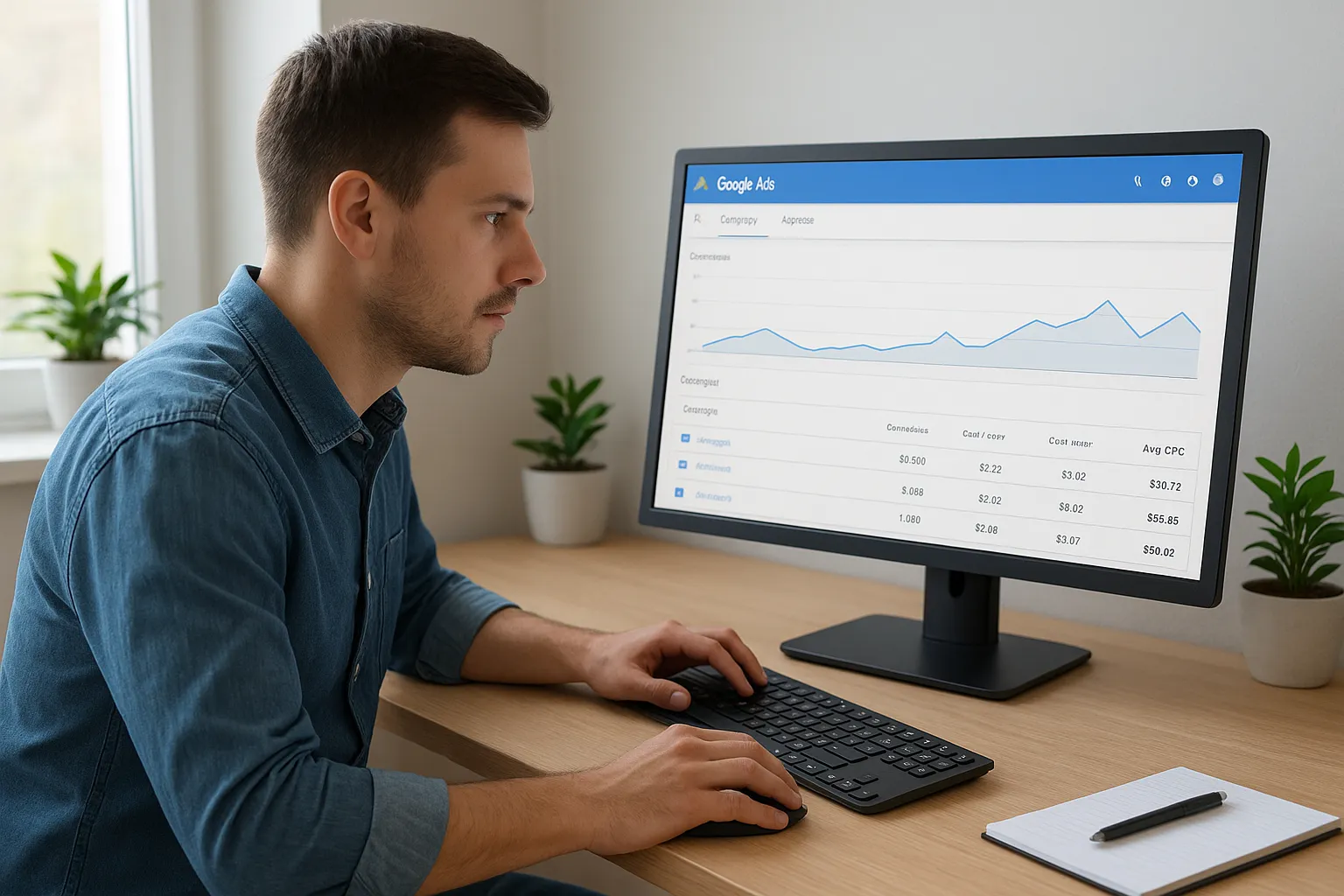
Once your tracking has run for a couple of weeks and passed your accuracy checks, you finally have something worth acting on. Log into Google Ads and open the Campaigns view, then add the "Conversions" and "Cost / conv." columns if they're not already showing. This is where you stop guessing and start making decisions based on which keywords and ads actually turn into phone calls and form fills, not just clicks.
Finding your winners and your dead weight
Sort your campaigns, ad groups, and keywords by cost per conversion, and you'll usually see a clear split within minutes. A handful of keywords are quietly generating most of your leads at a reasonable cost, while others have burned through hundreds of dollars without a single conversion to show for it. Pause or lower bids on the underperformers, then shift that budget toward the keywords already proving themselves.
The keywords generating your leads today should get more budget tomorrow, not an equal share alongside the ones that never convert.
Here's a quick way to sort what you're seeing:
| Signal | What it means | Action to take |
|---|---|---|
| Low cost per conversion, high volume | Your best-performing keyword or ad | Increase bids or budget allocation |
| High clicks, zero conversions | Wasted spend on the wrong audience | Pause the keyword or tighten match type |
| High conversion rate, low search volume | A hidden opportunity worth expanding | Add closely related keyword variations |
| Conversions look inflated vs. your CRM | Tracking issue, not a real trend | Re-check triggers before adjusting bids |
Letting Smart Bidding do the heavy lifting
Once you've got at least 15 to 30 conversions logged in a rolling 30-day window, you have enough data for Google's automated bidding strategies to work properly. Switching to Target CPA or Maximize Conversions at this point usually outperforms manual bidding, since Google's algorithm adjusts bids in real time based on signals you can't track manually, like time of day, device, and location patterns. Trying to turn on Smart Bidding before you hit that conversion threshold almost always backfires, since the algorithm has too little data to learn from and ends up guessing just as much as you were before.
Review this data monthly at minimum, weekly if your budget is over a few thousand dollars a month. Optimization isn't a one-time setup step, it's the ongoing payoff for doing the tracking work correctly in the first place.
Common conversion tracking issues and how to fix them
Even after a careful setup, conversion tracking breaks in predictable ways. Knowing what to check first saves you hours of digging through settings when the numbers look wrong. Most of the issues below show up within the first month of running google ads conversion tracking, and almost all of them trace back to one of a handful of root causes.
Zero conversions showing up
Google reporting no conversions at all usually means the tag never fired in the first place. Check these in order:
- Tag not installed on every page, especially if you added it manually instead of through Tag Manager
- Ad blockers or consent banners preventing the tag from loading for some visitors
- Wrong Conversion ID or Label pasted into the GTM tag configuration
- Ecommerce platform restrictions, like Shopify blocking header edits on certain themes
Zero conversions rarely means zero customers, it almost always means a tag that never fired.
Conversions that don't match your actual leads
When your Google Ads dashboard shows 40 conversions but your CRM only logged 15 calls, you're likely dealing with duplicate firing. This happens when a thank-you page reloads on a redirect, or when a single form submission triggers the tag twice because of a JavaScript error. Open GTM Preview mode, submit one test form, and count exactly how many times the tag fires. If it's more than once, tighten your trigger conditions before touching your budget.
Phone call tracking undercounting real leads
Call conversions get missed more often than form conversions, mainly because businesses only track clicks on a tel: link and ignore calls made from a Google Business Profile listing built for local search or a printed number. Set up call tracking that captures calls from all sources, and set a minimum call duration, usually 30 to 60 seconds, so hang-ups and wrong numbers don't inflate your count.
Attribution confusion after a website redesign
Redesigns break tracking more often than any other single event. Moving a form to a new page, renaming a thank-you URL, or swapping page builders can silently disconnect your triggers from the pages they're supposed to watch. Treat every redesign as a reason to re-run the full testing checklist from Step 5, not an afterthought once the new site is live. Skipping that recheck is how businesses run for months thinking their tracking still works when it quietly stopped weeks earlier.
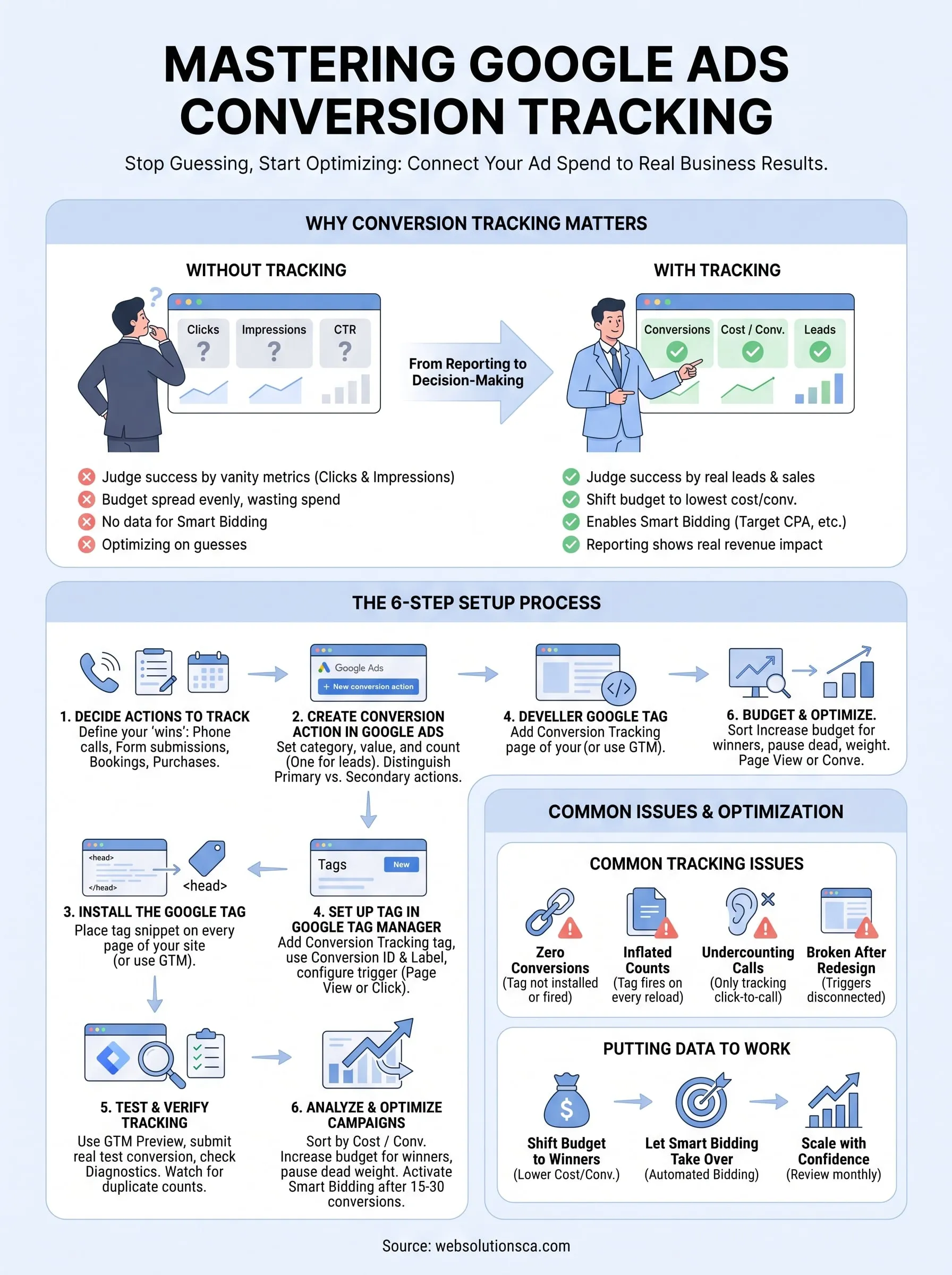
Putting your conversion data to work
Getting google ads conversion tracking right isn't a one-time task you check off and forget. It's the foundation that tells you which keywords deserve more budget and which ones have been quietly draining it for months. Once you've walked through choosing your conversion actions, building the tag, verifying it in GTM, and testing it against real leads, you finally have numbers you can trust instead of guesses dressed up as data.
Keep reviewing that data every month, and re-test your setup any time you touch your website. Tracking that worked in January can break silently after a redesign in June, and you won't know until your "conversions" quietly stop matching your actual calls.
If this whole process feels like more than you want to manage alongside running your business, that's exactly the kind of setup and ongoing management we handle for local businesses across Orange County. Take a look at our Google Ads management in Orange County and let's get your tracking built right.