
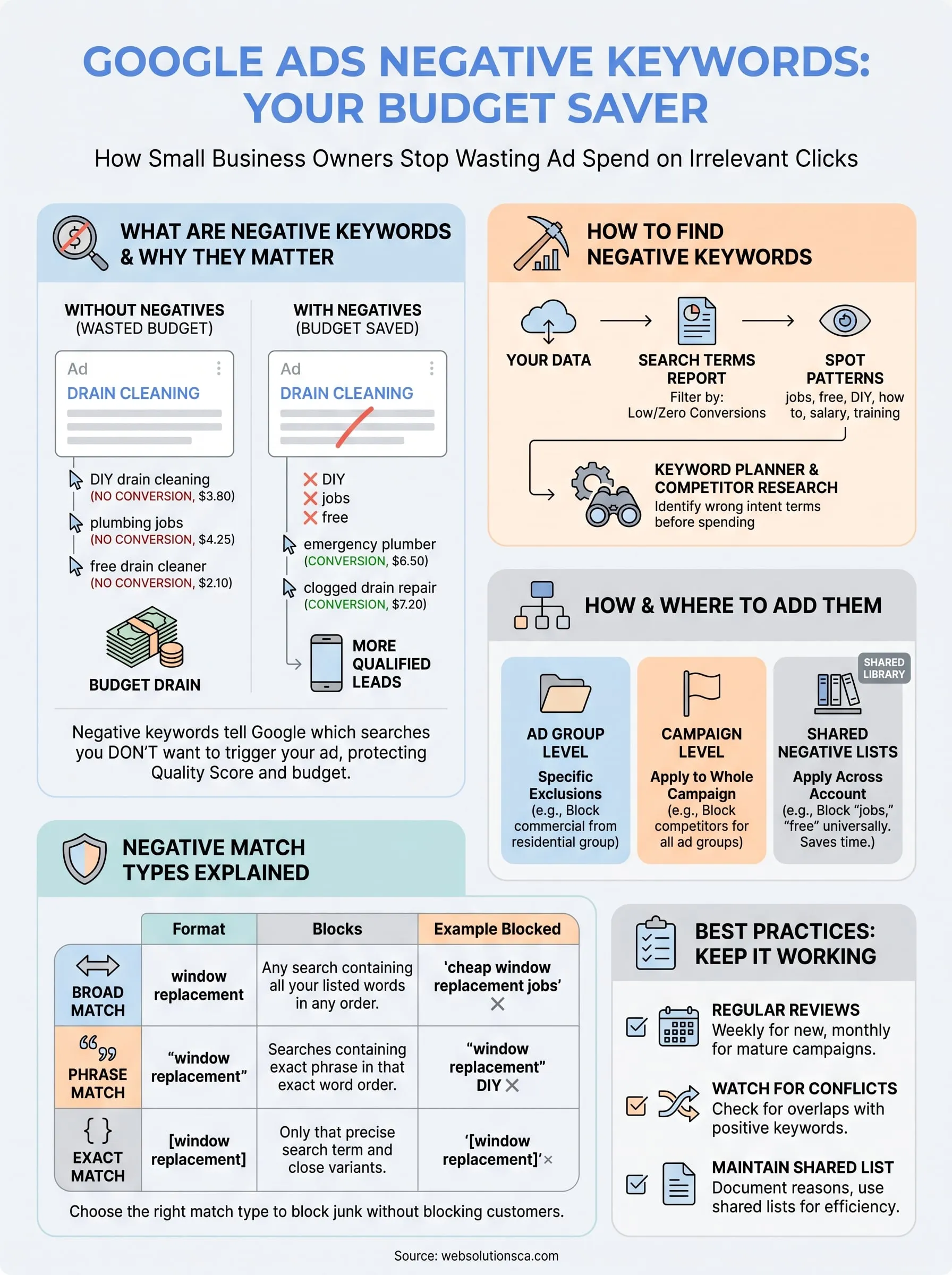
If you run Google Ads for your Orange County business, you have probably watched your budget disappear on clicks that never turn into customers. Google Ads negative keywords are the fix most small business owners never learn about until they have already burned through hundreds of dollars on the wrong searches. A negative keyword tells Google which searches you don't want to trigger your ad, so a plumber running ads for "drain cleaning" doesn't pay for clicks from someone searching "how to unclog a drain myself."
This article gives you a straight answer to what negative keywords do, why they matter, and how the different match types affect your results. You will learn how to find irrelevant search terms hiding in your account and how to add negative keywords at the right level, whether that's a single ad group or your entire campaign.
We work with local service providers across Costa Mesa, Irvine, and the rest of Orange County who come to us after months of wasted ad spend on Google Ads, usually without ever seeing what PPC management actually involves. This guide walks through the exact process we use to clean up campaigns, cut wasted clicks, and put that budget toward searches that actually convert into calls and leads.
Why negative keywords matter for your ad budget
Every dollar you spend on Google Ads goes toward one goal: getting the phone to ring or the contact form filled out, which is why tracking calls and form fills as conversions comes first. When your ads show up for searches that have nothing to do with what you sell, that budget disappears with nothing to show for it. Wasted ad spend is the single biggest reason small business Google Ads accounts underperform, and it almost always traces back to a missing or thin negative keyword list. A window installer targeting "window replacement" without negatives will pay for clicks from people searching "window replacement jobs" or "window replacement DIY," neither of which will ever become a customer.
The real cost of irrelevant clicks
Money bleeds out quietly because each individual click looks cheap. A $2 or $3 click doesn't feel like much until you multiply it by dozens of irrelevant searches every week, and what a click, lead, and month really cost adds up fast. Here's a simple example from a real Orange County service business before we added negative keywords:

| Search Term | Relevant? | Clicks/Month | Cost/Click | Monthly Waste |
|---|---|---|---|---|
| "emergency plumber Costa Mesa" | Yes | 40 | $6.50 | $0 |
| "how to become a plumber" | No | 22 | $4.10 | $90.20 |
| "plumber salary" | No | 15 | $3.80 | $57.00 |
| "plumbing jobs near me" | No | 18 | $4.25 | $76.50 |
Over a single month, that's roughly $223 spent on searches that could never turn into a customer, out of a modest daily budget. Scale that across a full quarter and you're looking at almost $700 in irrelevant clicks that a short negative keyword list would have blocked entirely.
How negative keywords protect your Quality Score
Beyond the direct dollar loss, irrelevant traffic drags down your click-through rate, and Google factors your click-through rate into Quality Score. A lower Quality Score means you pay more for the same ad position compared to a competitor whose account is cleaner, no matter which bidding strategy you choose. Fixing your negative keyword strategy doesn't just stop bad clicks, it makes every good click cheaper too.
Every irrelevant click you block is a click that gets to spend on a customer who's actually ready to buy.
Search intent matters more than search volume. A high-volume keyword phrase that pulls in curious researchers, job seekers, or DIY hobbyists will always cost you more than it returns. Small business owners with tight monthly budgets can't afford that math. If you're managing your own Google Ads campaigns without a negative keyword strategy in place, you're likely funding your competitors' Quality Score advantage while starving your own campaign of the budget it needs to reach genuinely interested customers.
How to find negative keywords for your campaigns
Finding the right negative keywords starts with data you already own. Your Google Ads account tracks every single search that triggered your ad, and that history is the fastest way to spot patterns worth blocking. Start by pulling the actual list before you guess at what might be wrong.
Mine your Search Terms Report
Open the Search Terms Report inside your campaign and sort by clicks with zero or low conversions. This single report exposes most of the waste in a typical account within minutes. Look for:
- Job-seeker phrases like "jobs," "careers," or "hiring"
- Research terms like "how to," "DIY," or "what is"
- Price-shopping terms unrelated to your service area, like "free" or "cheap"
- Brand names of competitors you don't want to associate with
- Location terms outside your actual service radius
Run this check weekly for the first month of a new campaign, then monthly once your account stabilizes.
The fastest negative keyword list you'll ever build is already sitting in your own Search Terms Report.
Use Keyword Planner and competitor research
Google's Keyword Planner shows related terms and search volume for phrases you're considering, which helps you catch problem terms before you ever spend a dollar on them. Search your core keyword and scan the suggested list for anything that signals the wrong intent, like "free," "template," or "course," the same habit that drives good keyword research for a local service business. Competitor ad copy is another useful source: if you notice competitors targeting a phrase that doesn't match what you sell, add it as a negative rather than letting your ad compete for it by accident.
Build an industry-specific exclusion list
Certain terms cause trouble in almost every industry regardless of location. Service businesses should routinely exclude "free," "DIY," "jobs," "salary," "training," and "reviews" unless those searches genuinely match your offer. Building this negative keyword list once and reusing it across every new campaign saves hours of repeated cleanup and stops the same wasted clicks from resurfacing every time you launch something new.
How to add negative keywords in Google Ads
Once you have your list, adding negative keywords takes only a few clicks inside Google Ads, but where you add them changes how they behave. You can apply negatives at the ad group level, the campaign level, or across your entire account through a shared list, and picking the right level saves you from repeating the same setup work every time you launch a new campaign.
Adding negatives at the ad group or campaign level
Navigate to Keywords, then select the Negative Keywords tab inside the campaign or ad group you want to fix. From there:
- Click the plus button to add a new negative keyword
- Choose whether it applies to this ad group only or the whole campaign
- Enter the term with the match type symbols if you want phrase or exact match
- Save, and Google stops serving your ad for that search immediately
Ad group level negatives work best when one ad group targets a specific service and needs its own exclusions, like blocking "commercial" searches from a residential-only ad group.
Using shared negative keyword lists
For terms that should block every campaign in your account, like "free," "jobs," or competitor names, build a shared negative keyword list under Tools and Settings, then Shared Library. Apply that single list to every current and future campaign, and you never have to retype the same exclusions again.
One shared negative keyword list applied correctly saves more time than manually fixing five separate campaigns.
Reviewing before you commit
Before saving any batch of negatives, double check that you're not accidentally blocking a phrase your actual customers use. A general contractor excluding "remodel" because of one bad search term could wipe out legitimate leads. If managing this feels like more than you want to handle alone, our team at Web Solutions CA builds and maintains these lists for Orange County clients as part of ongoing campaign management, so nothing slips through unchecked.
Negative keyword match types explained
Google Ads treats negative keywords with the same three match types as regular keywords, but the logic runs backward. Instead of expanding your reach, each match type controls how tightly you block a search. Getting this wrong is one of the most common mistakes we see in Orange County accounts, usually because an owner assumes negative broad match works the same way positive broad match does. It doesn't, and misunderstanding the difference either leaves gaps in your protection or blocks searches you actually wanted.
Broad, phrase, and exact match for negatives
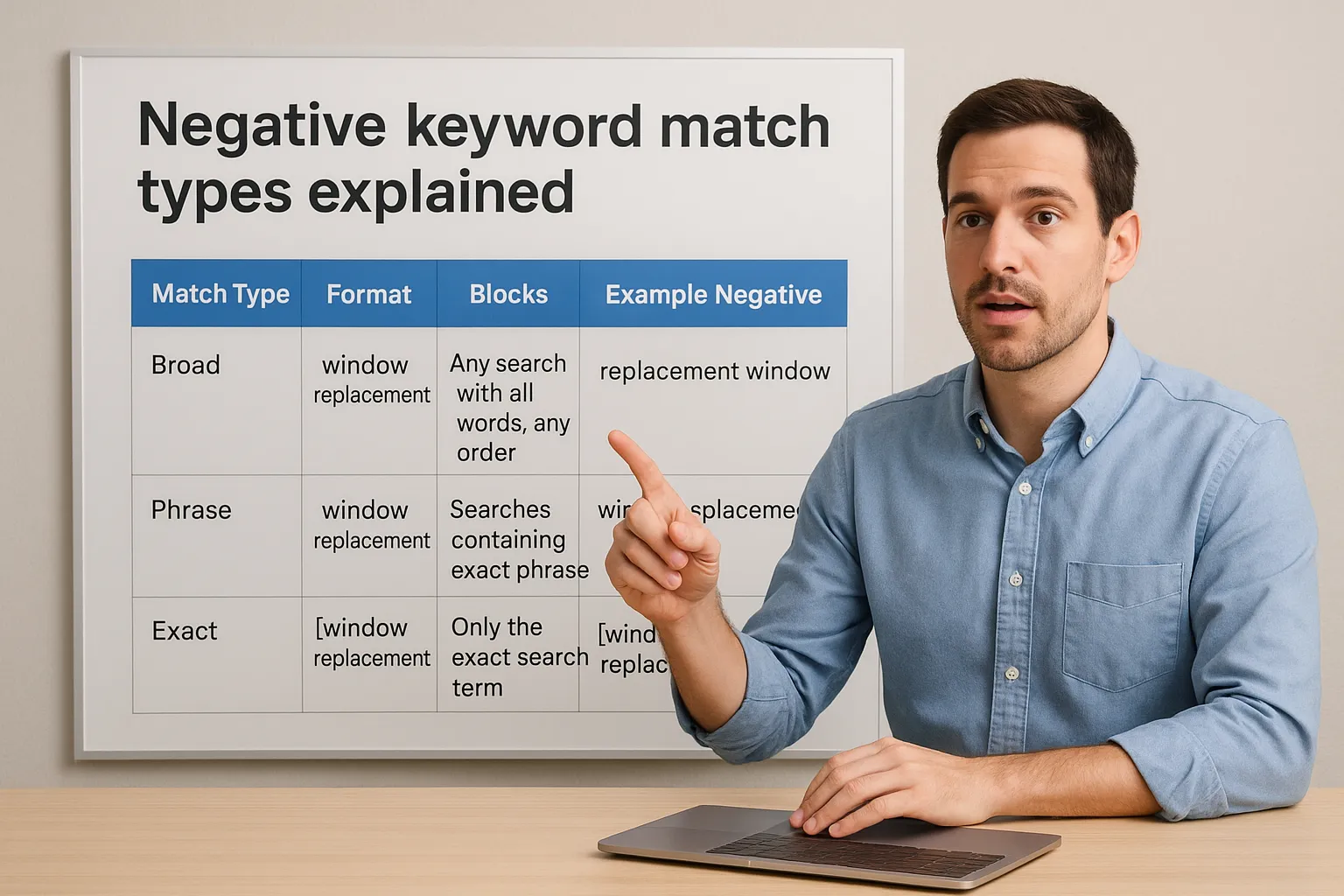
Negative broad match blocks any search containing all your listed words in any order, while negative phrase match only blocks searches containing your exact phrase in that exact word order. Negative exact match blocks only that precise search term and close variants, nothing broader.
| Match Type | Format | Blocks | Example Negative | Blocks This Search |
|---|---|---|---|---|
| Broad | window replacement | Any search with all words, any order | window replacement | "replacement window installer," "cheap window replacement jobs" |
| Phrase | "window replacement" | Searches containing exact phrase | "window replacement" | "window replacement DIY," "cheap window replacement" |
| Exact | [window replacement] | Only the exact search term | [window replacement] | Only "window replacement," nothing else |
Pick the wrong negative match type and you'll either block too much or block too little, so match your intent to the format.
Choosing the right match type for your goal
Use broad match negatives for words you never want appearing anywhere in a search, like "free" or "jobs." These single-word blocks catch the widest range of junk traffic with the least setup work. Reserve phrase match for multi-word exclusions where order matters, such as blocking "how to install" without accidentally blocking a legitimate phrase that shares one of those words. Save exact match negatives for the rare cases where you need to block one specific search term without touching any variation of it, which comes up less often but matters when a single high-cost phrase keeps triggering your ad for the wrong reason.
Best practices to keep your negative keyword list working
A negative keyword list isn't a set-it-and-forget-it project. Search behavior shifts, new products launch, and slang changes, so a list that worked perfectly in January can start blocking good traffic by summer. Treating your negative keyword strategy as an ongoing habit rather than a one-time task is what separates accounts that stay efficient from ones that quietly drift back into wasted spend.
Schedule regular reviews
Build a recurring calendar reminder to check your Search Terms Report and negative lists. New campaigns need weekly attention for the first month, since fresh keywords surface fresh problems fast. Mature, stable accounts can shift to a monthly check without much risk. Skipping this step for even a quarter is how a clean account turns back into a leaky one, at which point a full Google Ads account audit is the faster way to find the damage.
Watch for conflicts with your positive keywords
Every time you add a broad match negative, run a quick check against your active keyword list. A negative keyword conflict happens when a blocked term overlaps with a phrase you're actively bidding on, silently killing impressions you're paying to win. Google's own Search Terms insights can help flag when a keyword stops showing due to a negative match, so check that report before assuming a keyword is simply underperforming.
A negative keyword list you never revisit will eventually block the very customers you're trying to reach.
Keep a shared master list current
Document every negative you add and why, either in a spreadsheet or notes field, so anyone managing the account later understands the reasoning. Update your shared library list whenever you spot a new pattern across multiple campaigns, rather than fixing the same issue one campaign at a time. For Orange County business owners juggling ads alongside daily operations, this kind of ongoing maintenance is exactly the piece that slips when time runs short, which is why we build it into every Google Ads management plan we run for clients.
Putting negative keywords to work for your business
Getting Google Ads negative keywords right isn't a one-time fix, it's a habit that protects your budget month after month. Start with your Search Terms Report, block the obvious junk, choose the right match type, and revisit the list on a regular schedule. Small business owners in Orange County who skip this step end up funding clicks that were never going to convert, while their competitors quietly enjoy a cleaner, cheaper account.
Running ads well takes more than a smart keyword list, though. It takes a website built to convert those clicks once they arrive, a Google Business Profile that reinforces trust, and someone watching the numbers every week. If managing all of that on top of running your business sounds like too much, talk to us about done-for-you Google Ads management in Orange County, handled alongside your SEO and website as one system built to turn ad spend into real leads.