

The fastest way to protect local SEO after moving a business is to edit the address inside your existing Google Business Profile instead of creating a new one. Then make your name, address and phone number (NAP) match on your website and every directory listing, and track your rankings for a few weeks. Start these updates on move day, in that order, and most of the reviews and ranking history you built stay with you.
The problem is that a move changes things you cannot edit. Google ranks local results partly by distance, so a new address puts you in a different position relative to every searcher. Old listings keep advertising your former address, customers drive to the wrong place, and conflicting data makes Google less sure which address is real. Many owners update the website, forget everything else, and watch calls slip for months.
This guide walks you through five steps: audit your listings before the move, update your Google Business Profile, correct your citations, update your website, and rebuild trust signals while you track recovery. The examples lean toward an Orange County office moving a few miles across the county, which is the kind of cleanup we do at Web Solutions CA.
Why a move disrupts your local rankings
A move disrupts your rankings because Google chooses local results using relevance, distance and prominence, and a new address changes distance immediately while inconsistent data can weaken prominence. Google describes these three factors in its own help documentation. You control the data side completely. You control the distance side only partly, so the order of your updates matters.
What carries over and what does not
If you edit your existing profile, your reviews, photos and history stay attached to it. Your backlinks stay too, as long as your domain does not change. What does not carry over is your position relative to searchers, and every third-party listing keeps showing the old address until you change it.
| Asset | After a move | Your action |
|---|---|---|
| Google reviews and photos | Stay on the profile if you edit it | Edit the address, never create a new profile |
| Distance to searchers | Changes at once | Strengthen relevance and prominence to offset it |
| Directory listings | Keep showing the old address | Update each one (Step 3) |
| Website location signals | Still point to the old place | Update pages and schema (Step 4) |
| Backlinks | Stay if the domain stays | Ask linking sites to update the address |
What to have ready before you start
Gather your access and documents first, because verification can stall an otherwise simple update. Google may ask you to prove you operate at the new location, so be ready to show signage, equipment or a staffed counter. Also confirm the new address qualifies. Google's guidelines do not allow PO boxes or unstaffed virtual offices as a business location.
- Owner or manager access to your Google Business Profile
- Admin access to your website and domain registrar
- Logins for your main directories and social profiles
- The exact new address, including suite number, written the way you will use it everywhere
- Your move date, and a decision on whether the phone number stays the same (it should, if possible)
- A decision on whether you are a storefront or a service-area business at the new address
A move resets your distance to searchers, not your history, so edit the profile you already have.
Step 1. Audit your listings before move day
Spend a few days before the move recording where you stand and where your business name and address appear online. This gives you a baseline to compare against and a checklist to work through later. Skipping it is the most common reason owners cannot tell a normal dip from a real problem.
Record your baseline rankings
Pick five to ten searches that bring you customers, such as "[service] in [city]" and "[service] near me". Check them in a private browser window and take screenshots. A geo-grid rank tracker shows how your visibility varies across your area, but manual checks work if your budget is tight.
Also export the last 90 days of Google Business Profile performance: calls, direction requests and website clicks. Save these numbers somewhere safe. After the move, they tell you whether your rankings actually cost you leads or only your ego.
Build a listing inventory
Search Google for your business name, your phone number and your old street address in quotation marks. Each result is a place that will show stale data after you move. Add them all to a simple sheet like this one:
Directory | Listing URL | Login email | Old address shown | Updated on
Include the obvious ones, but dig for the forgotten listings: old chamber of commerce pages, a former landlord's tenant directory, industry associations, and partner pages. Those are the ones that quietly keep your old address alive.
You cannot fix a listing you never found, so inventory every place your old address appears.
Step 2. Update your Google Business Profile
Edit your existing Google Business Profile on the day you open at the new address, and do not create a second profile. Editing keeps your reviews and history attached, while a new profile splits them and creates a duplicate that can cause suspensions. Making the change on move day also means you can complete verification at the new location.
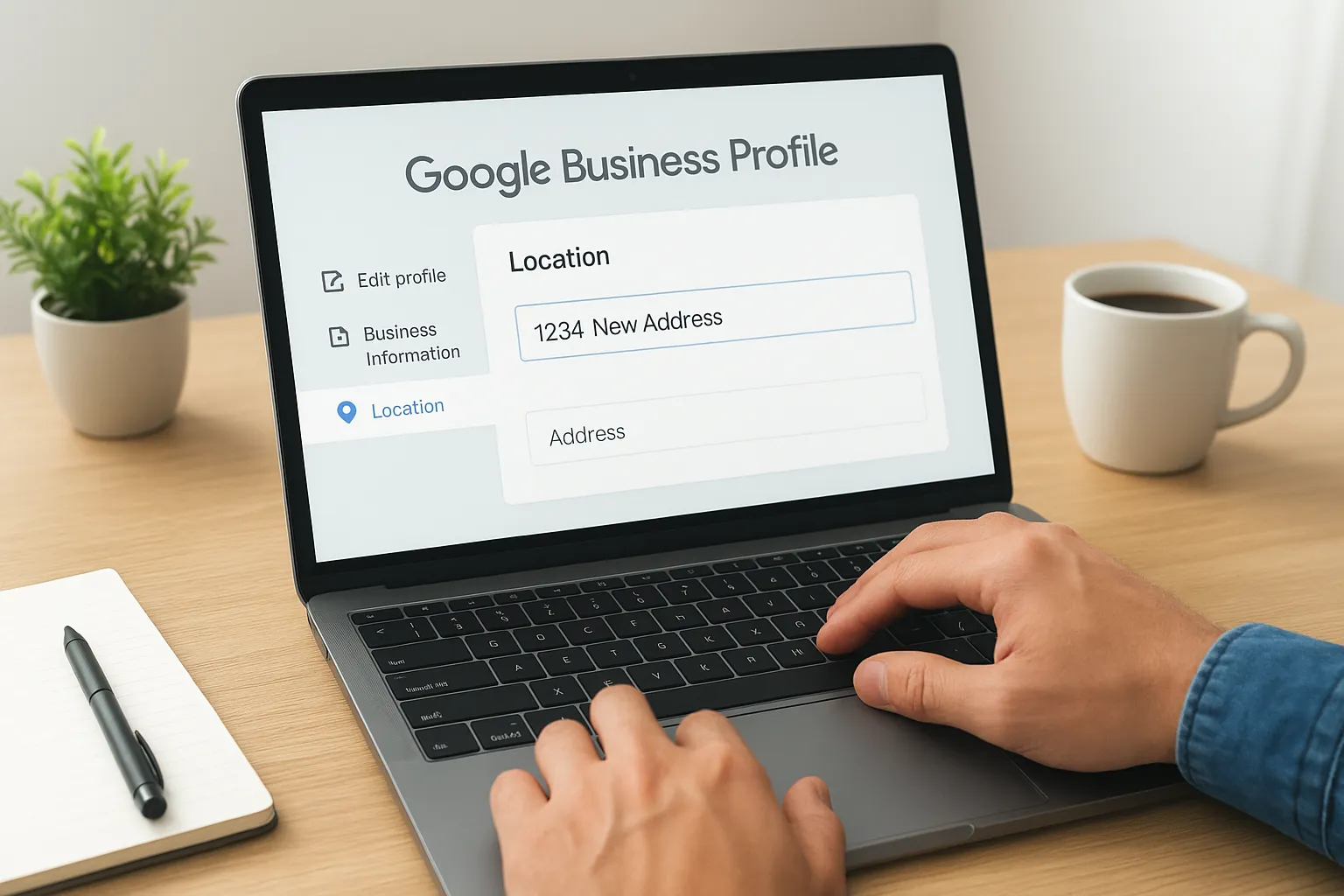
Change the address in place
Sign in to the Google account that owns the profile, search for your business name, and open the Google Business Profile editor. Then follow these steps:
- Open Edit profile, then Business information, then Location.
- Enter the new address exactly as you will write it on your website and in directories.
- Add special hours for move days so customers do not arrive at a closed door.
- Save, then complete any verification Google requests. Depending on your profile, that can be a video, phone, email or postcard.
If you work from clients' homes and do not serve customers at your location, run the profile as a service-area business and hide the address. Only do this if it is true. A storefront that hides its address, or a home office that shows one, invites trouble.
Review everything around the address
A new address is a good moment to audit the rest of the profile. Confirm your primary category, hours, phone number and website link. Update your service area to the cities you actually reach from the new location. If you moved from Santa Ana to Irvine, for example, decide whether Santa Ana stays in your service area or drops off.
Upload fresh photos of the new exterior, entrance and interior, and publish a short post announcing the move. Then check the profile every few days for two weeks. Users and automated systems can submit suggested edits that revert details, and it is much easier to reject one early than to notice a wrong address a month later.
Edit the old profile on move day, verify at the new location, and recheck it for two weeks.
Step 3. Correct your citations and directories
A citation is any online mention of your business name, address and phone number, and after a move you need every important one to show the new address. Work from the most influential platforms down to the long tail, using the inventory from Step 1. Consistent data tells Google your new address is the real one.
Update in priority order
Start with the platforms that people and other systems rely on most, then move down. Use identical formatting everywhere, including the suite number and abbreviations such as "Ave." or "Avenue". Pick one version and stick to it.
| Priority | Where to update | Why it comes first |
|---|---|---|
| 1 | Apple Business Connect, Bing Places, Facebook, Yelp | Heavily used by customers, and other directories pull from them |
| 2 | Data aggregators such as Data Axle and Foursquare | Feed address data to many smaller sites |
| 3 | BBB, Yellow Pages, chamber of commerce, industry associations | Trust signals that often rank for your name |
| 4 | Google Ads location assets, payment processors, email signatures, invoices | Not citations, but they spread the old address if left alone |
Updating a few dozen listings by hand takes patience, and some sites take weeks to refresh. Our Local SEO service includes a citation and NAP review for exactly this reason. If you do it yourself, log each change in your sheet with a date.
Remove duplicates and stale listings
A move often creates duplicate listings, because some directories treat a new address as a new business. Claim the duplicate and merge or delete it if the site allows. If you cannot claim it, use the site's "suggest an edit" or removal form. A stale listing that shows the old address can outrank your corrected one and send customers to an empty office.
Recheck your inventory two to three weeks after the move. Search the old address in quotation marks again. Whatever still appears goes back on your to-do list.
Consistent NAP across every listing is how Google learns your new address is the real one.
Step 4. Update your website to match
Your website needs to show the new address everywhere a visitor or crawler might look, and it needs matching structured data. Do this on move day, together with the profile edit, so Google sees the same address on both. A site that still advertises the old street undermines everything you just fixed.

Change every on-page mention of the old address
Search your site files or admin for the old street name, suite and ZIP code, then fix each hit. The usual places are easy to miss:
- Header, footer and contact page
- About page and any location or service-area pages
- Title tags, meta descriptions and image alt text
- The embedded map on your contact page
- Form confirmation emails, privacy policy and terms pages
- Invoices, PDFs and email signatures
Then update your city location pages. Create or improve a page for the city you moved to, with real details such as neighborhoods you serve and directions. If you still serve the old city, keep a page for it, but word it as "serving Santa Ana from our Irvine office". Do not leave a page claiming an office you no longer have.
Add LocalBusiness schema and handle URL changes
Structured data confirms your details to search engines. Add or update LocalBusiness markup on your home and contact pages, using Google's local business structured data guidelines. Replace the placeholders:
<script type="application/ld+json">
{
  "@context": "https://schema.org",
  "@type": "LocalBusiness",
  "name": "Your Business Name",
  "url": "https://www.yourdomain.com/",
  "telephone": "+1-555-555-0100",
  "address": {
    "@type": "PostalAddress",
    "streetAddress": "123 Example Ave, Suite 100",
    "addressLocality": "Irvine",
    "addressRegion": "CA",
    "postalCode": "92618",
    "addressCountry": "US"
  }
}
</script>
Keep your domain if you can. If your URLs must change, set up 301 redirects from each old page to its new equivalent, and follow Google's site move guidance. Test your markup with Google's Rich Results Test before you move on.
If your profile, website and schema all show the same address on the same day, Google has nothing to doubt.
Step 5. Rebuild reviews and track recovery
Once the data is clean, rebuild prominence and measure what happens. Rankings often wobble for a few weeks after a move, and the only way to know whether yours is a normal wobble is to compare against the baseline from Step 1. No one can promise your exact old positions will return, because your distance to searchers has genuinely changed.
Strengthen prominence signals
Ask recent customers for reviews, and mention the move when you do. New reviews show Google the business is active at the new address. Never offer incentives for reviews, which Google's policies prohibit. Reply to every review you receive.
Then spread the news. Email your customer list, post on social media, and contact the sites that link to you. Chambers, partners and associations can update the address and link in minutes. Earning one link from a business in your new neighborhood helps your local relevance there.
Track recovery on a schedule
Use a fixed schedule so you act on evidence rather than worry. This table covers the whole project:
| When | What to do |
|---|---|
| Before the move | Save baseline rankings and 90 days of profile data |
| Move day | Edit the profile, update the website and schema |
| Days 1 to 7 | Update priority citations, reject suggested edits |
| Weeks 2 to 4 | Finish remaining listings, remove duplicates, search the old address again |
| Weeks 4 to 8 | Compare rankings, calls and direction requests to your baseline |
Decide on a trigger in advance, such as a sustained drop in profile calls well beyond six weeks. If you hit it, or if verification keeps failing or the profile gets suspended, bring in help. Our Free Initial SEO Audit checks local SEO signals and Google Business Profile alignment, and ongoing Local SEO starts at $499.99 per month.
Judge your recovery against your baseline, not against how nervous you feel in week two.
Make the move official everywhere
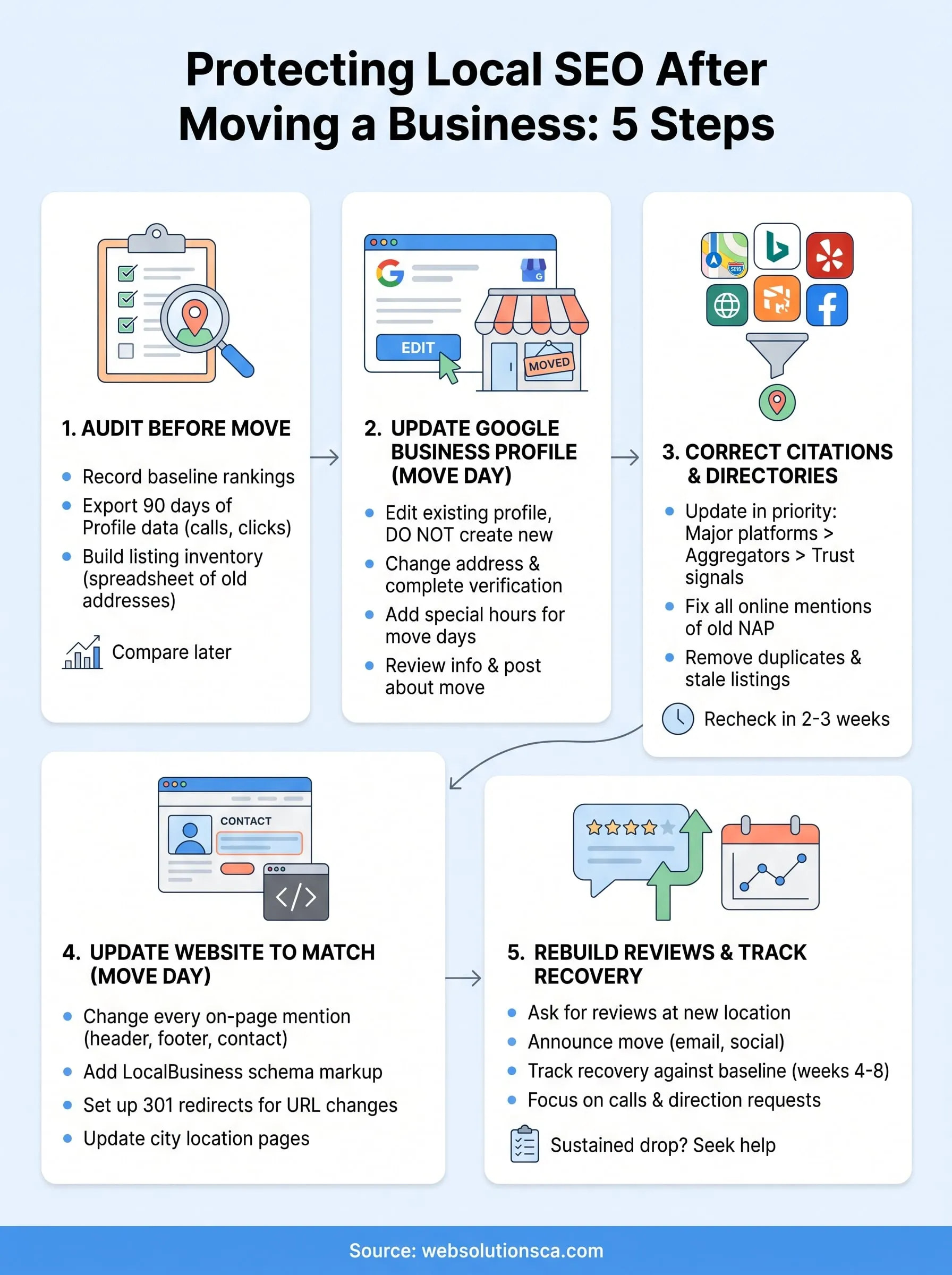
Local SEO after a move comes down to consistency and order. Record your baseline, edit your existing Google Business Profile on move day, correct your citations from the biggest platforms down, match your website and schema to the new address, and then rebuild reviews while you track results against your numbers. Skip the shortcuts, especially creating a second profile.
Expect a few unsettled weeks, and judge success by calls and direction requests, not only by rank screenshots. Keep your spreadsheet, because stale listings can resurface months later.
If you would rather hand this cleanup to someone who does it regularly, Web Solutions CA can run a free initial SEO audit of your listings, profile and site after your move and tell you exactly what still shows the old address.